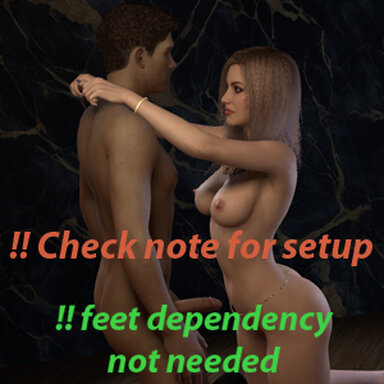


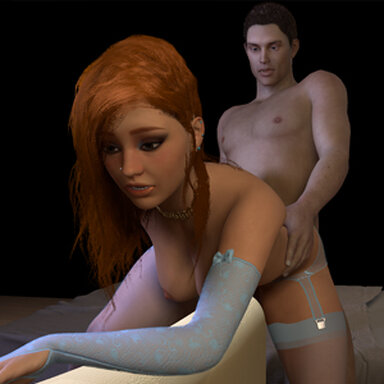
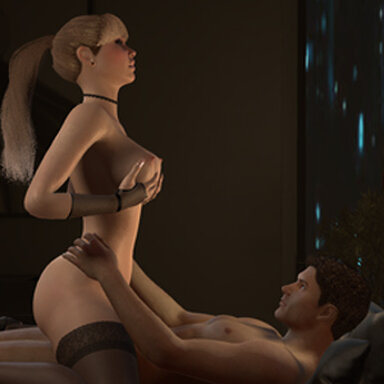
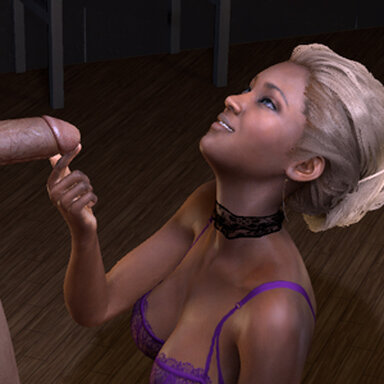
Lexi gets a visit from a client who upgrades his membership.
Also available through Satin stories launcher.
!IMPORTANT: if you don't alter/replace the lfe.keyboardshortcuts.json file, direct movement will not work
Before you load the scene:
1. Open Vam's root folder/Saves (root = where Vam is installed)
2. Open another window with Vam's root folder/addonPackages/Splurging_(Interactive_anim).var, and inside the var go to the Saves folder
3. Extract the lfe_keyboardshortcuts.json file from the var to Vam's root/Saves folder (if file is already present, rename the old one - important if you're already a user of LFE's keyboard shortcuts)
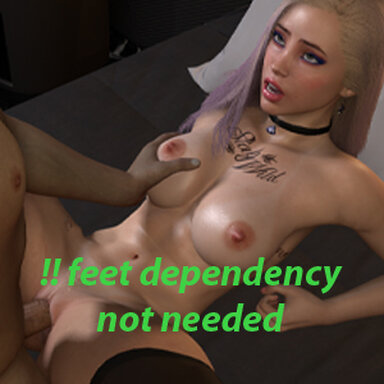
Feet dependency not required !
KEYBINDS:
F2 to toggle DIRECT CONTROL once you see the warning
F8 to toggle UI MODE
F9 - Vam cam; F10 - dynamic cam; F11 - Her POV; F12 - His POV
F4 - Restart scene
What is this interactive animation?
- Simply put, once toggled, your mouse movement directly controls a specific body part (in this case, the guy's hip) instead of moving it with Vam's normal system.
In a way, the user "creates" the animations, but the scene does have a series of systems for immersion.
Please note:
- Even if not all stories are "work" related, Satin stories do take place in a brothel.
- The scene was made with high quality soft body physics, text-to-speech function and desktop mode in mind. Other parameters used were (user preferences): pixel light count 4; physics rate 60hz; physics update cap 2.
Deviations from these settings may lead to unforseen results.
Features:
- Direct mouse user control with option for 2 positions
- Automated systems (ex: gaping, gagging, breath level, etc.)
- Text to speech audio and subtitles (both can be turned off)
- Cinematic camera and preset cameras
- UI for desktop and VR. I've altered some UI VR settings which should make it better, but it is still experimental. Feedback appreciated.


Instructions:
Open top menu-> scene browser-> Splurging_(Interactive_anim)
or
Open scene-> Aipas-> Splurging_(Interactive_anim)
Recommend VR USERS press F8 to toggle UI MODE
TRANSITIONS are running while the transition SIGN << >> located near the TOP RIGHT CORNER is on. DON'T USE CONTROL UI during it.
Press P for play mode and F1 to disable Vam's native interface
Final note: interactive anims are experimental. Might not do a lot of them in the future, at least not until I find a way to create a scene for release without users having to setup files outside the hub.
Also available through Satin stories launcher.
!IMPORTANT: if you don't alter/replace the lfe.keyboardshortcuts.json file, direct movement will not work
Before you load the scene:
1. Open Vam's root folder/Saves (root = where Vam is installed)
2. Open another window with Vam's root folder/addonPackages/Splurging_(Interactive_anim).var, and inside the var go to the Saves folder
3. Extract the lfe_keyboardshortcuts.json file from the var to Vam's root/Saves folder (if file is already present, rename the old one - important if you're already a user of LFE's keyboard shortcuts)
Feet dependency not required !
KEYBINDS:
F2 to toggle DIRECT CONTROL once you see the warning
F8 to toggle UI MODE
F9 - Vam cam; F10 - dynamic cam; F11 - Her POV; F12 - His POV
F4 - Restart scene
What is this interactive animation?
- Simply put, once toggled, your mouse movement directly controls a specific body part (in this case, the guy's hip) instead of moving it with Vam's normal system.
In a way, the user "creates" the animations, but the scene does have a series of systems for immersion.
Please note:
- Even if not all stories are "work" related, Satin stories do take place in a brothel.
- The scene was made with high quality soft body physics, text-to-speech function and desktop mode in mind. Other parameters used were (user preferences): pixel light count 4; physics rate 60hz; physics update cap 2.
Deviations from these settings may lead to unforseen results.
Features:
- Direct mouse user control with option for 2 positions
- Automated systems (ex: gaping, gagging, breath level, etc.)
- Text to speech audio and subtitles (both can be turned off)
- Cinematic camera and preset cameras
- UI for desktop and VR. I've altered some UI VR settings which should make it better, but it is still experimental. Feedback appreciated.
Instructions:
Open top menu-> scene browser-> Splurging_(Interactive_anim)
or
Open scene-> Aipas-> Splurging_(Interactive_anim)
Recommend VR USERS press F8 to toggle UI MODE
TRANSITIONS are running while the transition SIGN << >> located near the TOP RIGHT CORNER is on. DON'T USE CONTROL UI during it.
Press P for play mode and F1 to disable Vam's native interface
Final note: interactive anims are experimental. Might not do a lot of them in the future, at least not until I find a way to create a scene for release without users having to setup files outside the hub.




![[Unisex] Decals Pack 01](https://1424104733.rsc.cdn77.org/data/resource_icons/0/200.jpg?1590334554)
![[Unisex] Morphs](https://1424104733.rsc.cdn77.org/data/resource_icons/0/213.jpg?1590806147)