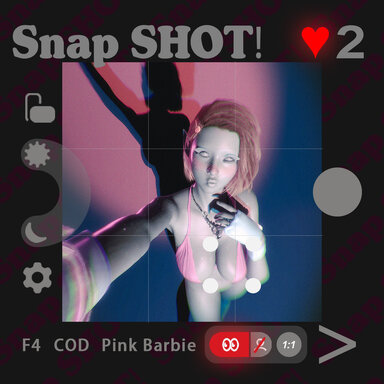


SnapSHOT!(app)
A Seamless Way to Capture the Moment.
Desktop Mode Only
Desktop Mode Only
Not a camera tool.
A moment,
already prepared.
Tap once.
Switch again.
The shot is ready
before you think about it.
( Studio )
SnapSHOT! launches into a clean, minimal studio environment.
The scene is intentionally stripped down:
no visual noise, no post-processing interference, no distractions.
Only the character and a single button in the bottom-right corner.
Character-related presets can be swapped freely inside the studio.
There is no PostMagic processing applied by default.
The interface clearly displays the current photography state, including:
- active configuration indicators
- photo counter
- favorite (Fav) counter
From the bottom-right corner of the screen, you can bring up the phone interface to access SnapSHOT! and basic settings.
( The App )
SnapSHOT! is presented as an in-scene mobile app.
Tap the button in the bottom-right corner.
A phone slides into view.
Tap the red **SnapSHOT!** logo.
You are now in capture mode.
No menus to dig through.
No panels breaking immersion.
The app exists *inside* the scene — not on top of it.
A height slider is provided to ensure proper grounding of the character.
Additional configuration options are available inside the settings menu.
The RESET pos button restores the character to the default pose group and resets lighting and wall distance, making calibration and testing quick and consistent.
( Flow )
SnapSHOT! is built around a simple idea:
You don’t set up shots.
You switch between them.
The system includes:
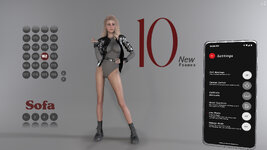
- 287 poses
- 2–3 fully designed camera setups per pose
- Each camera setup includes its own lighting, LUTs, bloom, and visual configuration
Each switch presents a complete, ready-to-shoot composition.
No framing required.
No lighting decisions required.
You stay in flow.
The system handles the rest.
If adjustment is needed, all controls are available through simple taps and sliders.
( Presets )
Left Panel — Configuration
The left panel is dedicated to configuration switching:
- Lighting: 13 preset groups + 1 empty slot
- LUTs: 8 presets + 1 empty slot
- Color Themes: 7 themes
- portrait / landscape orientation
- focal length switching (≈50mm & 26mm)
- brightness adjustment
- extra configuration panel toggle
- composition guide toggle
- Right Panel — Poses & Cameras
Right Panel — Pose & Cameras
The right panel handles pose switching and shooting.
- 287 poses in total for now
- Each pose includes 2–3 complete camera configurations
At the top of the panel, a heart icon allows you to mark any camera setup as a favorite (Fav).
Top Controls
The top-left corner displays the photo counter.
The large logo functions as:
- an exit button
- a shortcut back to the studio waiting area
Two levels of UI hiding are available.
The photo counter reset option is located in the phone’s settings menu.
( Control — Optional )
Extended Toolbar
By tapping the configuration button on the left panel, an extended toolbar appears at the bottom.

Here you can:
- switch freely between 7 aspect ratios
- toggle gaze direction
- enable or disable depth-of-field blur
- enable or disable bloom effects
- switch freely between 3 ENV Choice
- light angle
- Wall distance
- bloom intensity
- light intensity
( Highlights! )
Montage Fade-Out
A ~20s montage transition when exiting Photo Mode back to Studio Mode.
Features a beat-synced character animation, three camera cuts, and a final focus on the character’s face before fading out.
Paired with dynamic music and subtle beat synchronization.
Enabled by default. Can be disabled from the phone’s settings menu.
( The Core )

The heart of SnapSHOT! isplugin#6_VamEssentials.ScreenOverlay, located in 00_0LogicBrick.
This plugin:
- detects screen resolution in real time
- synchronizes canvas size and visual output
- ensures that captured images match exactly what you see on screen
The black bar system acts as a visual core:
- animated masking
- accurate aspect ratio simulation
- composition guides per ratio
If you use multiple monitors with different resolutions and move VaM between them, click Sync Screen Resolution to refresh canvas size, compensation logic, and black bar calculations.
Testing was performed on 16:9 and 16:10 displays.
Ultra-wide monitor feedback is welcome.
( Photo Wall )
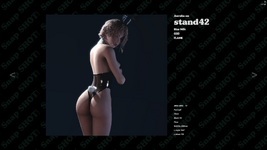
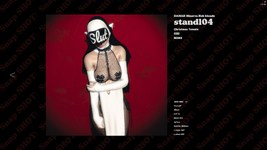
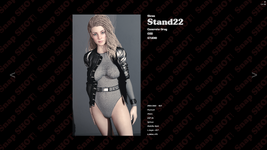
After each snapshot, a physical photo preview is generated directly on the studio floor —
a spatial, in-scene photo wall that reflects what you just captured.
Photos are displayed in front of the character, recreating a real-world studio contact-sheet feeling.
If a camera setup is marked as Fav, its photo will appear larger on the wall.
Key behaviors:
• Photos are session-based and cleared on scene reload
• Reset Counter in the phone settings will also clear the entire photo wall
• Designed for immediate visual feedback — enjoy your shots, right where they were taken
Advanced settings are available at:
Atom: "00_0LogicBrick"
Plugin: CameraSnapshotPlugin
Section: === Photo Wall Settings ===
Here you can fine-tune layout and behavior if needed.
Inspired by the FreezeFrame plugin by @Vam_SlesaR
( Performance )
Supershot Configuration
Aspect-ratio-specific Supershot settings are located in:
plugin#7_MacGruber.SelectChoice inside the 00_0Relay or Delay atom.
Output resolution and related parameters can be adjusted independently per aspect ratio.
Performance Tweaks
If you experience significant performance drops during shooting, especially when focus activates:
Disable High Frequency Mode in
plugin#0_PrettyFrank.Focus under the Dof Plugin point atom.
This reduces performance cost when the focus system engages.
 ( Orbit Mouse )
Orbit Mouse is an experimental feature, disabled by default and accessible from the phone’s settings menu.
It simulates subtle, smooth camera orbiting around the focus point based on mouse movement.
After entering the app:
- a detection ring appears near the center of the screen
- orbiting begins when the mouse enters the ring
- orbiting stops when the mouse leaves
plugin#4_MouseSnoothSession under 00_0LogicBrick.
( Special Credits )
- LogicBricks2
Optimized UI_Sync plugin with text alignment and rich text support
https://hub.virtamate.com/resources/logicbricks2.44283/ - Focus Plugin
Modified into the core focus system, detecting only character atoms
https://hub.virtamate.com/resources/focus-plugin.52718/ - Auto Flash
Simplified and repurposed as a camera flash
https://hub.virtamate.com/resources/auto-flash.42730/ - Positioner
Focus distance saving and additional helper controls
https://hub.virtamate.com/resources/positioner-main-camera-and-atom-positioner-plugin.35911/ - Clock Module
Simplified for basic time display
https://hub.virtamate.com/resources/clock-module.61369/ - Great Appearance From
@Metix @POGVR @pikavam @LoveDance @ddaamm @GilgameshVR @JoaJoa @Neiro
( Sound Credits )
- lucadialessandro-effect-for-logo-intro
https://pixabay.com/users/lucadiale...eferral&utm_campaign=music&utm_content=186595 - openmindaudio-podcast-sting-soft-pulse-opener
https://pixabay.com/users/openminda...eferral&utm_campaign=music&utm_content=464756 - UI Sound
SND: Crafted UI sound assets for UX developers
UI sound assets, developed in collaboration with multiple sound designers, are designed to fit the components used in many modern UIs.snd.dev
( Notes )
SnapSHOT! was separated from SlutShow to significantly improve loading speed.With the help of AI, a set of dedicated core plugins was built to:
- organize camera presets efficiently
- reduce duplicated logic
- minimize scene JSON size
I am not a programmer and have very limited coding knowledge.
Feedback and bug reports are greatly appreciated.
 .
.Some of these plugins may eventually be migrated back into SlutShow as replacement core components if long-term stability is confirmed.
( Known Issues)
- With complex clothing or high hair density, frame rate may drop and animations may slow down.
After pressing the shutter button, please allow a moment for the capture process to complete. - Black bars may be reflected by mirror plugins when the monitor aspect ratio differs from the selected output ratio.
- Audio matching may not be optimal.
- Desktop Mode Only!
( Closing )
SnapSHOT! is designed to disappear.
So the moment can remain.
So the moment can remain.
If you enjoy using this resource and would like to support its continued development, your support is always appreciated
:https://www.paypal.me/supperGR













![AutomaticBodySmoother [Session Plugin]](https://1424104733.rsc.cdn77.org/data/resource_icons/5/5235.jpg?1615279940)






![[Unisex] Morphs](https://1424104733.rsc.cdn77.org/data/resource_icons/0/213.jpg?1590806147)