


You are using an out of date browser. It may not display this or other websites correctly.
You should upgrade or use an alternative browser.
You should upgrade or use an alternative browser.
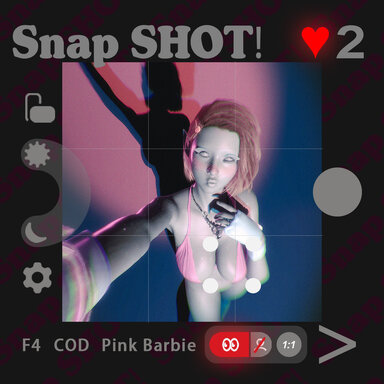
Scenes SnapSHOT! (app)
- Author supperGR
- Creation date
- Hub-Hosted VAR
- CC BY-NC-SA
SnapSHOT! – ver.6 Hotfix
Ultrawide Fix, Custom Cam Saving, Gallery Favorites & More
Important
- Fixed ultrawide screen support. Special thanks to @Jexx for the timely feedback and GREAT help with debugging!
- Now, no matter what aspect ratio your screen is, the black bars will automatically adapt when entering Photo Mode.
Added Custom Cam Configuration Save System
- You can now click the Save button in the toolbar and choose to save the current cam’s parameter configuration or camera position configuration.


Studio Mode Gallery — Favorite Display & Sync
- The Gallery under Studio Mode can now display whether the current pose is marked as a favorite.
- You can directly select favorite-marked poses from here.
- You can also mark favorites from the Gallery, and it will sync to Photo Mode.
- Please note: marking a favorite here will also mark all cams for the current pose as favorites. Likewise, if you un-favorite a pose from the Gallery, it will also un-favorite all cams for that pose.

Other Fixes
- Fixed the vacant-eye bug in the Gaze system.
- Fixed the issue where the Head Tracking button did not work.
- Redesigned the color theme fonts.
- Added two random lighting choices to the montage animation.
- Adjusted all lighting.
- Modified the skybox management plugin.
- Enriched the montage background.
- Adjusted some sound effects.
- 1
-
 1
1

SnapSHOT! – ver.5 Update
Massive Update — Full Experience Overhaul, Visual & Performance Improvements
This is a huge update. The scene has been optimized in every aspect, with significantly improved visuals and better performance. I have also heavily revised the main introduction page, including many images and videos.
Please check the main page for the complete experience demonstration videos
Major Updates
Full UI Management via UI Plugin
- All UI designs are now fully managed through a UI plugin.
- Fully integrated with audio, making the logic more unified and data synchronization more accurate.
- Saves a large number of atoms and greatly improves performance.
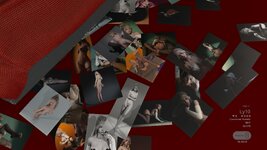
Photo Wall System — Major Overhaul
- You can now browse large photos directly inside the scene.
- Zooming and dragging are supported as basic operations.
- Photo configuration status is displayed simultaneously.
Photo Mode — Redesigned Buttons
- All buttons in Photo Mode have been redesigned.
- Improved responsive UI interaction.
- Combined with SND’s excellent UI sound design, the overall experience is greatly enhanced.
Studio Mode — Pose Selection System
- Introduced and customized the button management system from SlutShow.
- Freely select any pose.
- Mouse wheel scrolling now supports page up / page down control.
Phone Interface — Full Optimization
- More modern UI layout.
- More realistic phone interaction logic.
- Even a lock screen page has been designed.
Exclusive Montage Transition When Exiting Photo Mode
- A specially designed montage transition gives every photo session a complete ending.
- This is one of the highlights of this update!
- Enabled by default. Can be disabled from the phone settings page.
History Back Button
- Added a back button on the left side of Photo Mode.
- Click to switch to the previous pose.
- Includes memory function and supports multiple steps back.
- Special thanks to @Yziks and @VaMRainey — this was their suggestion!!!!!!
Light Intensity Slider
- Added for different skin tones and special effects.
Screen Roll Control in Photo Mode
- New roll control on the left side.
- Adjust in 5-degree increments each time.
Performance Improvements
- Photo Mode response speed greatly increased through plugin optimization.
- Scene loading speed improved.
Other Updates
- Added a number of new poses and camera angles.
- Added Void environment option — hides the ground and creates a solid-color background.
- Exiting Photo Mode now automatically teleports to the base camera angle.
- Any pose or configuration changes made in Studio Mode are restored immediately when entering Photo Mode, returning to the exact pose and camera angle from when you exited, with all settings restored. (Experience consistency)
- Phone automatically hides when put away.
- Added bleed borders for photos.
- Added pose exploration progress display with incremental emphasis.
- Added incremental emphasis for the photo counter.
- Optimized random pose switching logic:
- 90% chance to switch to an unexplored pose each time.
- No repeats within 10 poses.
- Adjusted the animation for entering Photo Mode and added special effects.
- Added more sound effects.
- Added interaction to the Photo Wall — hover to display photo tags.
- Adjusted the debug area position to the top of the scene. Not recommended for normal use.
- ....
Important — Dependencies
Some dependency plugins have been updated, and new dependencies have been added. Please make sure to download and complete all required dependencies before using this version.
Enjoy your creations — every captured moment is displayed right in the studio!


SnapSHOT! – ver.4 Update
Photo Wall System & Workflow Improvements
New: Photo Wall System (Plugin)

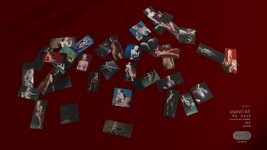
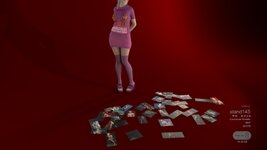
- After taking a photo, a preview print will be generated on the ground in front of the character while in Studio Mode, simulating a real photo wall / instant photo experience.
- If a camera angle is marked as Fav, the generated photo will appear larger on the photo wall.
- The photo wall is cleared every time the scene is reloaded.
- Using Reset Counter in the phone settings menu will also clear all photos on the photo wall.
- Photo wall parameters can be adjusted at:
Atom: 00_0LogicBrick
Plugin: plugin#9_CameraSnapshotPlugin.CameraSnapshot
Section: === Photo Wall Settings ===
Huge thanks to @Vam_SlesaR — the Photo Wall system would not exist without the inspiration from his amazing Freeze Frame plugin!!
Automatic Aspect Ratio Switching
- All poses and camera angles now have a best-fit default aspect ratio.
- When switching camera angles, the system will automatically select the most suitable frame ratio.
Other Improvements
- Optimized Bloom intensity across all camera angles (many were previously too strong).
- Refined a large number of camera setups and their default parameters.
- Fixed incorrect positioning for Male / Futa genital setup. @VaMRainey
- Basic importing is now possible.
- Due to pose-dependent deformation differences, results may vary and are not fully universal yet
Enjoy your creations — all your captured moments are displayed right in the studio!


This v3 update is a required bug-fix release.
A spelling error has been fixed that previously prevented the “Pink Barbie” theme from switching correctly.
With this issue resolved, the Pink Barbie theme can now be enabled and switched normally, behaving consistently with the other themes.
While the change itself is small, it affected a core visual feature, so updating is strongly recommended.
Special thanks to @OriginalCustard and @VaMRainey for identifying the issue and bringing it to attention.

Version 2 Update: Local Storage Enhancement
We’re excited to announce the latest version of the SupperGR ShotSequence Manager Plugin, packed with key improvements to enhance your experience. This update introduces local storage for critical data, ensuring your counters and settings persist even when the scene isn’t saved.
What’s New in v2:
1.
Local Counter System
- The SHOT counter (photo counter) is now stored in a local configuration file.
- The FAV counter (favourite cam counter) is also saved separately.
- Data persists across sessions, even if you close the scene without saving.
- Location: Saves/PluginData/SupperGR/ShotSequenceManager/CountingConfig.json
2.
- Favourite cam marks are saved locally, allowing them to persist between scene loads.
- When you mark a cam as a favourite, it will stay marked until you manually reset it.
- Favourite cams are clearly indicated with a heart symbol (♥) in the pose dropdown menu.
3.
Backup and Restore System
- You can now manually back up your entire plugin configuration.
- Backup location: Saves/PluginData/SupperGR/ShotSequenceManager/backups
- Restore from backups at any time to recover important settings.
4.
What This Means for You
- No need to save the scene to preserve your counter progress and favourite settings.
- Your favourite cams will be remembered across sessions automatically.
- Scene files stay minimal and free from unnecessary data bloat.
- Separate data management: counters and scene data are now independent.
How It Works:
Before:
Now:
- Counters were saved in the scene file, requiring the scene to be saved to keep data.
- Counters and favourite marks are saved locally, ensuring persistence without the need for scene saves.
- Scene files are leaner, faster load times, and no longer burdened with counter data.
Why This Matters:
- Persistent experience: Counters and favourite settings are saved locally, so you don’t have to worry about losing your progress.
- Scene files stay clean: Only scene-specific visual data is saved in the scene file.
- Improved performance: Faster scene loading times and reduced file size.
Best Practices:
- Continue using the plugin as you normally would — everything will work automatically.
- Counters and favourite marks will persist even if the scene isn’t saved.
- Use manual backups to safeguard your configurations.
Technical Details:
- Backward compatibility: No need to change anything in your existing scenes.
- Data migration: Old scenes will automatically generate local configuration files.
- Performance optimization: The plugin runs smoothly without any scene load delays.
- Privacy-focused: All data is stored locally on your machine for full control.
Important Notes:
- Manual reset is available to clear counters or favourites at any time.
- Backup files can be restored if necessary, ensuring your settings are never lost.
- Local data is now fully independent of scene saves, keeping your workflow simple.
User Experience Enhancements:
- Instant feedback when marking favourite cams.
- Visual indicators (♥) clearly show your favourite cams in the dropdown menu.
- No more save anxiety — counters and favourites will always be there when you need them.
Enjoy the freedom to work without worrying about saving your scene! Your data is safely stored locally, ensuring you can keep creating without interruption