

Overview
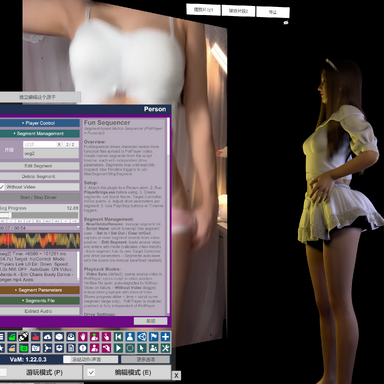
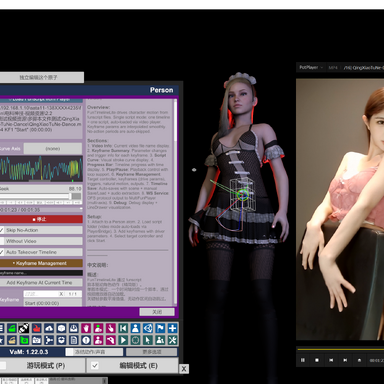
The well‑known Timeline plugin is a staple for nearly every scene creator, yet achieving natural motion for key body regions such as hips, pelvis and head remains a common pain point. Funscripts are community‑created timed motion curves originally built for OSR interactive hardware. OSR has evolved to OSR6, supporting six degrees‑of‑freedom to faithfully reproduce hip, pelvis and head movements. A vast library of video‑paired funscripts is available on discuss.eroscripts.com.This plugin loads funscripts to drive motion for key body regions. Combined with reference video, keyframe triggers handle environment, clothing and pose switching. Together with the original audio from source videos, you can rapidly build narrative‑driven scenes.
Who can benefit from this plugin
- VaM Scene Creators struggling with natural character motion
Reuse community funscripts to animate key body parts, removing the need to author full Timeline animations from scratch. Note that this plugin only drives primary key body regions. For supplementary natural‑behaviour animation on other body parts, complementary plugins such as BodyLanguage are recommended. You may still use vanilla Timeline to craft reusable hands, facial expressions and secondary‑body‑motion clips.
- OSR Enthusiasts
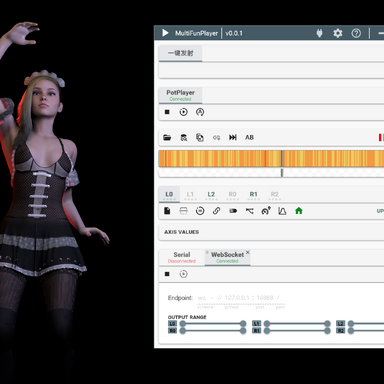
While ToySerialController can export VAM scene motions into OSR‑compatible T‑Code, most VAM scenes are made purely for visual presentation. Their animations often translate poorly to physical OSR hardware — motions can be too subtle, overly aggressive, or monotonously repetitive. By contrast, community funscripts are optimised for OSR hardware; highly‑rated scripts have been vetted through extensive real‑world user testing. This plugin transmits embedded funscript data over the WebSocket protocol to script players such as MFP, enabling far more lifelike physical OSR movements.
Core Features
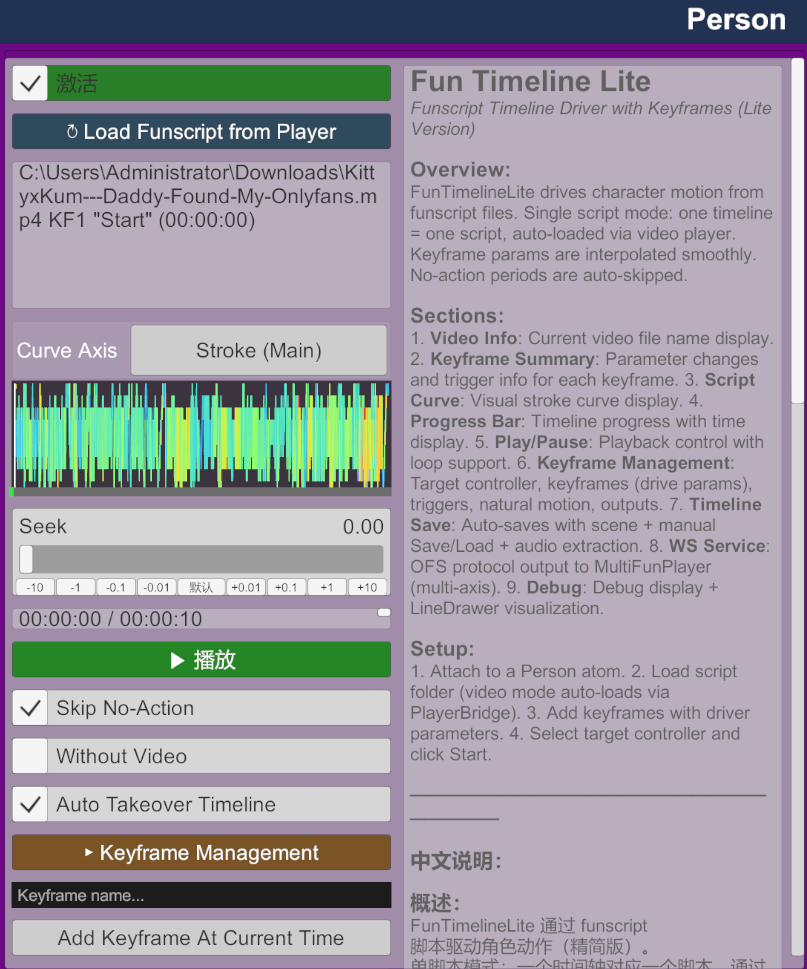
- Import funscript files by click Load Funscript from Player (in V2 and later versions, you can also load local funscript files directly without PotPlayer bridge)
- Timeline‑keyframe system: add keyframes at any time position, each storing independent drive parameters (direction, axis range, drive mode, auto gain)
- Automatic no‑action period detection and skipping for cleaner playback (in V2 and later versions, adopts a more flexible manual mask‑adding mode)
- Three physical drive modes: Physics Link / Force / Direct
- Six‑axis independent control: stroke, surge, sway, twist, roll, pitch
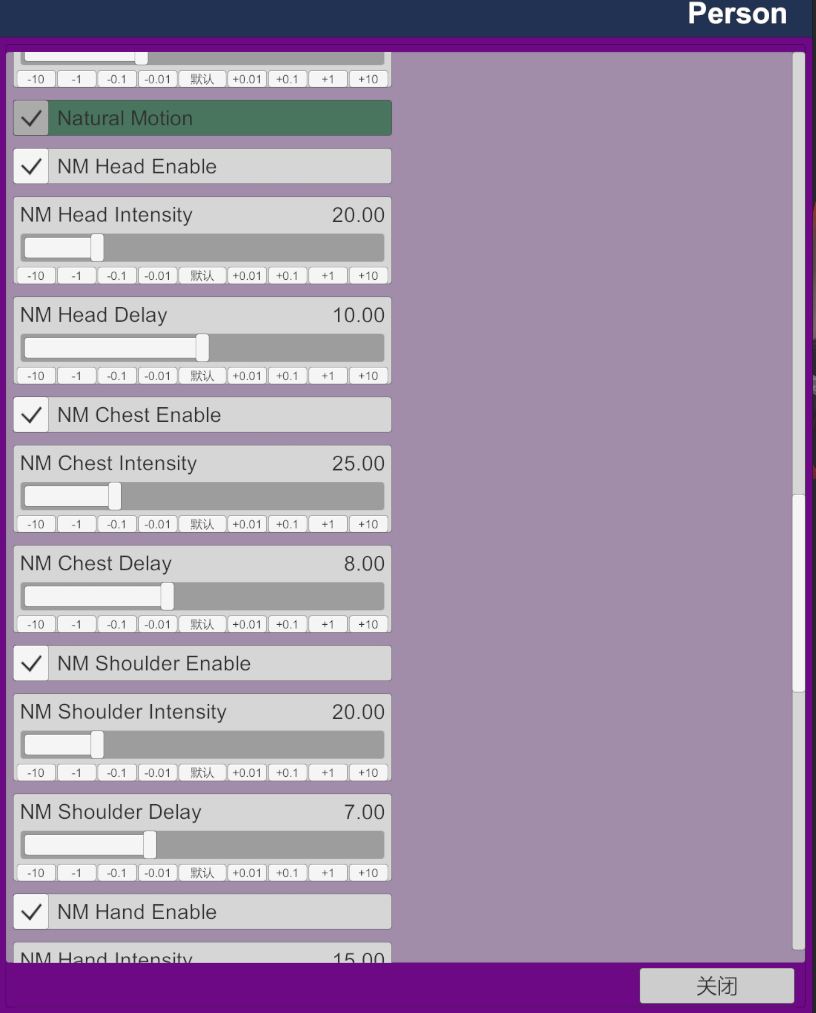
- Natural Motion secondary follow system: adds linked subtle movement for head, shoulders, chest, arms, hips and limbs
- Auto Takeover Timeline: automatically yields Timeline controller weight on play, restores on stop
- Without Video mode: run funscript‑driven motion without any video file
- Script Curve visualization: real‑time stroke curve display
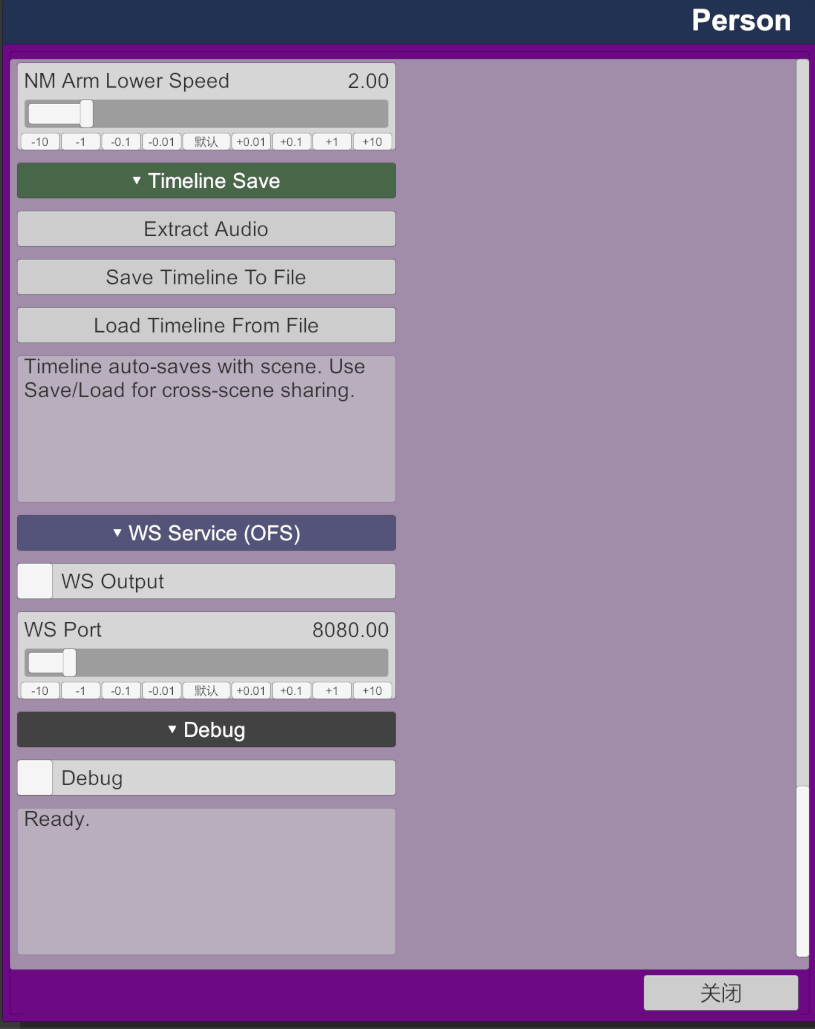
- Built‑in OFS WebSocket output: forward multi‑axis funscript data to MultiFunPlayer
- Integrated audio extractor to export matched audio clips from source video (in V2 and later versions, you can separately extract character vocals and background audio for better lip‑sync support. Related tools are available in the nb‑VaMTools GitHub repository)
- All timeline configurations persist directly within your scene file
Usage Guide
First run PlayerBridge.exe to enable linkage between the plugin and PotPlayer (In V2 and later versions, this requirement is no longer mandatory. You can load funscript files directly). Place AudioExtractor.exe into the custom directory (this file is unnecessary if you do not require audio extraction).Note: Due to strict review policies for executable files on the Hub community, no EXE files are included within this plugin archive. Users may compile PlayerBridge.exe and AudioExtractor.exe themselves by building PlayerBridge\PlayerBridge.cs and AudioExtractor\AudioExtractor.cs contained in the archive. Pre‑compiled binaries are also available for download on GitHub: nb‑VaMTools
- Load the plugin onto your character atom. (In V2 and later versions, dynamic binding to different character atoms is supported)
- Open your script‑enabled video within PotPlayer. (In V2 and later versions, you can also work without PotPlayer entirely)
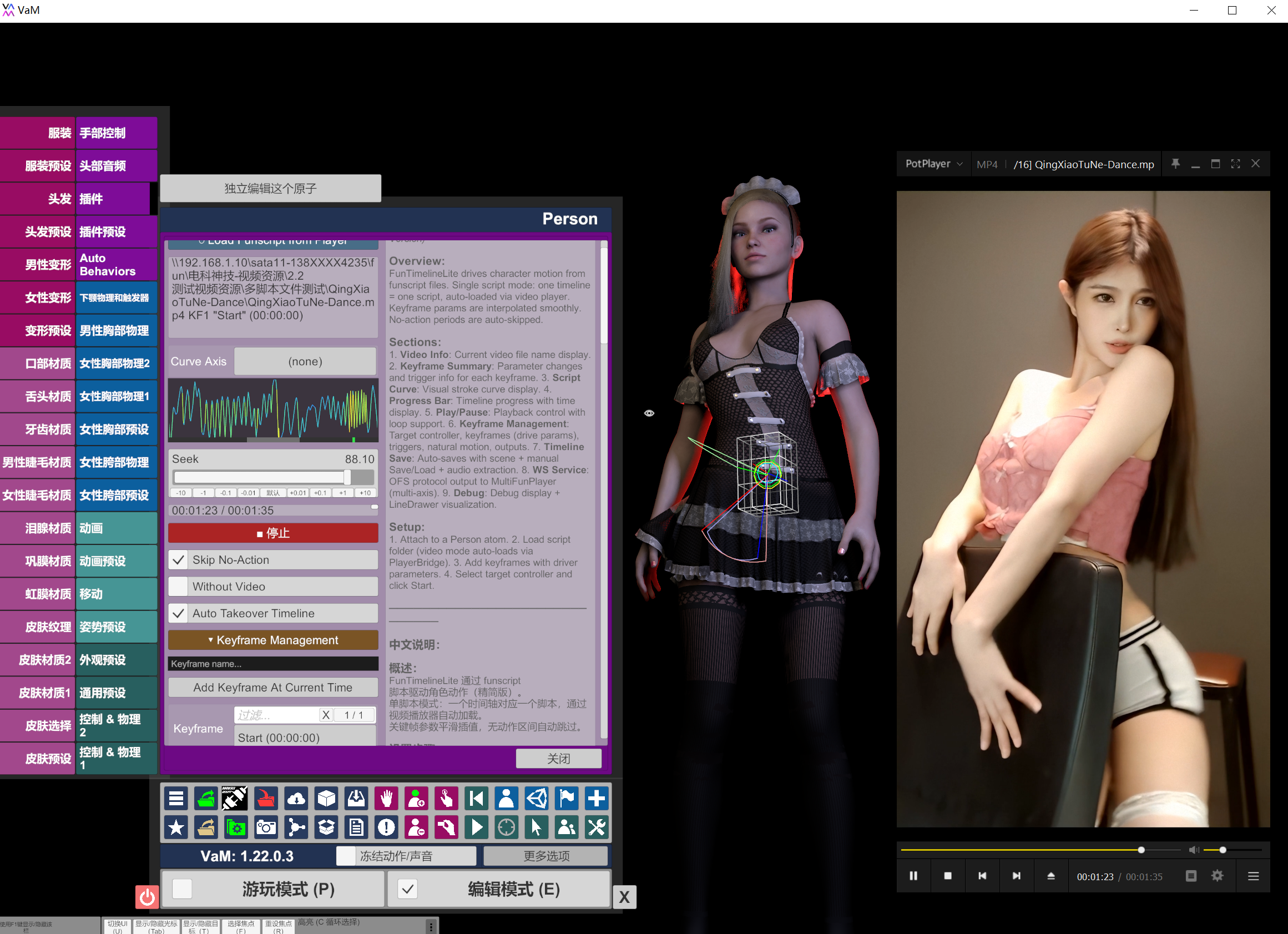
- Open the plugin UI and click Load Funscript from Player to load the funscript into the plugin. (In V2 and later versions, it will automatically look for video files in the same directory. You may set video manually if none is found. Full functionality remains available even when no video exists for the funscript)
- Add keyframes at desired timeline positions and configure drive parameters for each keyframe. (besides driven parameters you can also configure poses, clothing presets, lighting and more scene elements)
- Hit Play. The plugin will automatically take over Timeline control of the target controller, with motions driven by the funscript.
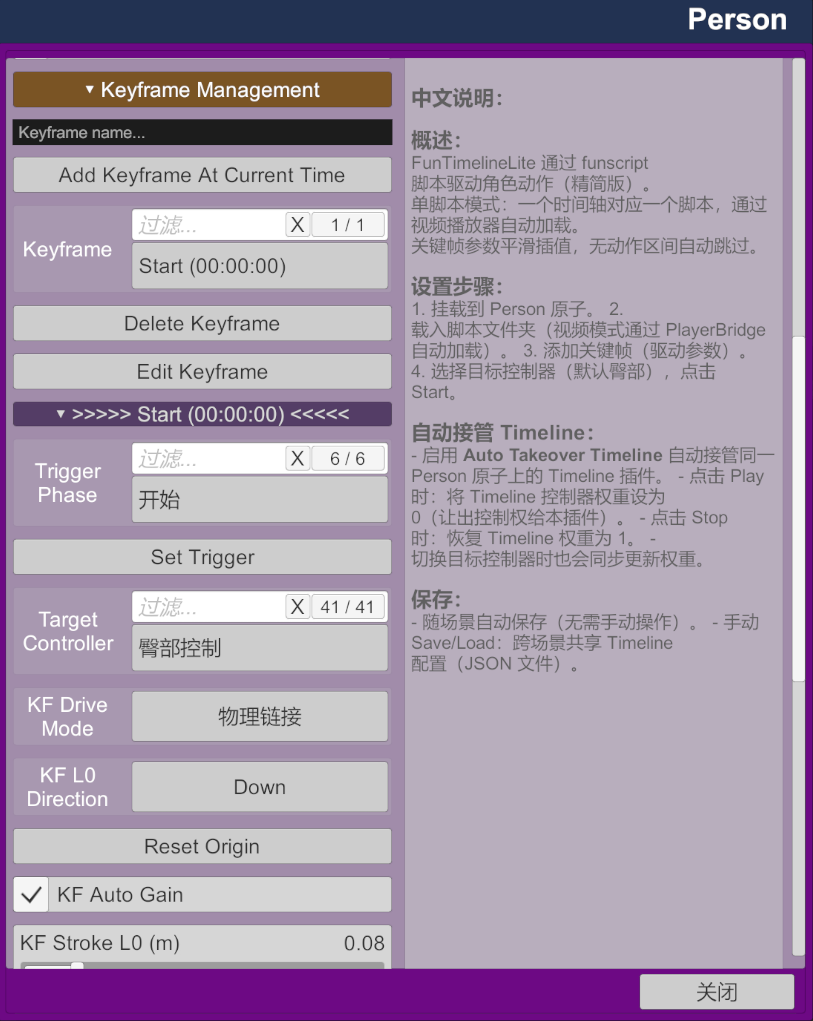
‑ Target Controller: Body part driven by the script
‑ KF L0 Direction: Principal‑axis orientation. For example, set to Down for dance animations; set to Back for dual‑interactive combat‑style scenes.
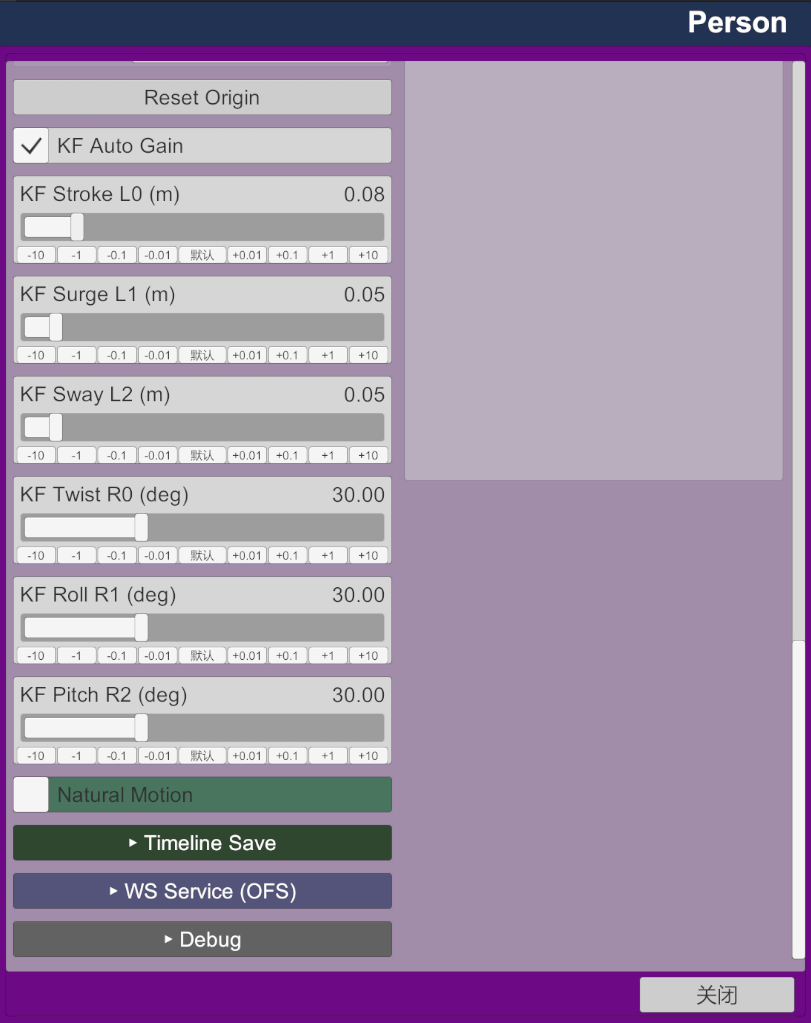
‑ KF L0 ~ KF R2: Six‑axis range of motion per keyframe
‑ KF Auto Gain: Adaptive amplitude compensation for more consistent motion
‑ Natural Motion: Enables natural follow‑through movements for the head, shoulders and hands. This produces stochastic secondary motion. Disable this option if your scene already has pre‑configured head‑shoulder‑hand animations. It is recommended to enable it under frozen or static‑pose conditions.
‑ Auto Takeover Timeline: When enabled, automatically sets Timeline controller weight to 0 on play and restores to 1 on stop.
‑ Without Video: Run funscript‑driven motion independently without opening any video file.
‑ Debug: Toggle this on to diagnose motion‑related anomalies.
The video below demonstrates the basic steps for building a demo scene using masks and keyframes. Refer to the V2 update notes for the complete demo‑scene creation workflow.
This video shows how to use the mask tool to skip script segments with no motion or non‑plot‑driven dialogue. After masks are configured, FunTimeline automatically skips those sections of the script.
This video covers pre‑production preparation, including pose presets and clothing presets. Adding head‑hand motions and expressions via AcidBubbles.Timeline can make character movements look more natural.
This video walks through creating one scene sequence. First add keyframe p1‑0 at the start of the sequence. This keyframe is used for sequence preparation; you can use fade‑out to darken the scene for smooth cloth and pose transitions. Then add keyframe p1‑1 three to five seconds after p1‑0 to mark the official start of driven motion. Configure driven‑mode parameters, trigger the FunTimeline restart event, and add the resetorigin event if needed. Play back to preview and fine‑tune the driven parameters.
This shows the creation of the second sequence, which follows largely the same workflow as the first sequence.
OSR driving modes:
‑ Plugin playback position is synced with PotPlayer, allowing PotPlayer to feed into MFP for OSR driving.
‑ The plugin can also drive OSR via the WS protocol: enable WS Output on the plugin side, and select OFS as the input source within MFP.
Save & Portability
All timeline parameters (keyframes, triggers, drive settings) are automatically saved with the scene file. Manual Save/Load to JSON is also supported for cross‑scene sharing. Audio extraction from video is supported, so you can publish your finished scenes.
Notes
When using video files stored on network SMB/UNC shared paths: You may encounter compatibility issues in Video Sync preview mode and audio extraction. For audio extraction, it's recommended to copy the generated batch command and run it manually in CMD to avoid access failures.中文版
概述
广为人知的 Timeline 插件几乎是每位场景创作者的必备工具,但想要实现臀部、髋部、头部等关键身体部位的自然运动,一直是一个常见难题。Funscript 是社区制作的时序运动曲线,最初为 OSR 交互硬件开发。OSR 现已迭代至 OSR6,支持六自由度,能够精准还原臀部、髋部与头部的运动。在discuss.eroscripts.com社区可以找到大量配套视频的 Funscript 脚本资源。本插件加载 Funscript 文件来驱动关键身体部位运动;配合参考视频,关键帧触发器可完成环境、服饰以及人物姿态的切换。结合源视频自带的原生音频,你可以快速制作带有叙事情节的场景。
适用人群
难以做出自然人物动作的 VaM 场景创作者
复用社区现成的 Funscript 来驱动关键部位,无需从零编写整套 Timeline 动画。请注意,本插件仅负责核心关键身体部位的驱动。若需要其他身体部位的辅助自然动作,推荐搭配 BodyLanguage 这类互补插件。你依然可以使用原生 Timeline 制作可复用的手部、面部表情以及次要身体动作片段。OSR 设备爱好者
虽然 ToySerialController 插件可以将 VaM 场景中的动作导出为 OSR 设备可用的 T‑Code,但绝大多数 VaM 场景本身是为视觉效果制作。这些动画直接输出到实体 OSR 设备时效果往往很差:动作要么过于微弱,要么幅度过激,或是节奏单调重复。反观社区 Funscript 脚本均针对 OSR 硬件做过优化,高评分脚本更是经过大量实际用户验证。本插件通过 WebSocket(WS)网络协议,将内置 Funscript 数据发送至 MFP 这类脚本播放器,以此实现更加真实的实体 OSR 设备运动效果。核心功能
‑ 载入 Funscript;点击Load Funscript from Player通过 PlayerBridge 与 PotPlayer 联动自动加载 (在V2及后续版本,你也可直接读取本地 funscript 文件,无需 PotPlayer 桥接)‑ 时间轴‑关键帧系统:在任意时间点添加关键帧,每个关键帧独立存储驱动参数(方向、各轴幅度、驱动模式、自动增益)
‑ 自动检测并跳过无动作区间,播放更流畅(在V2及后续版本改用自由度更高的手动添加 mask 模式)
‑ 三种物理驱动模式:Physics Link / Force / Direct
‑ 六轴独立调节:前后行程、进退、左右摆动、扭转、俯仰、横滚
‑ Natural Motion 次级跟随系统:为头部、肩、胸、手臂、髋部等添加联动微动
‑ Auto Takeover Timeline:播放时自动让出 Timeline 控制器权重,停止时自动恢复
‑ Without Video 模式:无需视频文件即可运行脚本驱动动作
‑ Script Curve 可视化:实时脚本曲线显示
‑ 支持 OFS WebSocket 输出,可向 MultiFunPlayer 转发多轴脚本数据
‑ 内置音频提取工具,可从源视频导出匹配的音频片段(在V2及后续版本,你可分别提取人声与背景音,更好实现人物嘴型同步,相关工具托管于 nb‑VaMTools GitHub 仓库)
‑ 所有时间轴配置直接保存在场景文件内
使用流程
先运行 PlayerBridge.exe,用来插件和 PotPlayer 联动。将 AudioExtractor.exe 放到 custom 目录(如果不做音频提取就不需要这个文件)。注意:因为 hub 社区对 exe 文件的审查较严,本插件压缩包中不提供 exe 文件,用户可通过编译压缩包内 PlayerBridge\PlayerBridge.cs 和 AudioExtractor\AudioExtractor.cs 自行编译,也可以到 GitHub 上下载预编译的版本:nb‑VaMTools
- 将插件加载到人物原子(在V2及后续版本支持动态绑定不同人物原子)
- PotPlayer 打开带脚本视频(在V2及后续版本可以完全脱离 PotPlayer 运行)
- 打开插件界面,点击 Load Funscript from Player 加载脚本(在V2及后续版本,插件会自动查找同目录视频;找不到可手动指定;脚本无对应视频也不影响全部功能)
- 在时间轴上添加关键帧,配置各关键帧的驱动参数(在V2及后续版本,除驱动参数外,还可设置姿势、服装预设、灯光等各类场景元素)
- 点击 Play,自动接管 Timeline 对目标控制器的控制,由脚本驱动动作
‑ Target Controller:脚本驱动部位
‑ KF L0 Direction:主轴方向,比如舞蹈是下,双人战斗可能要换成后
‑ KF L0 ~ KF R2:各关键帧的六轴活动范围
‑ KF Auto Gain:自适应幅度补偿,使动作更一致
‑ Natural Motion:随驱动部位联动的头、肩、手的自然动作。因为只是随机运动,如果场景本身配置好头、肩、手动作的,不要设这个。如果是冻结、静止状态,推荐打开。
‑ Auto Takeover Timeline:启用后,播放时自动将 Timeline 控制器权重设为 0,停止时恢复为 1。
‑ Without Video:无需打开视频文件,独立运行脚本驱动动作。
‑ Debug:动作出现异常时可以打开看看是哪里出问题了。
下面视频演示了利用 mask 和关键帧进行 Demo 场景制作的基本步骤。 Demo 场景的完整制作流程请看 V2 版本的更新说明。
视频演示了利用 mask 工具屏蔽脚本中没有动作或者对情节推动无作用的片段,设置 mask 后,FunTimeline 会自动跳过该段脚本。
视频演示了前期准备工作,包括 pose 预设、衣服预设等,如果能用 AcidBubbles.Timeline 添加一些头手动作和表情可让人物动作更自然。
视频演示了场景中一个情节的制作。首先在情节开始时刻增加关键帧 p1‑0,该关键帧主要用于情节预备,可用淡出让场景变黑,方便进行布料和姿态的变换。然后在 p1‑0 后面 3~5 秒的位置添加关键帧 p1‑1,表示正式进入 driven 驱动模式,需要设置 driven 相关的参数,同时调用 funtimeline 的 restart 事件,必要时还需要增加 resetorigin 事件。设置完成后可点击播放预览效果,并调整 driven 参数。
这是第二段情节的制作,跟第一段情节基本类似。
OSR 驱动方式:
‑ 插件播放进度和 PotPlayer 实现了联动,可以让 PotPlayer 接入 MFP 驱动 OSR
‑ 插件也可以通过 WS 协议驱动 OSR,插件端勾选 WS Output,MFP 输入端选择 OFS
保存与可移植性
所有时间轴参数(关键帧、触发器、驱动设置)随场景文件自动保存。也支持手动 Save/Load 到 JSON 文件,方便跨场景共享。支持从视频提取音频,可以把你制作好的场景发布出去。