

中文说明见文末 ↓
Features
- Three ways to split a garment - by Material, by Connected Island, or Manual Groups you pick yourself.
- Pin to a bone, the skin or the cloth - Bone follows the joint; Vertex hugs the skin, twist included; Cloth rides another part of the same garment, cloth simulation included.
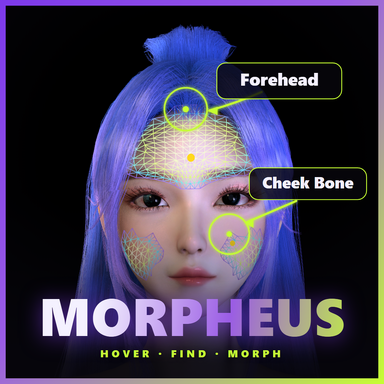
- Pick with a preview - Ctrl+left-click the skin or the cloth. A wireframe, the surface normal and a ghost of the group show where it will land before you commit.
- Auto Fit - one click puts the frozen copy back where the garment wraps it right now and works out the sliders for you.
- Group flash - switching tabs outlines that group on the figure for a moment, so you always know which mesh you are editing.
- Penetrating box select - one sweep grabs the islands in front, behind and hidden under the mesh.
- Precise placement - Position / Rotation / Scale on surface-aligned axes, an Anchor offset, and a mirrored copy for the other side.
- Clear gizmos - pivot, anchor, operation axes and a skeleton overlay.
- Saved with scenes and clothing presets.
- Light at runtime - while a garment is completely frozen, VaM's own skinning for it is switched off, so it costs about the same as a garment without the plugin. On a cloth-simulated garment, Cloth-mode parts are placed on the GPU straight from the simulation, with no lag behind the cloth.
Quick start
- Open the clothing item's Customize panel → Plugins → Add Plugin, choose EZStaticCloth.cslist, then Open Custom UI.
- Choose a Group Mode.
- Select a group tab and tick Static Enabled - this is the moment the part freezes and binds.
- Choose an Attach Mode:
- Bone - pick a bone from the dropdown.
- Vertex - turn on Pick Skin Vertex and Ctrl+left-click the skin.
- Cloth - turn on Pick Cloth Point and Ctrl+left-click another part of the same garment (one that stays unfrozen).
- Fine-tune with the sliders - or press Auto Fit to put it back on the garment and let the plugin solve them - then save your scene.
- Group Mode - Material / Connected Island / Manual Groups. Each mode keeps its own settings, so switching back and forth loses nothing.
- Group Count - how many manual groups exist (Manual Groups only).
- Enable All Groups - turns Static on or off for every group at once.
- Show Gizmos - display only; not saved.
- Language - EN / 中.
- Group tabs - one tab per group. Switching tabs briefly outlines that group on the figure.
- Static Enabled - freezes this group.
- Attach Mode - Bone, Vertex or Cloth.
- Pick Cloth Point (new) - Ctrl+left-click a point on the rest of the garment to anchor the group there. In Vertex mode this spot is Pick Skin Vertex; in Bone mode it is the bone dropdown (hovering an entry flashes that bone on the figure) plus Snap to Bone.
- Follow Mode - Pos + Rot follows position and orientation; Pos Only follows position and keeps the character's orientation.
- Bind Point - Mesh Center or Mesh Origin. It is also the centre for rotation and scale.
- Re-align Axes - re-takes the bind snapshot at the current pose. The mesh does not move; skewed axes straighten out.
- Auto Fit (new) - puts the frozen copy back where the garment wraps this group right now and solves Position, Rotation and Scale Overall for it. Vertex and Cloth modes re-anchor on the point under the pivot; Bone mode keeps its bone. Per-axis scale and Anchor are reset.
- Select Islands / Clear - Manual Groups only (see below). Clear sends every island of this group back to Group 1.
- Save / Restore / Reset Sliders, Restore (Mirror X) - copy a setup to another group, or mirror it onto the other side.
- Anchor X / Y / Z - moves the mesh while the pivot stays pinned.
- Position X / Y / Z - moves mesh and pivot together. Y runs along the surface normal, X wraps around the body, Z runs up it.
- Rotation X / Y / Z - incremental dials; all three back at zero means no rotation.
- Scale X / Y / Z, Scale Overall - centred on the bind point.
Cloth mode: pin a part to the garment itself
Some hard parts sit on other cloth rather than on skin - a brooch on a sleeve, a bow on a skirt, a flower on a ribbon. Cloth mode anchors such a group to a point on another part of the same garment, so it goes wherever that cloth goes, cloth simulation included.
- Turn on Pick Cloth Point. The garment surface you can anchor on is drawn as a wireframe (D).
- Hover it: the triangle under the cursor (A), its smoothed surface normal (B) and a ghost of the group where it would land (C) follow the mouse.
- Ctrl + left-click to anchor there. A plain click only shows a hint - it never deselects the person or closes the panel.
- Cloth hidden behind the body cannot be picked, so a click never lands on the far side of the arm.
- Only parts VaM still draws can carry the anchor: not the group itself, and not other frozen groups. Keep the part you anchor on unfrozen.
- The anchor follows smoothed normals, so a part riding moving cloth stays steady instead of jittering.
Group flash
Manual Groups and island selection
Group 1 is the default pool: every island no other group has claimed belongs to it, so nothing can go missing. Go to the tab you want to fill, press Select Islands, then:
- Hover an island - it flashes.
- Ctrl + left-click - add it to this group.
- Alt + left-click - send it back to Group 1.
- Ctrl / Alt + left-drag - box select. The box cuts through: islands in front, behind and hidden under the mesh are all taken.
- Switching tabs while picking moves the selection to that group.
- While picking, clicks in the scene do not change VaM's own selection.
- Press Confirm Selection to apply. Closing the plugin panel also ends picking and applies.
Gizmos
Good to know
- Vertex, cloth and island picking use the desktop mouse. Closing the plugin panel ends any picking mode.
- Cloth mode needs another drawn part of the garment to anchor on. If every other group is frozen, unfreeze one, then use Pick Cloth Point or Auto Fit.
- Box select hits vertices: a box that falls between two vertices picks nothing.
- After a big change of pose, press Re-align Axes if the axes look skewed - the mesh stays where it is.
中文说明
EZStaticCloth · 把服装的硬质部件冻结并绑定到骨骼、皮肤或服装表面
简介: 让宝石、扣件、护甲片保持刚性——把服装的部件钉在骨骼、皮肤或衣服自身的表面上。
功能
- 三种切分方式——按材质、按连通块,或你自己挑选的手动分组。
- 绑定到骨骼、皮肤或服装表面——骨骼跟着关节走;皮肤顶点贴着皮肤走,包括自转;服装表面跟着同一件衣服的其他部分走,开了布料模拟也照样跟随。
- 带预览的拾取——在皮肤或衣服上 Ctrl+左键点击。确认之前就能看到线框、表面法线和本组将落到位置的半透明预览。
- 自动贴合——一键让冻结副本回到衣服此刻包裹它的位置,并替你反算出滑杆值。
- 分组闪烁——切换页签时,人物身上对应那组的网格会闪几下描边,随时分得清正在编辑的是哪块网格。
- 穿透框选——拖一次就能把正面、背面和被网格挡住的孤岛一起选上。
- 精确摆放——沿贴合表面的操作轴调位置 / 旋转 / 缩放,另有锚点偏移,并能一键镜像到另一侧。
- 清晰的辅助显示——轴心、锚点、操作轴和骨架叠加。
- 随场景和服装预设一起保存。
- 运行时开销低——一件衣服全部冻结时,VaM 对它自身的蒙皮计算会被关掉,开销与不装插件的衣服相当。开了布料模拟的衣服上,服装表面模式的部件直接在 GPU 上按模拟结果摆放,不会落后于布料。
快速上手
- 打开服装的 Customize 面板 → Plugins → Add Plugin,选择 EZStaticCloth.cslist,再点 Open Custom UI。
- 选择 分组模式(Group Mode)。
- 切到要处理的组页签,勾选 启用静态(Static Enabled)——这一刻完成冻结和绑定。
- 选择 绑定方式(Attach Mode):
- 骨骼——从下拉框选一根骨骼。
- 皮肤顶点——打开 拾取皮肤顶点(Pick Skin Vertex),Ctrl+左键点击皮肤。
- 服装表面——打开 拾取服装表面点(Pick Cloth Point),Ctrl+左键点击同一件衣服的其他部分(那部分要保持不冻结)。
- 用滑杆微调——或者按 自动贴合(Auto Fit) 让它回到衣服上、由插件反算滑杆——然后保存场景。
- 分组模式——按材质 / 按连通块 / 手动分组。每种模式各自保留设置,来回切换不会丢。
- 分组数量——手动分组的组数(仅手动分组可用)。
- 启用全部分组——一次开关所有组的静态。
- 显示坐标轴——仅用于显示,不存档。
- 语言——EN / 中。
- 组页签——每组一个。切换页签时,人物身上对应的那组会短暂描边闪烁。
- 启用静态——冻结本组。
- 绑定方式——骨骼、皮肤顶点或服装表面。
- 拾取服装表面点 (新)——Ctrl+左键点击衣服其余部分上的一个点,把本组锚定到那里。皮肤顶点模式下这里是 拾取皮肤顶点;骨骼模式下换成骨骼下拉框(悬停选项时人物身上对应的骨骼会闪烁)和 归位到骨骼(Snap to Bone)。
- 跟随方式——位置 + 朝向:位置和朝向都跟随;仅位置:只跟位置,朝向保持人物整体朝向。
- 绑定点——网格中心或网格原点,同时也是旋转与缩放的中心。
- 重置操作轴——以当前姿态重新拍绑定快照。网格不动,歪掉的操作轴会重新变正。
- 自动贴合 (新)——让冻结副本回到衣服此刻包裹本组的位置,并求出对应的位置、旋转和整体缩放。皮肤顶点和服装表面模式会改锚到轴心下方的点;骨骼模式保留所选骨骼。分轴缩放与锚点会被重置。
- 选择孤岛 / 清空——仅手动分组(见下文)。清空会把本组的孤岛全部退回第 1 组。
- 保存 / 恢复 / 重置参数、恢复(X 镜像)——把一套参数复制到别的组,或镜像到对侧。
- 锚点 X / Y / Z——轴心不动,只移动网格。
- 位置 X / Y / Z——网格和轴心一起移动。Y 沿表面法线,X 环绕身体,Z 沿身体向上。
- 旋转 X / Y / Z——增量表盘;三个都归零即完全无旋转。
- 缩放 X / Y / Z、整体缩放——以绑定点为中心。
服装表面模式:把部件钉在衣服自己身上
有些硬质部件并不贴着皮肤,而是长在别的布料上——袖子上的胸针、裙子上的蝴蝶结、飘带上的花。服装表面(Cloth) 模式把这样的组锚定到同一件衣服其他部分的某个点上,那块布料走到哪它就跟到哪,开了布料模拟也一样。
- 打开 拾取服装表面点。可以锚定的服装表面以线框显示 (D)。
- 鼠标悬停时,光标下的三角形 (A)、它的平滑表面法线 (B),以及本组将落到位置的半透明预览 (C) 会跟着鼠标走。
- Ctrl + 左键点击 即锚定到该点。只点左键只会给一次提示——不会取消选中人物,也不会关掉面板。
- 被身体挡住的布料无法拾取,所以点击不会落到手臂背面去。
- 只有 VaM 仍在绘制的部分才能当锚点:本组自身不行,其他已冻结的组也不行。被锚定的那部分要保持不冻结。
- 锚点跟随的是平滑后的法线,部件骑在运动的布料上也稳,不会抖。
分组闪烁
手动分组与孤岛选择
第 1 组是默认池:所有未被其他组认领的孤岛都归它,所以不会有孤岛凭空消失。切到要填充的组页签,按 选择孤岛(Select Islands),然后:
- 悬停孤岛——会闪烁。
- Ctrl + 左键点击——加入本组。
- Alt + 左键点击——退回第 1 组。
- Ctrl / Alt + 左键拖动——框选。框是穿透的:正面、背面、被网格挡住的孤岛都会被选上。
- 拾取过程中切换页签,选择目标会跟着换到那一组。
- 拾取期间,点击场景不会改变 VaM 自身的选中。
- 按 确认选择(Confirm Selection) 应用。关闭插件面板也会结束拾取并应用。
辅助显示(Gizmos)
须知
- 皮肤顶点、服装表面和孤岛的拾取都使用桌面鼠标。关闭插件面板会结束所有拾取模式。
- 服装表面模式需要衣服上还有别的、仍在绘制的部分可以锚定。如果其他组全都冻结了,先解冻一组,再用 拾取服装表面点 或 自动贴合。
- 框选按顶点命中:框落在两个顶点之间时什么也选不到。
- 姿态变化很大后,如果操作轴看起来歪了,按 重置操作轴——网格会留在原地不动。