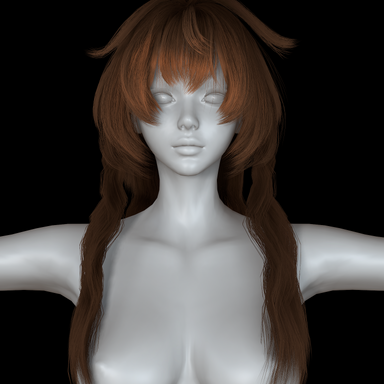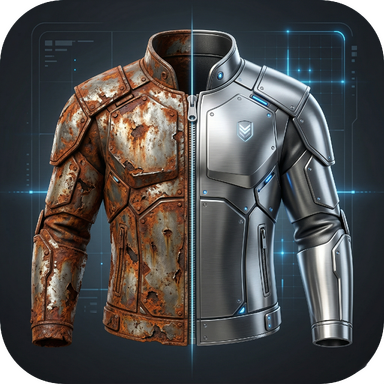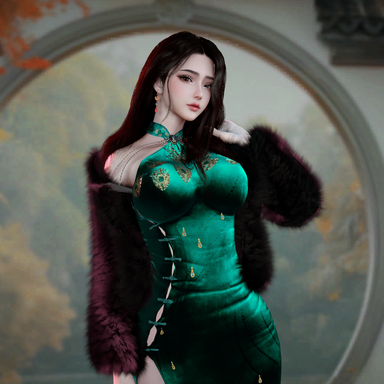


Recently, I tried to create some hairstyles. When adjusting the hair color, I found that only multiple colors could be used and many beautiful effects couldn't be achieved. So I made this plugin to allow the VAM hair to be dyed freely.
What is HairColorProvider?
Overall, this is a color management plugin for hair, allowing you to easily dye the hair strands based on the hair node. It can be loaded onto the character atom or the hair can be hung on it.
。 When attached to a character, it can uniformly adjust the dyeing scheme of all hair, save the default hair value and color value. When attached to the default hair, it follows the default hair color value, and is automatically applied upon loading (the principle is somewhat similar to the clothing plugin, which I will explain later).
The plugin offers a variety of coloring modes and blending modes, including two-color gradient, list gradient, and image texture coloring. It also supports setting a rainbow effect (colors will automatically change at different angles). Mask adjustment is also supported. You can color as you please.
QuickStart
 This plugin utilizes certain unexposed underlying interfaces in VaM, which may cause problems. You are welcome to report any feedback to me on the Hub.
A simple demonstration video
Detailed description of the function: When the mouse hovers over the button, a tip will pop up.
Thanks to the tooltps tool provided by Skynet.

[Hair Name] Toggle — Checkbox
Color Rolloff — Slider 0~5, default 1

[Gradient bar] — Custom widget

Load Texture — Button (teal)

Primary Specular — Slider 0~200


Root Blend (0=orig, 1=plugin) — Slider 0~1

Load Mask Texture — Button (teal)
What is HairColorProvider?
Overall, this is a color management plugin for hair, allowing you to easily dye the hair strands based on the hair node. It can be loaded onto the character atom or the hair can be hung on it.
。 When attached to a character, it can uniformly adjust the dyeing scheme of all hair, save the default hair value and color value. When attached to the default hair, it follows the default hair color value, and is automatically applied upon loading (the principle is somewhat similar to the clothing plugin, which I will explain later).
The plugin offers a variety of coloring modes and blending modes, including two-color gradient, list gradient, and image texture coloring. It also supports setting a rainbow effect (colors will automatically change at different angles). Mask adjustment is also supported. You can color as you please.
QuickStart
- Add plugins to the character atoms and load the HairColorProvider.cslist.
- Or attach the plugin to the hair. Please refer to the article tutorial "Hair Plugin" for details. https://hub.virtamate.com/resources/hair-plugins.45664/
- Select the item you want to edit from the Hairtab.
- Adjust the coloring effect using other tabs
- Hair tab saves default color or maps default map
- The saved colors and mapping presets will be saved in the \Saves\hcp directory.
This plugin utilizes certain unexposed underlying interfaces in VaM, which may cause problems. You are welcome to report any feedback to me on the Hub.A simple demonstration video
Detailed description of the function: When the mouse hovers over the button, a tip will pop up.
Thanks to the tooltps tool provided by Skynet.
HairColorProvider Button & Control Guide
Overview
HairColorProvider is a VAM hair coloring plugin organized into 5 tabs:| Tab | Purpose |
|---|---|
| Hair | Select hair, load/save presets, batch mappings |
| Color | Three coloring modes: RootTip / List / Texture |
| Shader | Specular, diffuse, Fresnel, IBL and other shader params |
| Irid | Thin-film iridescence — view-dependent rainbow sheen |
| Mask | Blend between original color and plugin color |
General Workflow
- Hair Tab → Refresh to scan scene → check the hair items you want to edit
- Color / Shader / Irid / Mask → tune the look
- Save Color Preset → store the full effect under a name
- With multiple hair items, assign each → Preset, then Save Mapping
- Next session → Load Mapping + Apply All to restore everything
Hair Tab
Show Tooltips (toggle)
- Function: global on/off for the tooltip popups
- Default: on
- Note: only shown in this tab; once disabled, no tab shows tooltips
Color Presets
Load Color Preset — Button (teal)- File dialog; loads a JSON preset and applies it to all checked hair
- Saves the first checked hair's full Color/Shader/Irid/Mask state as a named preset
- Default filename like preset_yyyyMMdd_HHmmss
- Apply a preset directly without a file dialog
- Note: click Load Lists first to populate it
- Scans the preset folder and refreshes both Quick dropdowns
Mapping
Load Mapping — Button (teal)- Loads a mapping file: which preset is assigned to each hair
- Saves the current per-hair → Preset assignments
- Apply a mapping directly
- Note: click Load Lists first
- Applies each hair's assigned preset from the current mapping
Hair List
Refresh — Button- Re-scans DAZHairMesh in the scene and rebuilds the list
- Check / uncheck every hair entry
- Flip the current selection state
Per-Hair Row
Each hair shows two rows:[Hair Name] Toggle — Checkbox
- Checked = applies current Color/Shader/Irid/Mask to this hair
- Unchecked = restores original color or assigned preset
- Assign one preset to this hair only
- Applies immediately on selection and exits edit mode
- < none > means no assignment
Color Tab
Color Mode (chooser)
- RootTip: simple two-color gradient (easiest)
- List: multi-stop gradient editor (free-form)
- Texture: PNG mapping (X = strand index, Y = root → tip)
Shared HSBC Sliders (all modes)
Hue Shift — Slider -180~180, default 0- Rotates all colors on the hue wheel; positive = warmer, negative = cooler
- Adds/removes saturation
- Adds/subtracts lightness in HSV space
- Scales brightness around midpoint; >1 boosts contrast, <1 flattens
RootTip Mode
Color Rolloff — Slider 0~5, default 1
- Root-to-tip transition curve; 1 = linear, higher = bias change toward the tip
- Color at the scalp / at the tip
List Mode
[Gradient bar] — Custom widget
- Click empty area to add a stop / drag a stop to move it / select then edit color below
- Removes the currently selected stop
- Clears all stops, restores a simple 2-color gradient
- Color sample points per strand; more = smoother, slight GPU cost
- Color of the currently selected stop
- Samples N colors from an image's Y axis to build a gradient
- Number of stops to extract from the image
Texture Mode
Load Texture — Button (teal)
- Loads a PNG/JPG as the color map; X = strand index, Y = root → tip
- Removes the loaded texture and restores original color
Tiling / Offset
Tiling (along strand) — Slider 0.1~8, default 1- Times the gradient repeats along each strand (List + Texture modes)
- Shifts the gradient start along the strand
- Horizontal repetition / shift across strands
Shader Tab
Primary Specular — Slider 0~200
- Main highlight intensity (the central bright band)
- Secondary highlight (softer, offset band)
- Highlight position offset along the strand; small positive simulates cuticle angle
- Base diffuse reflection strength
- Edge falloff sharpness; higher concentrates rim glow at grazing angles
- Rim overall multiplier; 0 = no rim glow
- Environment cubemap reflection contribution
- Per-strand random color variation strength
- Bias the random variation brighter / darker
- Master highlight gain; >1 enters HDR range and can trigger bloom
- Highlight tint; white = natural, tinted = colored sheen
- Restores all shader params to the hair asset's defaults
Irid Tab
Toggles
Enable Thin-Film Iridescence — Toggle- Master switch. When off, all rainbow params hide.
- Off = rainbow only on the highlight (subtle)
- On = each strand's hue shifts with the view angle (multi-color hair)
- Note: forced off in Texture color mode (to preserve texture colors)
Color Parameters
Color Frequency (Film Thickness) — Slider 50~2000 nm- Film thickness; drives band density. Thicker = more fringe orders
- Refractive index; shifts the entire hue spectrum
- 0 = none, 1 = natural, 2 = vivid
- Overall rainbow filter; white = original
Morphology
Peak View Angle — Slider 0~90 degrees- Angle at which iridescence peaks; 0 = head-on, 90 = grazing
- Band sharpness; low = wide soft, high = narrow crisp
Intensity
Min Visibility (F0) — Slider 0~0.8- Floor visibility at off-peak angles; 0 = only visible at peak angle
- Master multiplier
Mask Tab
Mask Mode (chooser)
- None: full plugin color, no blending
- Slider: independent root/tip blend factors
- Texture: grayscale image controls per-pixel blend
Slider Mode
Root Blend (0=orig, 1=plugin) — Slider 0~1
- Blend at the root: 0 = original, 1 = plugin color
- Blend at the tip
Shared (Slider + Texture)
Sharpness — Slider 1~20- Transition softness root→tip; 1 = smooth, 20 = hard edge
- Mask repetitions along the strand
- Shift mask along the strand
Texture Mode
Load Mask Texture — Button (teal)
- Loads a grayscale PNG; white = plugin color, black = original
- Horizontal repetition / shift