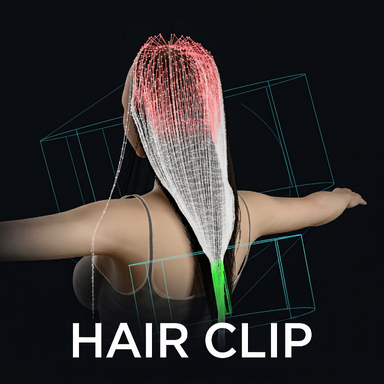


HairClip · Hair Pins
This is an experimental plugin, so the results may be unstable. Feedback and bug reports are welcome!
What it helps you do
 Pin hair down — Tired of flyaway bangs? Want to keep a strand in a specific shape? Drop a virtual clip on it.
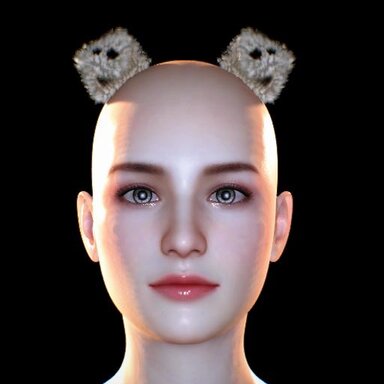
 Attach accessories — Stick hairpins, ribbons, bows onto the hair and let them sway with it — no clipping, no drifting.
 Make accessories look right — Auto-adjust accessory materials so they blend into VAM's lighting properly.
Install (30 seconds)
- Load the plugin in one of two ways:
- On the Person atom — open Plugins → Add Plugin → pick HairClip.cslist. You can then pick the hair from the dropdown.
- On the hair itself — open the hair's Plugins panel (in the hair selection UI) → Add Plugin → pickHairClip.cslist. The plugin auto-detects this hair, no picking needed.
- Click Open Custom UI
Your character must be using VAM's dynamic hair (the kind that flows in the wind). Old-style sprite hair won't work.
Pin a strand in 5 steps
Open the Clips tab:
- Target Hair is usually auto-selected for you
- Turn on Edit Mode and Debug Particles — now you can see the dots on the hair and two circular discs
- Click
 + Add Clip to add a clip
 - Hold Ctrl + left-click the dot you want to pin
- Drag Grip Strength to about
0.7
That's it — shake the head and watch that strand stay put.
Attach an accessory in 4 steps
Switch to the Decos tab:
- Click + Add Decoration to add a slot
- Click Select File to pick your accessory file (
.assetbundle) → choose the asset in DecoAsset → click Load / Reload - Hold Alt + left-click a dot on the hair to choose where the accessory attaches
- Fine-tune position, rotation, and size with Offset / Rotation / Scale on the right
Color conventions
Buttons are color-coded by purpose so you can tell at a glance:
- Green — Add / Load / Apply (safe to click)
 Red — Delete / Clear / Restore (think before clicking)
 Blue — Info / Refresh (won't change anything)
In the right-side section titles:
 Green matches the green disc in the scene (grip zone);
  Cyan matches the cyan disc (influence zone). Tweak a parameter, watch the matching disc change.
Troubleshooting
- Clip doesn't seem to do anything → check that Grip Strength isn't 0, and that the hair is dynamic hair
- Hair shakes a lot → raise Grip Damping (try 0.5–0.8)
- Clip deforms during violent head shakes → lower Max Tilt (try 15°–20°)
- Accessory won't load → make sure the
.assetbundlelives inside VAM's own folders - Don't like the result, want to undo → every tab has a restore button, experiment freely
For details on any single parameter, just hover your mouse over the control.