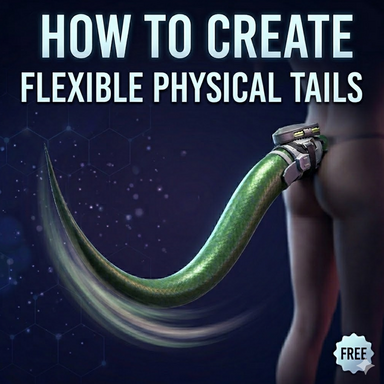



This guideline is mainly intended to show you how to create a tail model that can move along with specific parts of a character and also be capable of experiencing physical collisions with objects in the VAM, such as the character itself or items in the scene.
This is the result I obtained by referring to most of the tutorials on the internet and by myself exploring for a week. I would like to express my gratitude to all the creators in the community for their help. This time, I really learned a lot.
This tutori
al is quite lengthy and mainly records the process of making the tail for me. As of now, I haven't found any similar complete tutorials online. I hope to explain it in detail and record it as much as possible, and I also hope it will be helpful to you all.
Currently, I am aware of two methods for tail crafting:
First method: If you need to quickly create a visually appealing moving tail effect, you can refer to the process of using the EZSoftBone plugin. It is simple, fast and user-friendly. However, this method cannot identify the collision objects within the VAM.
Here is the EZSoftBone tutorial:
https://hub.virtamate.com/resources/ezsoftbone-library-creator-tutorial.66310/
Thank you for the guide provided by hazmhox
The second type: This is what I'm going to explain in this session. In Unity, we create rigid bodies and collision bodies, and add springs to simulate the actual movement of the tail.
The final result is as shown in the video:
(I don't know why recording the video was a bit slow, but it ran smoothly during actual use.)
Here is the introduction to the production.
This is my first time writing the guidelines. There might be some shortcomings. I sincerely invite everyone to discuss and offer suggestions. (My English is not good. This article was translated by AI.)
This tutorial is mainly divided into three parts:
1: Performing bone binding in Blender
2: Creating flexible bones in Unity
3: Making final settings in VAM
Before starting, you need to have a grid model as the tail. It can be a model you create yourself or one downloaded from the internet, which will be used for the subsequent process of making.
For this time, I used a free downloadable game character from the internet and used the tail model from it. If you are interested, you can also obtain it from the following website:
https://www.aplaybox.com/details/model/JaR7H1FDAK6y
Now let's move on to the first part:
Attach the bones to the tail model. The process should be similar in different 3D software. Here, I will operate using Blender.
1-1
As shown in the figure below, : Open Blender and load the tail model.

1-2
Without selecting any object, press Shift+A to open the menu and create the first bone.

1-3
Press Tab to enter the editing mode. The button pointed to by the arrow opens the grid perspective, so that the bones won't block the display of the object. Select this bone and press the G key to move the tail of the bone to its initial position.
Select the bones, press the E key to extrude, adjust the bone positions according to the shape of the tail,

1-4
press TAB to exit the editing mode. In Object mode, press Shift to select the model and then the bones. Follow the arrow indication in the picture to enable automatic weights.

1-5
Select the model mesh alone, then go to the upper left corner to enter the weight mode.

1-6
In the arrow section, different bone names will be displayed synchronously. After clicking, the corresponding vertex influence range will be shown. You can click to view the influence range corresponding to different bones. Red indicates the maximum influence, while blue indicates no influence.
You can drag the left mouse button to increase or decrease the range of the vertices, just like when drawing. Right-click will bring up a menu for more precise adjustments.

You will find that the bone name in the lower right corner corresponds to the vertex group.
For example, if I want to set the weights within a certain range to 1, in the editing mode, I can simply assign these vertices to the corresponding vertex groups.
An example is as follows:

1-7
Switch to the editing mode, select the outer enclosing object, and you can use Control+L to select all the connected objects. Use the arrow part to assign this group of vertices to the corresponding bone name vertex group.

1-8
Then return to the weight drawing mode, select the first bone, and the part of the vertices that were just specified will now have the highest weight.

1-9
As shown in the picture above, the transition edge is too sharp. I want it to have a softer transition. I need to manually adjust the weights. Clicking the left mouse button increases it, and holding down the Control key and clicking decreases it. Then remember to enable the arrow pointing to this mode, and you can also apply it to the back side at the same time.

The result after applying the paint is approximately like this.

1-10
Exit the weight mode, select the bones, enter the Pose mode, select the corresponding bone and press the R key to rotate it to see the effect:

Switch to the material mode to see the effect. Well, I think this is quite good. There's a gentle transition. Pay attention to Ctrl + Z to go back to the state before rotating the bones.

1-11
Assuming that the bones are basically fine and the weight influence is normal, you can then export it as an FBX file. Return to the object mode, select the object and the bones, and export them as a single file. I'll directly export it to the desktop.

Next is the second step: Import the file into Unity and create the flexible bones.
Firstly, the old version of Unity 2018.1.9 should be used here. The new version does not support the VAM system.
The download and installation of this version of Unity can be referred to the following tutorial:
Unity VaM 1.xx AssetBundles - 指南 - |Virt-A-Mate 中心
Thank you to MacGruber for providing the guide.
2-1
Open Unity, as shown in the picture, select "New Project", give it a nice name, set the storage location, and click "Create Project"

2-2
As shown in the figure, import the file into Unity by first dragging from 1 to 2, then dragging from 2 to 3 in the interface.

Tip: Use ALT + left mouse button to expand all subset components at once, avoiding repetitive actions.

2-3
Then configure the VR settings for the project to prevent objects from appearing at different positions in each eye's view within the VR environment.

2-4
Select the first to the last bones. You can also select multiple bones by holding the Shift key. Note that the root bone does not need to have a collider added because it is in contact with the character and I don't want to push the character away. Follow the steps in the following image to add a CapsuleCollider.

The complete parameter introduction of CapsuleCollider is provided in the following official Unity documentation:
https://docs.unity.cn/2020.3/Documentation/Manual/class-CapsuleCollider.html
In summary, it is a grid that causes collisions, and through contact, it can push other items that also have collision bodies away.
2-5
Then select the CapsuleCollider inside the bone, adjust its size and length, so that it roughly matches the shape of the grid.

2-6
Then add a corresponding Rigidbody to each bone, which is a force-bearing entity that can receive forces from other objects and produce the effect of being touched. Make sure to select all the bones for this addition, including the first one at the root.
For a more detailed introduction to Rigidbody parameters, you can refer to the official documentation of Unity:
Unity - 手动:刚体
Here, I will only provide a brief introduction:

2-7
Note that the first bone should be changed to be unaffected by gravity and only controlled by IK (Inverse Kinematics), because I want it to adhere to the corresponding part of the character and the parts that are linked to the body do not need to move.

2-8
For the other bones at the back, I want to allow them to move freely and be affected by gravity. The settings are as shown in the following picture.

2-9
Regarding the parameters in the Rigidbody of each bone, I suggest that you adjust them yourself. For example, the mass of the tail from top to bottom should gradually decrease, as this will have an impact on the swinging. I suggest that everyone try out different appropriate values themselves. As a demonstration, I will keep it at the default setting.

2-10
It's decided to use these bones. This time, a spring system is added to enable them to return to their original state after being subjected to force, just like a spring. The first bone does not require any additional modification, as shown in the figure below.

The complete Character Joint parameters can be found in the following official Unity documentation:
Unity - Manual: Character Joint component reference
2-11
As shown in the figure below, select the bones starting from the second segment (such as the one pointed to by the arrow, 1), and drag the bones that form the parent group into the Connected Body (which is the one selected as 3). Then, do the same for the subsequent segments. The Connected Body of the third segment of bones should be dragged into the second segment of bones. Repeat this operation for all the Character Joints that follow.

2-12
Select all the Character Joints. Click on the button as shown by the arrow (2) to view the rotation restrictions for each axis of the bones. Then, the part in the red box (3) is my adjustment to reduce the bone jitter after applying the force.

For information on how to enhance the stability of Character Joint, please refer to the following official document:
https://docs.unity3d.com/2020.3/Documentation/Manual/RagdollStability.html
2-13
I have already set the "Character Joint" parameters on the right. As you can see, I don't want it to distort. Swinging up and down and left and right are allowed, but I hope it will have elasticity and automatically return to its original position.
The red box on the right represents the main influencing parameters, which include the limit of the swing angle of the link and the force for restoring to the original position.

2-14
Then click the "Play" button (1), enter the Scene window (2), and observe the swinging effect.

2-15
To test the collision, you can right-click on the left interface to create a Cube, and then test the collision effect.

Select the cube, then drag the coordinate axes until they touch the tail. You can see that the collision effect is quite good.

2-16
Exit the PLAY mode, add the material to the model, and right-click in the Project location to add the material.

2-17
Name the material sphere, and then simply drag the material sphere (1) directly onto the object (2).

2-18
Drag the color texture of the model into the Project folder.

2-19
As shown in the figure below, click on the material sphere (1), and the material information will be displayed on the right. Drag the texture (2) into the corresponding slot (3), and the addition is completed.

2-20
Here, I downloaded free texture maps from the internet. They are mainly divided into metal, fabric, and leather types. These can be added to aspects such as height and smoothness to enhance details. They can be reused and are very convenient.

2-21
Then, drag different textures into the material panel to adjust the material. For example, add some dirt marks, some scratches, etc.

2-22
In this way, add materials to all the components and then apply the corresponding textures. The final result of my work is as shown in the picture below.

2-23
Then, the files need to be packaged into a format that VAM can recognize. Add the AssetBundle Browser to the Unity file and click "Finish Installation" in the order of the images. This is a mandatory option for the export process.

For the official introduction of AssetBundle in Unity, you can refer to the following link:
https://docs.unity.cn/2021.1/Documentation/Manual/AssetBundlesIntro.html
2-24
After installation, locate the "AssetBundle Browser" on the Windows interface and open it.

2-25
Before exporting the file, it is recommended to remove the cameras in the scene. Otherwise, it may cause problems in the VR mode.

For more details, please refer to the following tutorial:
https://hub.virtamate.com/resources/make-customunityassets-that-work-in-vr.64791/
Thank you to Spacedogfor the guidance.
2-26
Next, follow the arrows' indication to drag the items in the Hierarchy (1) to the Project column below, as the export copy (2), and then drag it into the left side of the AssetBundle window (3).

2-27
In the AssetBundle interface, you can select the items to be imported. By default, the exported files do not have extensions. I am accustomed to right-clicking on the exported files and adding the extension "assetbundle" to them. This way, VAM can quickly recognize them.


2-28
Click on the Build interface (1) as indicated by the arrow. Then, select the button within the box (2) to specify where the exported file will be located. After that, click the export button (3) and wait for the progress bar to finish.

2-29
After the export is completed, there will be four additional files in the folder. Among them, the one with the suffix "assetbundle" is the one we need.

Part Three: Bind the tail within the VAM and make it move along with the character's body parts.
Open VAM. Here, I'll use the default scene as an example.
Thank you very much to Ashu27for providing the free plugin. The ClothingAutoConfigurator can add the Plugins section to the clothing. The link is as follows:
https://hub.virtamate.com/resources/clothingautoconfigurator.62366/
3-1
Add the plugin as shown in the following picture:

3-2
This is the plugin interface. I am accustomed to adding all the costumes with the Plugins interface at once, which is more convenient.

3-3
Choose any piece of clothing as the CUA carrier. I suggest choosing one with fewer grid lines, as it has less impact on performance. Or create a new quadrilateral import as the clothing.
As for the demonstration, I'll just randomly pick a piece of clothing and then enter the customization interface.

If you want to import your own clothing into VAM, you can refer to the following instructions:
https://hub.virtamate.com/resources...port-any-3d-clothing-item-to-virtamate.24629/
Thank you to mopedlampe for the guidance.
3-4
You can give it a name that's easy to identify, for example, I named it CUA.

3-5
Select the material interface and reduce the clothing's transparency to 0, so only the CUA will be displayed.

3-6
Then remember to return to the Creator interface to save the file and specify the preview image.

3-7
Back to the clothing interface, cancel "Clothing Creator" and click to start the clothing you just created. After a few seconds, the plugin will recognize the clothing and add the "Plugin" label. As shown in the picture below, click "Confirm".

3-8
After entering the clothing interface, if the "Plugin" option is not displayed, click "Force Reload" and it should appear normally.

3-9
Then, as shown in the figure, add the plugin to the clothing. By default, there is already a ClothingPluginManager. We will add it at the second position.
This time, the added plugin is "Skynet's Stopper's Cua Clothing Alt", which is an indispensable part for adding materials to CUA. The link is as follows:
https://hub.virtamate.com/resources/stoppers-cua-clothing-alt.57072/
Thank you for theSkynet plugin

3-10
Next, import the CUA file into the plugin, freeze the character's physics, and calibrate the position. Then, click the MATERIAL CONTROL button
.

3-11
I prefer to set the "Smoothness" to the maximum level, as this allows for a more accurate representation of my material. The "COPY" and "PASTE" buttons can be used to quickly modify the material.

As shown in the picture below, on the left is the material before modification, and on the right is the material after modification. The effect is much better.

3-12
Then we proceed with the fixation of CUA. It's still the same CUA plugin interface as before. Click the upper right corner to enter the CUA atom.

3-13
Then you need to turn on the "Physics" option, and only then will the tail start to shake. If there are any abnormalities in the physics effect, you can solve the problem by closing the option and then reopening it.

3-14
In the Physics Control interface of CUA, pull the top two options to the maximum, which are Hold Position Spring and Hold Rotation Spring.

3-15
In the Control interface of CUA, the following settings are made: "Link To Atom" is set to the current character, "Lnk To" is set to the part of the character to which it should be linked, for example, for me this is the tail, and I want to link to his "Abdomen". The "Position" and "Rotation" below are all set to "Physics Link", so that it will follow the movement of the character's part while also having its own physical movement. On the right side, "Allow Possess Grab" I choose to turn off to avoid affecting my movement of the character.

3-16
The final step is to return to the character options, turn off the "Freeze Physics" option, and then move the character's coordinate axis. The tail will be able to move normally then.

Note 1: If the bones do not move along with the character, redo 3-13. That is, in the CUA interface, turn off physics and then turn it back on. This should solve the problem.

Note 2: If you need to directly select the CUA object that was just loaded, you can simply follow the sequence shown in the figure to make the selection.

Then move the character's atoms, and the tail will start swinging as well.
PS: I really hope there is a plugin that can simplify the above process, especially the binding operation of CUA in VAM. It would be great if the repetitive operations could be handled by the plugin. Unfortunately, I don't know how to program. If you come across any such plugin that has been released, please let me know. Thank you very much.
The operation part of VAM. If you don't understand it, there is a video explaining the steps below. I hope it can be helpful to you.
This is the result I obtained by referring to most of the tutorials on the internet and by myself exploring for a week. I would like to express my gratitude to all the creators in the community for their help. This time, I really learned a lot.
This tutori
al is quite lengthy and mainly records the process of making the tail for me. As of now, I haven't found any similar complete tutorials online. I hope to explain it in detail and record it as much as possible, and I also hope it will be helpful to you all.
Currently, I am aware of two methods for tail crafting:
First method: If you need to quickly create a visually appealing moving tail effect, you can refer to the process of using the EZSoftBone plugin. It is simple, fast and user-friendly. However, this method cannot identify the collision objects within the VAM.
Here is the EZSoftBone tutorial:
https://hub.virtamate.com/resources/ezsoftbone-library-creator-tutorial.66310/
Thank you for the guide provided by hazmhox
The second type: This is what I'm going to explain in this session. In Unity, we create rigid bodies and collision bodies, and add springs to simulate the actual movement of the tail.
The final result is as shown in the video:
(I don't know why recording the video was a bit slow, but it ran smoothly during actual use.)
Here is the introduction to the production.
This is my first time writing the guidelines. There might be some shortcomings. I sincerely invite everyone to discuss and offer suggestions. (My English is not good. This article was translated by AI.)
This tutorial is mainly divided into three parts:
1: Performing bone binding in Blender
2: Creating flexible bones in Unity
3: Making final settings in VAM
Before starting, you need to have a grid model as the tail. It can be a model you create yourself or one downloaded from the internet, which will be used for the subsequent process of making.
For this time, I used a free downloadable game character from the internet and used the tail model from it. If you are interested, you can also obtain it from the following website:
https://www.aplaybox.com/details/model/JaR7H1FDAK6y
Now let's move on to the first part:
Attach the bones to the tail model. The process should be similar in different 3D software. Here, I will operate using Blender.
1-1
As shown in the figure below, : Open Blender and load the tail model.
1-2
Without selecting any object, press Shift+A to open the menu and create the first bone.
1-3
Press Tab to enter the editing mode. The button pointed to by the arrow opens the grid perspective, so that the bones won't block the display of the object. Select this bone and press the G key to move the tail of the bone to its initial position.
Select the bones, press the E key to extrude, adjust the bone positions according to the shape of the tail,
1-4
press TAB to exit the editing mode. In Object mode, press Shift to select the model and then the bones. Follow the arrow indication in the picture to enable automatic weights.
1-5
Select the model mesh alone, then go to the upper left corner to enter the weight mode.
1-6
In the arrow section, different bone names will be displayed synchronously. After clicking, the corresponding vertex influence range will be shown. You can click to view the influence range corresponding to different bones. Red indicates the maximum influence, while blue indicates no influence.
You can drag the left mouse button to increase or decrease the range of the vertices, just like when drawing. Right-click will bring up a menu for more precise adjustments.
You will find that the bone name in the lower right corner corresponds to the vertex group.
For example, if I want to set the weights within a certain range to 1, in the editing mode, I can simply assign these vertices to the corresponding vertex groups.
An example is as follows:
1-7
Switch to the editing mode, select the outer enclosing object, and you can use Control+L to select all the connected objects. Use the arrow part to assign this group of vertices to the corresponding bone name vertex group.
1-8
Then return to the weight drawing mode, select the first bone, and the part of the vertices that were just specified will now have the highest weight.
1-9
As shown in the picture above, the transition edge is too sharp. I want it to have a softer transition. I need to manually adjust the weights. Clicking the left mouse button increases it, and holding down the Control key and clicking decreases it. Then remember to enable the arrow pointing to this mode, and you can also apply it to the back side at the same time.
The result after applying the paint is approximately like this.
1-10
Exit the weight mode, select the bones, enter the Pose mode, select the corresponding bone and press the R key to rotate it to see the effect:
Switch to the material mode to see the effect. Well, I think this is quite good. There's a gentle transition. Pay attention to Ctrl + Z to go back to the state before rotating the bones.
1-11
Assuming that the bones are basically fine and the weight influence is normal, you can then export it as an FBX file. Return to the object mode, select the object and the bones, and export them as a single file. I'll directly export it to the desktop.
Next is the second step: Import the file into Unity and create the flexible bones.
Firstly, the old version of Unity 2018.1.9 should be used here. The new version does not support the VAM system.
The download and installation of this version of Unity can be referred to the following tutorial:
Unity VaM 1.xx AssetBundles - 指南 - |Virt-A-Mate 中心
Thank you to MacGruber for providing the guide.
2-1
Open Unity, as shown in the picture, select "New Project", give it a nice name, set the storage location, and click "Create Project"
2-2
As shown in the figure, import the file into Unity by first dragging from 1 to 2, then dragging from 2 to 3 in the interface.
Tip: Use ALT + left mouse button to expand all subset components at once, avoiding repetitive actions.
2-3
Then configure the VR settings for the project to prevent objects from appearing at different positions in each eye's view within the VR environment.
2-4
Select the first to the last bones. You can also select multiple bones by holding the Shift key. Note that the root bone does not need to have a collider added because it is in contact with the character and I don't want to push the character away. Follow the steps in the following image to add a CapsuleCollider.
The complete parameter introduction of CapsuleCollider is provided in the following official Unity documentation:
https://docs.unity.cn/2020.3/Documentation/Manual/class-CapsuleCollider.html
In summary, it is a grid that causes collisions, and through contact, it can push other items that also have collision bodies away.
2-5
Then select the CapsuleCollider inside the bone, adjust its size and length, so that it roughly matches the shape of the grid.
2-6
Then add a corresponding Rigidbody to each bone, which is a force-bearing entity that can receive forces from other objects and produce the effect of being touched. Make sure to select all the bones for this addition, including the first one at the root.
For a more detailed introduction to Rigidbody parameters, you can refer to the official documentation of Unity:
Unity - 手动:刚体
Here, I will only provide a brief introduction:
2-7
Note that the first bone should be changed to be unaffected by gravity and only controlled by IK (Inverse Kinematics), because I want it to adhere to the corresponding part of the character and the parts that are linked to the body do not need to move.
2-8
For the other bones at the back, I want to allow them to move freely and be affected by gravity. The settings are as shown in the following picture.
2-9
Regarding the parameters in the Rigidbody of each bone, I suggest that you adjust them yourself. For example, the mass of the tail from top to bottom should gradually decrease, as this will have an impact on the swinging. I suggest that everyone try out different appropriate values themselves. As a demonstration, I will keep it at the default setting.
2-10
It's decided to use these bones. This time, a spring system is added to enable them to return to their original state after being subjected to force, just like a spring. The first bone does not require any additional modification, as shown in the figure below.
The complete Character Joint parameters can be found in the following official Unity documentation:
Unity - Manual: Character Joint component reference
2-11
As shown in the figure below, select the bones starting from the second segment (such as the one pointed to by the arrow, 1), and drag the bones that form the parent group into the Connected Body (which is the one selected as 3). Then, do the same for the subsequent segments. The Connected Body of the third segment of bones should be dragged into the second segment of bones. Repeat this operation for all the Character Joints that follow.
2-12
Select all the Character Joints. Click on the button as shown by the arrow (2) to view the rotation restrictions for each axis of the bones. Then, the part in the red box (3) is my adjustment to reduce the bone jitter after applying the force.
For information on how to enhance the stability of Character Joint, please refer to the following official document:
https://docs.unity3d.com/2020.3/Documentation/Manual/RagdollStability.html
2-13
I have already set the "Character Joint" parameters on the right. As you can see, I don't want it to distort. Swinging up and down and left and right are allowed, but I hope it will have elasticity and automatically return to its original position.
The red box on the right represents the main influencing parameters, which include the limit of the swing angle of the link and the force for restoring to the original position.
2-14
Then click the "Play" button (1), enter the Scene window (2), and observe the swinging effect.
2-15
To test the collision, you can right-click on the left interface to create a Cube, and then test the collision effect.
Select the cube, then drag the coordinate axes until they touch the tail. You can see that the collision effect is quite good.
2-16
Exit the PLAY mode, add the material to the model, and right-click in the Project location to add the material.
2-17
Name the material sphere, and then simply drag the material sphere (1) directly onto the object (2).
2-18
Drag the color texture of the model into the Project folder.
2-19
As shown in the figure below, click on the material sphere (1), and the material information will be displayed on the right. Drag the texture (2) into the corresponding slot (3), and the addition is completed.
2-20
Here, I downloaded free texture maps from the internet. They are mainly divided into metal, fabric, and leather types. These can be added to aspects such as height and smoothness to enhance details. They can be reused and are very convenient.
2-21
Then, drag different textures into the material panel to adjust the material. For example, add some dirt marks, some scratches, etc.
2-22
In this way, add materials to all the components and then apply the corresponding textures. The final result of my work is as shown in the picture below.
2-23
Then, the files need to be packaged into a format that VAM can recognize. Add the AssetBundle Browser to the Unity file and click "Finish Installation" in the order of the images. This is a mandatory option for the export process.
For the official introduction of AssetBundle in Unity, you can refer to the following link:
https://docs.unity.cn/2021.1/Documentation/Manual/AssetBundlesIntro.html
2-24
After installation, locate the "AssetBundle Browser" on the Windows interface and open it.
2-25
Before exporting the file, it is recommended to remove the cameras in the scene. Otherwise, it may cause problems in the VR mode.
For more details, please refer to the following tutorial:
https://hub.virtamate.com/resources/make-customunityassets-that-work-in-vr.64791/
Thank you to Spacedogfor the guidance.
2-26
Next, follow the arrows' indication to drag the items in the Hierarchy (1) to the Project column below, as the export copy (2), and then drag it into the left side of the AssetBundle window (3).
2-27
In the AssetBundle interface, you can select the items to be imported. By default, the exported files do not have extensions. I am accustomed to right-clicking on the exported files and adding the extension "assetbundle" to them. This way, VAM can quickly recognize them.
2-28
Click on the Build interface (1) as indicated by the arrow. Then, select the button within the box (2) to specify where the exported file will be located. After that, click the export button (3) and wait for the progress bar to finish.
2-29
After the export is completed, there will be four additional files in the folder. Among them, the one with the suffix "assetbundle" is the one we need.
Part Three: Bind the tail within the VAM and make it move along with the character's body parts.
Open VAM. Here, I'll use the default scene as an example.
Thank you very much to Ashu27for providing the free plugin. The ClothingAutoConfigurator can add the Plugins section to the clothing. The link is as follows:
https://hub.virtamate.com/resources/clothingautoconfigurator.62366/
3-1
Add the plugin as shown in the following picture:
3-2
This is the plugin interface. I am accustomed to adding all the costumes with the Plugins interface at once, which is more convenient.
3-3
Choose any piece of clothing as the CUA carrier. I suggest choosing one with fewer grid lines, as it has less impact on performance. Or create a new quadrilateral import as the clothing.
As for the demonstration, I'll just randomly pick a piece of clothing and then enter the customization interface.
If you want to import your own clothing into VAM, you can refer to the following instructions:
https://hub.virtamate.com/resources...port-any-3d-clothing-item-to-virtamate.24629/
Thank you to mopedlampe for the guidance.
3-4
You can give it a name that's easy to identify, for example, I named it CUA.
3-5
Select the material interface and reduce the clothing's transparency to 0, so only the CUA will be displayed.
3-6
Then remember to return to the Creator interface to save the file and specify the preview image.
3-7
Back to the clothing interface, cancel "Clothing Creator" and click to start the clothing you just created. After a few seconds, the plugin will recognize the clothing and add the "Plugin" label. As shown in the picture below, click "Confirm".
3-8
After entering the clothing interface, if the "Plugin" option is not displayed, click "Force Reload" and it should appear normally.
3-9
Then, as shown in the figure, add the plugin to the clothing. By default, there is already a ClothingPluginManager. We will add it at the second position.
This time, the added plugin is "Skynet's Stopper's Cua Clothing Alt", which is an indispensable part for adding materials to CUA. The link is as follows:
https://hub.virtamate.com/resources/stoppers-cua-clothing-alt.57072/
Thank you for theSkynet plugin
3-10
Next, import the CUA file into the plugin, freeze the character's physics, and calibrate the position. Then, click the MATERIAL CONTROL button
.
3-11
I prefer to set the "Smoothness" to the maximum level, as this allows for a more accurate representation of my material. The "COPY" and "PASTE" buttons can be used to quickly modify the material.
As shown in the picture below, on the left is the material before modification, and on the right is the material after modification. The effect is much better.
3-12
Then we proceed with the fixation of CUA. It's still the same CUA plugin interface as before. Click the upper right corner to enter the CUA atom.
3-13
Then you need to turn on the "Physics" option, and only then will the tail start to shake. If there are any abnormalities in the physics effect, you can solve the problem by closing the option and then reopening it.
3-14
In the Physics Control interface of CUA, pull the top two options to the maximum, which are Hold Position Spring and Hold Rotation Spring.
3-15
In the Control interface of CUA, the following settings are made: "Link To Atom" is set to the current character, "Lnk To" is set to the part of the character to which it should be linked, for example, for me this is the tail, and I want to link to his "Abdomen". The "Position" and "Rotation" below are all set to "Physics Link", so that it will follow the movement of the character's part while also having its own physical movement. On the right side, "Allow Possess Grab" I choose to turn off to avoid affecting my movement of the character.
3-16
The final step is to return to the character options, turn off the "Freeze Physics" option, and then move the character's coordinate axis. The tail will be able to move normally then.
Note 1: If the bones do not move along with the character, redo 3-13. That is, in the CUA interface, turn off physics and then turn it back on. This should solve the problem.
Note 2: If you need to directly select the CUA object that was just loaded, you can simply follow the sequence shown in the figure to make the selection.
Then move the character's atoms, and the tail will start swinging as well.
PS: I really hope there is a plugin that can simplify the above process, especially the binding operation of CUA in VAM. It would be great if the repetitive operations could be handled by the plugin. Unfortunately, I don't know how to program. If you come across any such plugin that has been released, please let me know. Thank you very much.
The operation part of VAM. If you don't understand it, there is a video explaining the steps below. I hope it can be helpful to you.
-
1781023287844.png
-
1781025093743.png
-
1781026691075.png
-
1781026883031.png
-
1781027061222.png
-
1781027143538.png
-
1781027175035.png
-
1781027204139.png
-
1781027331370.png
-
1781027501879.png
-
1781027540242.png
-
1781027583903.png
-
1781027629447.png
-
1781027741627.png
-
1781027971102.png
-
2.mp4
-
VaM 2026-06-10 02-21-43.mp4
-
1781116233066.png
-
1781116493619.png