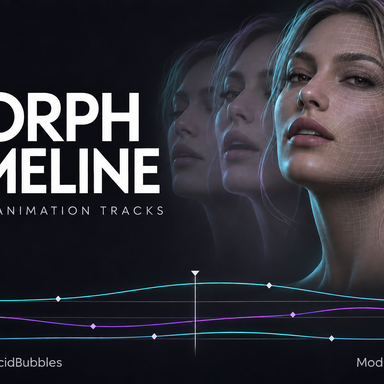


Morph Timeline — A Morph-Focused Timeline Plugin
Morph Timeline is based on AcidBubbles’ Timeline, adapted specifically for creating and playing morph animations.
Using the original timeline and keyframe editing workflow, you can animate facial expressions and body morph values over time. Combine multiple morphs into clips, loop them, or sequence them together. Trigger tracks and audio features are also included to support morph animation.
The original plugin and underlying systems were created by AcidBubbles. This version retains the morph-focused functionality.
The plugin entry class and automatic peer-discovery identifiers have been separated so that Morph Timeline can run alongside the original Timeline. Use the original Timeline for body movement and Morph Timeline for expressions and morph animations.
Morph Timeline also works on its own without the original Timeline installed on the atom. When used together, the two plugins play independently; their playback timing is not automatically synchronized.
Features
- Add favorite morphs as animation targets
- Edit morph values, keyframes, and animation curves
- Organize animations into tracks and clips
- Loop clips, adjust playback speed, and sequence animations
- Blend smoothly from the current expression into a clip
- Fade animated morph values to zero when playback ends
- Smooth curves and reduce keyframe counts
- Trigger and audio tracks
- Scene saving and separate preset saving/loading
Installation and Basic Usage
- Install the plugin
Place the VAR file in VaM’s AddonPackages folder.
Open the Person atom’s Plugins tab and add VamTimeline.AtomAnimation.cslist from the Morph Timeline package.
To use it alongside the original Timeline, keep the existing plugin and add Morph Timeline in a separate plugin slot. - Prepare your morphs
In the character’s morph list, mark the morphs you want to animate as favorites.
Morph Timeline uses favorite morphs from the Person atom on which it is installed. - Add morph targets
Open Targets and go to the add-target screen.
Select a morph under Add favorite morph, then click Add. If a morph is missing, check that it is marked as a favorite on the correct character, then reopen the selection list. - Set up tracks and clips
A new instance starts with Track and Clip 1.- Track: A grouping used to organize animations.
- Clip: An individual animation to play.
- Use Edit to set the clip length, playback speed, and looping options. New clips do not loop by default.
- Edit keyframes
Move the time scrubber to the desired position and set a keyframe with the morph value you want at that moment.
For example, the following values could make a smile appear and then return the morph to zero:
These values are examples. Adjust them to suit the morph’s range and your intended expression.Time Morph Value0 seconds 01 second 0.62 seconds 0
Use Curves to inspect and edit the transitions between keyframes. Smooth and Reduce can help refine curves or reduce the number of keys. - Preview playback
Press Play. Playback blends from the expression currently visible on the character into the clip.
For a repeating animation, enable Loop and make sure the starting and ending morph values connect smoothly.
Playback Controls
| Control | Behavior |
|---|---|
| Play | Starts playback, blending from the current expression into the clip. |
| Stop | Stops playback and holds the current expression. |
| Stop and fade to zero | Stops playback and gradually returns the animated morph values to zero. |
| Pause / Resume | Pauses playback and continues from the paused position. |
Returning a morph to zero is different from restoring its value before playback. If you animate morphs that contribute to the character’s base appearance, check the end behavior as well.
Using It Alongside the Original Timeline
You can install both plugins on the same Person atom and assign different responsibilities to each.
| Plugin | Example Use |
|---|---|
| Original AcidBubbles Timeline | Body movement, poses, and controller animation |
| Morph Timeline | Facial expressions, eye and mouth morphs, and other morph animations |
Avoid having both plugins control the same morph simultaneously. Other expression plugins that continuously modify the same morph values can also interfere with playback.
Saving and Loading
Saving the scene also saves the plugin’s clip data.
To store morph animations separately or reuse them in another scene, open More → Presets.
- Save Preset File: Save a preset.
- Load Preset File: Load a preset.
Presets do not include the custom morph files themselves. The required morphs must also be installed when using the preset in another environment.
For your first animation, start with one morph and a short clip. Check playback, stopping, and saving before adding more morphs.
Original Timeline by AcidBubbles