
• Hi Guest!

    We are extremely excited to announce the release of our first Beta1.1 and the first release of our Public AddonKit!
    To participate in the Beta, a subscription to the Entertainer or Creator Tier is required. For access to the Public AddonKit you must be a Creator tier member. Once subscribed, download instructions can be found here.

    Click here for information and guides regarding the VaM2 beta. Join our Discord server for more announcements and community discussion about VaM2.
  • Hi Guest!

    VaM2 Resource Categories have now been added to the Hub! For information on posting VaM2 resources and details about VaM2 related changes to our Community Forums, please see our official announcement here.

VaM 1.x Can the real-time screen of the camera be turned off

Threads regarding the original VaM 1.x
sx20010702

New member
Joined
Jun 17, 2025
Messages
1
Reactions
0
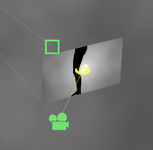
When this small window is opened, I feel that the frame rate drops. Now I can only close this small window by turning off the camera, but in this way, I can't quickly switch to the full-screen camera view with the M key. Is there any way to hide this real-time small window
 

Attachments

  • 9a010cd3f22c55720fce8d437519a655.png
    9a010cd3f22c55720fce8d437519a655.png
    42.7 KB · Views: 0
When this small window is opened, I feel that the frame rate drops. Now I can only close this small window by turning off the camera, but in this way, I can't quickly switch to the full-screen camera view with the M key. Is there any way to hide this real-time small window

You don't loose FPS because that window is opened, you loose FPS because the camera is active. That texture is written no matter what, screen active or not, when you enable the camera.
 
Upvote 0
The screen that is attached to the WindowCamera can effectively be turned off by going to its 'Physics Object' and scaling it to 0.0. 'M' still works when you do this.
 
Upvote 0
The screen that is attached to the WindowCamera can effectively be turned off by going to its 'Physics Object' and scaling it to 0.0. 'M' still works when you do this.

You won't get better perfs by doing this.
 
Upvote 0
You won't get better perfs by doing this.
My purpose in turning that screen off is that I screen grab recordings to make videos and that WindowCamera screen is visible then. I never noticed any effect on performance but I'm sure you are right in that it has little effect.
 
Upvote 0
Not understanding your use-case of keeping both WindowCamera on, but recording main screen. But anyways, you can just move the window that show the camera view.
  • Go to WindowCamera atom in Select menu.
  • On right you see "control" and "DisplayControl".
  • Select DisplayControl, it'll select the window showing camera view. Just move it far away. Actual window camera won't move.
  • You can set Position and Rotation mode to "On" to make sure it stays where you moved it to.
 
Upvote 0
Not understanding your use-case of keeping both WindowCamera on, but recording main screen. But anyways, you can just move the window that show the camera view.
My purpose with VAM is to make and record videos for myself. With WindowCamera (WC) I can for example adopt the PoV of someone who has to come through a door and go to a desk. I can also move in a crowded train towards the 'victim' in the distance. WC moves very smoothly compared to trying to do this with the mouse. I set up WC in Timeline and then when I'm about to record, I set up the Screen Grab, start the Timeline animation, hide its menu (using 'U'), start Screen Grab recording and finally press 'M' to get the WC HUD on screen. It works well for me. In these instances I need to hide WC's attached screen as it shows up in the HUD and hence the 'M' screen.
 
Upvote 0
Back
Top Bottom