

PBR Material Translator
Converting Roughness Workflows into TRUE Specular Workflows for Virt-a-Mate.| Substance Painter | Unity 2018 - Standard (Roughness Setup) | VaM | Vamifier | PBR Material Translator |
|---|---|---|---|---|
Two Modes
- Atom Mode: When attached to a CUA atom, converts materials for that specific asset
- Session Mode: Standalone use, can scan and convert multiple CUAs across the scene
Persistence
- All conversion settings are saved with the scene
- Auto-restores converted materials on scene load (please note : It has to convert it every time it opens the scene)
- Per-material shader choices preserved
| VaM | Vamifier | PBR Material Translate |
|---|---|---|
1. Context
When the Unity 2018 build of Virt-a-Mate (VaM) was developed, the industry was divided between two Physically Based Rendering (PBR) workflows: Roughness and Specular.- Modern Standards: Today, artists primarily use the Roughness Workflow. It is intuitive, placing all color data in the Diffuse/Albedo channel and using grayscale maps for Metalness (0=non-metal, 1=metal) and Roughness (0=smooth, 1=rough).
- The VaM Legacy: VaM utilizes Marmoset Skyshop, which employs the Specular Workflow. This workflow requires color data in two places (Diffuse and Specular) and uses Gloss maps (the inverse of Roughness).
2. Conversion Logic
This plugin performs real-time pixel-buffer math to translate Roughness-based textures into VaM-compliant Specular/Gloss materials:This assumes you are using the Standard (Roughness Setup) shader in unity. That you have set it up correctly to look good in unity using it's workflow.
- Diffuse Remapping: The script removes color from the Diffuse channel in areas where metallicity is detected (Diffuse = Albedo * (1 - Metal)).
- Specular Injection: It "injects" the color from the Albedo into the Specular channel for metallic surfaces, ensuring metals reflect their true material color rather than looking like shiny plastic.
- Gloss Inversion: It inverts the Roughness map (Gloss = 1.0 - Roughness) to match Marmoset’s standard, where white (1.0) represents maximum smoothness.
| VaM | Vamifier | PBR Material Translate |
|---|---|---|
3. Understanding Lighting
Getting the textures right is only 50% of the work the next step is lighting and VaM uses Marmoset Skyshop which replaces Unity’s native lighting system. It treats the Skybox (Sky) as the primary source of ambient and reflective light (Image-Based Lighting). Understanding the five core sliders in the Scene Lighting tab is essential for a realistic render of your materials.| Slider | Function | Technical Impact |
| Master Intensity | Global brightness knob. VaM default : 0.1 | Scales both Diffuse and Specular intensities simultaneously. |
| Skybox Intensity | Background visibility. VaM default : 1.0 | Affects only the brightness of the visible sky image; does not change lighting on objects. |
| Diffuse Intensity | Ambient/Scatter light. VaM default : 1.0 | Controls the soft, scattered light hitting matte (non-shiny) surfaces. |
| Specular Intensity | Reflection brightness. VaM default : 1.0 | Controls the brightness of the skybox reflections in shiny materials (chrome, water, gloss). |
| Camera Exposure | Global light sensitivity. VaM default : 1.0 | Simulates a camera lens; affects skybox, directional lights, point lights, and emissive textures. |
4. The Importance of HDRI and Mip-Maps
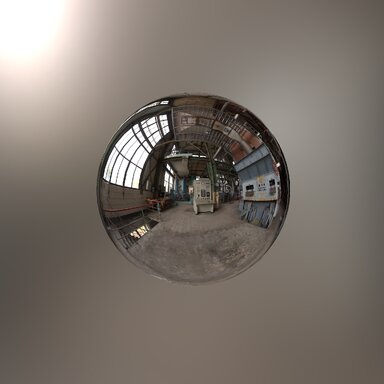
In a Specular workflow, the Environment Map (HDRI) is not just a background; it is the data source for all reflections. I made Skymagic Loader Plus to help, it also links to the Scene Lighting, along with free packs here and here, or create your ownFor metals and glossy surfaces to render correctly, the HDRI must be "convolved" into a series of Mip-maps.
- Gloss Correlation: When a material has a high Gloss value, the shader samples the highest resolution Mip-map (Mip 0) for a sharp, mirror-like reflection.
- Roughness Correlation: As Gloss decreases (Roughness increases), the shader samples lower-resolution, increasingly blurred Mips.
- The Technical Requirement: Without a properly miped HDRI, metals will either appear perfectly sharp (like chrome) regardless of their settings or appear flat and "noisy." The quality of the metallic shine is directly limited by the quality and bit-depth of these environment mips.
5. Automated Shader Selection
The plugin includes a DetectBestShader system that analyzes the source material to assign the most efficient Marmoset shader:- Transparency Detection: If the source contains alpha channels or transparency tags, it assigns a Transparent or SeparateAlpha shader.
- Topography Detection: If a Normal Map (_BumpMap) is present, it selects a variant with Tangent Space Normal mapping.
- Gloss/Reflective Detection: If gloss or metallic data is found, it selects a Gloss enabled shader to ensure per-pixel smoothness.
- Performance Optimization: The script picks the "lightest" shader possible—for example, it will not assign a heavy transparent shader to an opaque object.
| VaM | Vamifier | PBR Material Translate |
|---|---|---|
PBR Material Translator - UI Controls Reference
LEFT COLUMN (Atom Mode & Session Mode)
STATUS- Displays current operation status and conversion results
- Convert Selected (Green button) - Converts all selected materials/assets to the PBR shader system
- Refresh Material List / Refresh Asset List - Scans for materials/assets and rebuilds the selection list
- sRGB Roughness Input (Toggle, default: ON) - Treat roughness map values as sRGB encoded. Enable if your roughness map looks wrong (too glossy or too rough).
- sRGB Metallic Input (Toggle, default: ON) - Treat metallic map values as sRGB encoded. Usually metallic maps are linear, but enable if metals look incorrect.
- Linear Specular Calc (Toggle, default: OFF) - Calculate specular color in linear color space for physically correct PBR.
- Invert Roughness (Toggle, default: OFF) - Enable if your input uses "smoothness" instead of "roughness"
- Receive Shadows (Toggle, default: ON) - Converted renderers will receive shadows from other objects
- Cast Shadows (Toggle, default: ON) - Converted renderers will cast shadows onto other objects
- Selection Mode (Dropdown: By Object / By Material) - Choose how to select multiple materials at once
- Select All - Selects all materials/assets for conversion
- Clear Selection - Deselects all materials/assets
| VaM | Vamifier | PBR Material Translate |
|---|---|---|
RIGHT COLUMN (Controls applied to selected materials)
SHADER- Target Shader (Dropdown) - Select target shader:
- Auto (Detected) - Automatically detects based on material properties
- Opaque (Cull) - Standard opaque with backface culling
- Opaque (No Cull) - Double-sided opaque (renders both sides)
- Transparent (Cull) - Standard transparency with backface culling
- Transparent (No Cull) - Double-sided transparency/cutouts
- Alpha Adjust (Slider: -1 to 1, default: 0) - Adjusts overall transparency. Negative = more transparent, positive = more opaque
- Alpha Cutoff (Slider: 0 to 1, default: 0.001) - Threshold for cutout transparency. Lower = more pixels visible
- Render Queue (Slider: 2000-5000, default: 2350) - Rendering order. Higher = renders later (on top). Auto-set to 2450 for transparent materials
- Diffuse Color (Color picker) - Tints the diffuse/albedo color
- Diffuse Intensity (Slider: 0-20, default: 1) - Brightness multiplier for diffuse color
- Diffuse Offset (Slider: -1 to 1, default: 0) - Brightness offset for diffuse
- Diffuse Bumpiness (Slider: 0-2, default: 1) - Normal map intensity for diffuse lighting
- Specular Color (Color picker) - Tints the specular highlights
- Specular Intensity (Slider: 0-20, default: 1) - Strength of specular reflections
- Specular Sharpness (Slider: 0-10, default: 7) - Shininess/glossiness. Higher = tighter, sharper highlights
- Specular Fresnel (Slider: 0-1, default: 0) - Fresnel effect strength. Higher = more reflection at grazing angles
- Specular Offset (Slider: -1 to 1, default: 0) - Brightness offset for specular
- Specular Bumpiness (Slider: 0-2, default: 1) - Normal map intensity for specular highlights
- Emission Power (Slider: 0-10, default: 0) - Fake emission by blending emission map with diffuse. 0 = disabled
- Gloss Offset (Slider: -1 to 1, default: 0) - Adjust glossiness across the entire material
- IBL Filter (Slider: 0-10, default: 0) - Image-Based Lighting filter intensity
- Subdermis Color (Color picker) - Subsurface scattering color for skin-like materials
| VaM | Vamifier | PBR Material Translate |
|---|---|---|