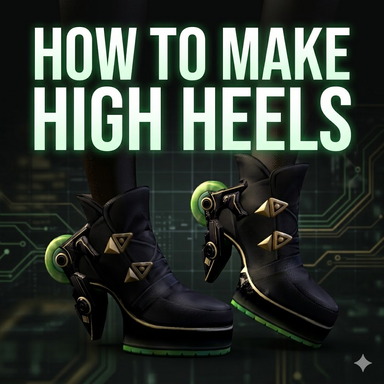


This guide is mainly designed to teach you how to make high-heeled type clothing in VAM.
This time, it mainly involves a summary of my experience in the process of learning to make high-heeled shoe clothing. I hope to record it as detailedly as possible, and I also hope it can be helpful to everyone. If there are any incorrect parts, please feel free to point them out.
Since I haven't come across similar tutorials yet, I think it's worth documenting and sharing. (My English isn't great; this article was translated by AI.)
This guide uses boots as an example. If you need to create high heels with open toes or open backs, you'll need to adjust the curvature to match the shape of the foot and toes, which may require additional modifications. Alternatively, you can refer to the guide below:
High Heels Guide - Guides - | Virt-A-Mate Hub
Thank you to YameteOuji for providing the guide.
This guide is divided into the following two parts:
1: Adjust the size of the shoes in Blender to match the character's posture.
2: In VAM, re-wrap, optimize the materials, and bend the feet to match the shoes.
This time, I used the shoe part of the free game character clothing model for the demonstration. If you are interested, you can obtain it from the following link:
【鸣潮】琳奈
The specific effects can be referred to in the following pictures and videos:

Now let's move on to the first part, which involves the preparatory work before importing VAM.
1-1
I usually start by exporting the characters that need to be matched from the VAM for positional reference.

1-2
Import the character model into Blender. Since this time I'm only demonstrating the process of making the shoes, I have removed the remaining foot model to facilitate observation.


1-3
Then I proceeded to handle the shoe model. To distinguish the metallic and fabric textures in VAM, I divided the model into two materials in Blender and assigned different colors to each.


Because in the VAM, textures need to be specified later. For this stage, we will use solid color materials to facilitate distinction. PS: If the colors of the two materials are the same, in VAM, it will be regarded as the same material.
1-4
In Blender, adjust the position of the shoes. The shoes should be slightly larger than the feet to properly cover the character's feet.
My reference points are mainly the ankle and the part of the shoe opening. Make sure to align the positions correctly.
The bending of the foot doesn't need to be concerned about. It can be adjusted in VAM later.


I prefer to position the index finger of the character's foot right at the tip of the shoe, which makes it look more harmonious.

1-5
After completing the matching, select the shoe model and export it as an FBX file.
1-6
Open DAZ and import the FBX shoe model that was just exported.

1-7
Export Scene format file from DAZ

Now we move on to the second part, where the shoes and the characters' feet are matched within the VAM.
I use the default scenario for the demonstration.
2-1
In the Session Plugins of VAM, load the plugin
Many thanks to Ashu27 for providing the free plugin. ClothingAutoConfigurator can add the plugin part to the clothing. The link is as follows:
ClothingAutoConfigurator - Plugins + Scripts - | Virt-A-Mate Hub

2-2
Enter the plugin interface and enable automatic scanning

2-3
Go to the character control interface and enable the Clothing Creator. Then enter the Customize interface.

2-4
Select the clothing files, give them proper names. As a demonstration, I will use "SHOES" as the name of the clothing. Finally, click "Import" to import the clothing.

2-5
After loading, you will notice that the shape of the shoes is a bit distorted. Later, I will explain how to fix this problem.

2-6
Go to the material control interface, drag all the Color options to pure white to restore the original color of the material.

2-7
Go to "Textures" to specify the color map for the current material

2-8
If you want to create more realistic materials in VAM, you can refer to the part in the red box below. By adding different scratches and rust texture maps, you can achieve more complex effects. I usually prefer to set the BumpMap and GlossTex to the same texture to represent minor undulations, and use another SpecTex to express the roughness. However, it depends on the specific situation and needs to be analyzed individually. Here, for the purpose of demonstration, I only imported the MainTex.

2-9
Return to the "Params" interface and adjust the material properties. I want this to be metallic. So I increased the Gloss and reduced the Specu Fresnel, aiming to simulate the rough reflective effect of metal. The "Global Illumination Filter" can add more realistic shadows in the corners. The "Diffuse Texture Offset" can be slightly decreased, making the metallic color appear darker and more realistic.

2-10
Perform similar operations on another material. The difference is that this is a fabric material.
I reduced the gloss value, increased the Specular Fresnel, and widened the Gloss Texture Offset. I think these parameters are suitable for rough objects, such as fabrics and clothes. You can refer to the effect shown in the following picture:

2-11
As shown in the figure below, return to the "Adjustments" interface, create simulated data, wait for the creation to be completed, then save the clothing and create a thumbnail.

2-12
It is recommended to remove all the costumes first. When loading the plugin "Clothing Editor", if the character has multiple costumes, there might be an error.

2-13
Select the shoes that were just created, then wait for a second or two. The ClothingAutoConfigurator plugin that was previously loaded will recognize this item and create the plugin location. Just click "Confirm".

2-14
Re-enter the Customize interface

2-15
Click on "Force Reload", and in a few seconds the "Plugins" interface will appear. As shown in the picture below.

2-16
Click on "Load Plugin" in sequence and open the UI interface.
This time, we are using the "Clothing Editor" plugin. It can re-wrap the clothing and reduce deformation, and it is a very useful plugin tool. The link is as follows:
Clothing Editor - Plugins + Scripts - | Virt-A-Mate Hub
Thank you for the free plugin provided by regguise.
After loading the plugin, you will see that the model is displayed as a mesh, which is normal.

2-17
Set the "Smooth Iterations" button to 0, and you will notice that the distortion of the model has been reduced to some extent.

2-18
Click the "Drawn" button next to "Clothing" again. Select "Base" from the drop-down menu. You will notice that all the distortion of the model has disappeared. At the same time, the plugin creates separate coordinate axes for the clothes, separating them from the character. If you now drag the coordinate axes, you will find that the clothes no longer move along with the character.

2-19
At the bottom right, click "Close" to close the plugin UI. Now, we will load the next plugin, "Shoe Helper". This plugin enables the character's feet to bend downward, creating the effect of standing on tiptoes. It is particularly useful when dressing the model in high heels.
The link is as follows:Shoe Helper - Plugins + Scripts - | Virt-A-Mate Hub
Thank you for the free plugin provided by Stopper

2-20
Enter the UI interface of Shoe Helper, adjust the Toe Rotation Target and Foot Rotation Target to swing the character's feet up and down to match the angle of the shoes. At the same time, you can also drag the coordinate axes to move the character to achieve further matching.

2-21
After arranging the shoes, we returned to the Plugins interface and re-entered the UI interface of the Clothing Editor plugin.

2-22
Click to enter the "Wrap" interface, then change the "Wrapper" parameter to "Vam Native". This is a better wrapping method than the original "Smooth", with a slightly slower speed but better results.
Skin Wrap Target is set to "Drawn", corresponding to the "Skin" parameter above. This refers to the object that is being wrapped.
Increasing the Wrap Surface Offset is to reduce the influence of the non-wrapped parts. You can refer to this explanation for details:
高级服装视频指南 进口无变形 - 指南 - |Virt-A-Mate 中心
Thank you for the guide provided by mopedlampe

2-23
Enter the "Clothing Vert Select" interface, select "ALL", and I need all the vertices of the shoes to be processed.

2-24
Disable the Tex option for Clothing. I want to see the effect on the character's skin. Go to the Skin Vert Select interface, click on the Current Wrapped section which is the selected mesh. You can see the orange part, which is the default wrapping. It only affects a little bit of the feet.

2-25
Open Mirror Sel, make the mirror selection, increase the Set Size slider, it will be easier to select the grid. Click Start to start the grid selection. The keyboard keys Control is for adding selection, Shift is for subtractive selection. Drag the mouse and press the corresponding key to add or subtract selection. Note that do not click or drag the mouse, otherwise it may move the position of the clothes.

2-26
Select the entire grid of the foot, that is, the grid of the part where the shoes are worn.

2-27
After all the foot meshes have been selected, it will look like the picture below. Then click "Execute Wrap". The plugin will start processing the wrapping information.

After completion, it will display like this

2-28
If you click the Tex button as shown in the figure again, you will see that both the shoes and the corresponding foot grids are selected. Check if there are any deformation issues with the shoe model.

2-29
Once you reach the "Edit" interface, select "Use Base Mesh", then click "Abort Sim Regeneration". The plugin will prepare to save the file based on the previously generated packaging data.

After completion, it will be as shown in the figure.

2-30
As shown in the picture, go to the "Save" interface to complete the saving process.

2-31
Then, go to the "Plugins" interface of the clothing section and remove the "Clothing Editor" plugin.

Then it will be noticed that the shoes have deformed, but in fact the packaging process has already been completed.

2-32
Next, open the UI interface of the Clothing Plugin Manager and complete the final operation.

2-33
Click "Save". This is to ensure that when you open the clothing item next time, all the currently loaded plugins, including Shoe Helper, will be automatically loaded.

2-34
Go to the Custom interface of the clothing, click "Force Reload", and you can see that the shoes have now taken on the perfect shape.

2-35
At this point, if you drag the shoes with the mouse, you will notice that the shoes move while the character remains stationary. This is because of the influence of the Clothing Editor (2-18) just now. At this time, you need to click the star at the lower left corner to re-find the scene and enter.

2-36
Put on shoes for the character, and you can see that Shoe Helper has taken effect. The character is standing on tiptoe in a posture that matches the high-heeled shoes. Moving the character's feet reveals that the shoes have also moved accordingly.

Of course, you can also continue to adjust the angle of the toe-up movement in Shoe Helper, as well as the options for the collision body.


This guide comes to an end. As it is merely an experience sharing, it might not be very rigorous. However, we hope it can be helpful to everyone. If you encounter any problems or have better solutions, please feel free to discuss.
If you have any difficulties understanding the VAM operation part, you can refer to the following video. I hope it will be helpful to you.
The following video demonstrates the collision effect of the Shoe Helper plugin:
This time, it mainly involves a summary of my experience in the process of learning to make high-heeled shoe clothing. I hope to record it as detailedly as possible, and I also hope it can be helpful to everyone. If there are any incorrect parts, please feel free to point them out.
Since I haven't come across similar tutorials yet, I think it's worth documenting and sharing. (My English isn't great; this article was translated by AI.)
This guide uses boots as an example. If you need to create high heels with open toes or open backs, you'll need to adjust the curvature to match the shape of the foot and toes, which may require additional modifications. Alternatively, you can refer to the guide below:
High Heels Guide - Guides - | Virt-A-Mate Hub
Thank you to YameteOuji for providing the guide.
This guide is divided into the following two parts:
1: Adjust the size of the shoes in Blender to match the character's posture.
2: In VAM, re-wrap, optimize the materials, and bend the feet to match the shoes.
This time, I used the shoe part of the free game character clothing model for the demonstration. If you are interested, you can obtain it from the following link:
【鸣潮】琳奈
The specific effects can be referred to in the following pictures and videos:
Now let's move on to the first part, which involves the preparatory work before importing VAM.
1-1
I usually start by exporting the characters that need to be matched from the VAM for positional reference.
1-2
Import the character model into Blender. Since this time I'm only demonstrating the process of making the shoes, I have removed the remaining foot model to facilitate observation.
1-3
Then I proceeded to handle the shoe model. To distinguish the metallic and fabric textures in VAM, I divided the model into two materials in Blender and assigned different colors to each.
Because in the VAM, textures need to be specified later. For this stage, we will use solid color materials to facilitate distinction. PS: If the colors of the two materials are the same, in VAM, it will be regarded as the same material.
1-4
In Blender, adjust the position of the shoes. The shoes should be slightly larger than the feet to properly cover the character's feet.
My reference points are mainly the ankle and the part of the shoe opening. Make sure to align the positions correctly.
The bending of the foot doesn't need to be concerned about. It can be adjusted in VAM later.
I prefer to position the index finger of the character's foot right at the tip of the shoe, which makes it look more harmonious.
1-5
After completing the matching, select the shoe model and export it as an FBX file.
1-6
Open DAZ and import the FBX shoe model that was just exported.
1-7
Export Scene format file from DAZ
Now we move on to the second part, where the shoes and the characters' feet are matched within the VAM.
I use the default scenario for the demonstration.
2-1
In the Session Plugins of VAM, load the plugin
Many thanks to Ashu27 for providing the free plugin. ClothingAutoConfigurator can add the plugin part to the clothing. The link is as follows:
ClothingAutoConfigurator - Plugins + Scripts - | Virt-A-Mate Hub
2-2
Enter the plugin interface and enable automatic scanning
2-3
Go to the character control interface and enable the Clothing Creator. Then enter the Customize interface.
2-4
Select the clothing files, give them proper names. As a demonstration, I will use "SHOES" as the name of the clothing. Finally, click "Import" to import the clothing.
2-5
After loading, you will notice that the shape of the shoes is a bit distorted. Later, I will explain how to fix this problem.
2-6
Go to the material control interface, drag all the Color options to pure white to restore the original color of the material.
2-7
Go to "Textures" to specify the color map for the current material
2-8
If you want to create more realistic materials in VAM, you can refer to the part in the red box below. By adding different scratches and rust texture maps, you can achieve more complex effects. I usually prefer to set the BumpMap and GlossTex to the same texture to represent minor undulations, and use another SpecTex to express the roughness. However, it depends on the specific situation and needs to be analyzed individually. Here, for the purpose of demonstration, I only imported the MainTex.
2-9
Return to the "Params" interface and adjust the material properties. I want this to be metallic. So I increased the Gloss and reduced the Specu Fresnel, aiming to simulate the rough reflective effect of metal. The "Global Illumination Filter" can add more realistic shadows in the corners. The "Diffuse Texture Offset" can be slightly decreased, making the metallic color appear darker and more realistic.
2-10
Perform similar operations on another material. The difference is that this is a fabric material.
I reduced the gloss value, increased the Specular Fresnel, and widened the Gloss Texture Offset. I think these parameters are suitable for rough objects, such as fabrics and clothes. You can refer to the effect shown in the following picture:
2-11
As shown in the figure below, return to the "Adjustments" interface, create simulated data, wait for the creation to be completed, then save the clothing and create a thumbnail.
2-12
It is recommended to remove all the costumes first. When loading the plugin "Clothing Editor", if the character has multiple costumes, there might be an error.
2-13
Select the shoes that were just created, then wait for a second or two. The ClothingAutoConfigurator plugin that was previously loaded will recognize this item and create the plugin location. Just click "Confirm".
2-14
Re-enter the Customize interface
2-15
Click on "Force Reload", and in a few seconds the "Plugins" interface will appear. As shown in the picture below.
2-16
Click on "Load Plugin" in sequence and open the UI interface.
This time, we are using the "Clothing Editor" plugin. It can re-wrap the clothing and reduce deformation, and it is a very useful plugin tool. The link is as follows:
Clothing Editor - Plugins + Scripts - | Virt-A-Mate Hub
Thank you for the free plugin provided by regguise.
After loading the plugin, you will see that the model is displayed as a mesh, which is normal.
2-17
Set the "Smooth Iterations" button to 0, and you will notice that the distortion of the model has been reduced to some extent.
2-18
Click the "Drawn" button next to "Clothing" again. Select "Base" from the drop-down menu. You will notice that all the distortion of the model has disappeared. At the same time, the plugin creates separate coordinate axes for the clothes, separating them from the character. If you now drag the coordinate axes, you will find that the clothes no longer move along with the character.
2-19
At the bottom right, click "Close" to close the plugin UI. Now, we will load the next plugin, "Shoe Helper". This plugin enables the character's feet to bend downward, creating the effect of standing on tiptoes. It is particularly useful when dressing the model in high heels.
The link is as follows:Shoe Helper - Plugins + Scripts - | Virt-A-Mate Hub
Thank you for the free plugin provided by Stopper
2-20
Enter the UI interface of Shoe Helper, adjust the Toe Rotation Target and Foot Rotation Target to swing the character's feet up and down to match the angle of the shoes. At the same time, you can also drag the coordinate axes to move the character to achieve further matching.
2-21
After arranging the shoes, we returned to the Plugins interface and re-entered the UI interface of the Clothing Editor plugin.
2-22
Click to enter the "Wrap" interface, then change the "Wrapper" parameter to "Vam Native". This is a better wrapping method than the original "Smooth", with a slightly slower speed but better results.
Skin Wrap Target is set to "Drawn", corresponding to the "Skin" parameter above. This refers to the object that is being wrapped.
Increasing the Wrap Surface Offset is to reduce the influence of the non-wrapped parts. You can refer to this explanation for details:
高级服装视频指南 进口无变形 - 指南 - |Virt-A-Mate 中心
Thank you for the guide provided by mopedlampe
2-23
Enter the "Clothing Vert Select" interface, select "ALL", and I need all the vertices of the shoes to be processed.
2-24
Disable the Tex option for Clothing. I want to see the effect on the character's skin. Go to the Skin Vert Select interface, click on the Current Wrapped section which is the selected mesh. You can see the orange part, which is the default wrapping. It only affects a little bit of the feet.
2-25
Open Mirror Sel, make the mirror selection, increase the Set Size slider, it will be easier to select the grid. Click Start to start the grid selection. The keyboard keys Control is for adding selection, Shift is for subtractive selection. Drag the mouse and press the corresponding key to add or subtract selection. Note that do not click or drag the mouse, otherwise it may move the position of the clothes.
2-26
Select the entire grid of the foot, that is, the grid of the part where the shoes are worn.
2-27
After all the foot meshes have been selected, it will look like the picture below. Then click "Execute Wrap". The plugin will start processing the wrapping information.
After completion, it will display like this
2-28
If you click the Tex button as shown in the figure again, you will see that both the shoes and the corresponding foot grids are selected. Check if there are any deformation issues with the shoe model.
2-29
Once you reach the "Edit" interface, select "Use Base Mesh", then click "Abort Sim Regeneration". The plugin will prepare to save the file based on the previously generated packaging data.
After completion, it will be as shown in the figure.
2-30
As shown in the picture, go to the "Save" interface to complete the saving process.
2-31
Then, go to the "Plugins" interface of the clothing section and remove the "Clothing Editor" plugin.
Then it will be noticed that the shoes have deformed, but in fact the packaging process has already been completed.
2-32
Next, open the UI interface of the Clothing Plugin Manager and complete the final operation.
2-33
Click "Save". This is to ensure that when you open the clothing item next time, all the currently loaded plugins, including Shoe Helper, will be automatically loaded.
2-34
Go to the Custom interface of the clothing, click "Force Reload", and you can see that the shoes have now taken on the perfect shape.
2-35
At this point, if you drag the shoes with the mouse, you will notice that the shoes move while the character remains stationary. This is because of the influence of the Clothing Editor (2-18) just now. At this time, you need to click the star at the lower left corner to re-find the scene and enter.
2-36
Put on shoes for the character, and you can see that Shoe Helper has taken effect. The character is standing on tiptoe in a posture that matches the high-heeled shoes. Moving the character's feet reveals that the shoes have also moved accordingly.
Of course, you can also continue to adjust the angle of the toe-up movement in Shoe Helper, as well as the options for the collision body.
This guide comes to an end. As it is merely an experience sharing, it might not be very rigorous. However, we hope it can be helpful to everyone. If you encounter any problems or have better solutions, please feel free to discuss.
If you have any difficulties understanding the VAM operation part, you can refer to the following video. I hope it will be helpful to you.
The following video demonstrates the collision effect of the Shoe Helper plugin: