

You are using an out of date browser. It may not display this or other websites correctly.
You should upgrade or use an alternative browser.
You should upgrade or use an alternative browser.
Redesigned UI
I know that a complete redesign of a UI can be annoying, because things are no longer where you remember them... But I felt this one was necessary because the UI was getting pretty messy and needing to scroll to access stuff was getting annoying. I, however, think this new layout is nicer to work with.New


New workflow (for users of older versions)
Don't worry, it's simpler now
Performance
Fixes
- Clothing switch: switching to another item no longer leaves the previous one pointing at a deleted texture, which broke its SIM texture after saving and reloading the scene. If you didn't paint, the item gets its original texture back. If you did, your painting stays.
- Resolution change: changing the resolution no longer breaks undo or the mask. The mask resets instead.
- Multi-part Load Saved: parts of multi-part clothing without a matching saved file now save their painting after 'Load Saved'.


- "Load Current SIM Texture" now works on clothing that has no SIM texture. Some clothing items don't ship with a SIM texture. In those cases, the pinned/loose weights are baked into the item itself. The plugin now rebuilds an editable texture from that built-in data, so you start from the creator's actual pinning instead of a blank red texture.
- Clothing presets naming fix: Presets were saved using the item's display name, but VaM only lists presets whose filename starts with the item's internal name. So for any clothing item where the name had a space in it (e.g. "Silk Slip" vs SilkSlip), the preset was written correctly but never appeared under "Select Existing". The preset is now saved without spaces so it correctly shows up.



(switched to using v6 instead of v1.5 to match the .var file)
New features
- VR support: aim with the green laser and hold the trigger to paint (right hand by default, disable the toggle to switch to left handed).
Hold dominant hand trigger to paint (cyan/black),
Hold BOTH triggers (so on both left and right controllers) to erase (paint red)- Mask system: new "Edit Mask" mode lets you paint mask zones the brush can never change, with Clear and Invert buttons.
- Load Current SIM Texture: loads whatever SIM texture the clothing is using right now, including the creator's shipped texture straight out of the .var. So you don't have to manually extract files to edit an existing texture.
- Name your texture: type a name before saving the final texture; leave it blank for the automatic naming you're used to.
- Brush resizing: Alt + drag left/right resizes the brush, Ctrl+Alt + drag adjusts opacity.
Fixes & improvements
- Performance improvements for high-resolution painting: brush work is now spread across frames and texture updates deferred to where they're needed, so painting at 2048 is smoother instead of dropping to single-digit fps. I still recommend to paint at 512 or lower.
- Fixed unpaintable jagged patches on clothing with overlapping UV islands (linings, layered pieces)
- Red can no longer reach 254/255: New, loaded, and shipped textures are all capped at R:253, so clothing always remains undressable via joint strength.
- Removed leftover debug logging that appeared as a red error console line when enabling painting.

- Seamless painting across UV seams
Painting now wraps naturally across UV island boundaries the same way Substance Painter does. Where v1.3 left a hard cut at every seam (like the seam connecting the front and back of a shirt), the brush now considers the actual 3D geometry of the mesh, so a stroke that crosses a seam continues smoothly onto the other side without the user having to reposition the brush. A back-face check keeps the paint from bleeding through onto the inside of thin clothing.
- "Paint Across Parts" toggle
A new toggle in the Brush section lets the brush paint across separate parts of multi-part clothing. With it on, painting on one part of (say) a suit's torso also paints onto the connected sleeves where they meet in 3D, treating the parts as if they were one combined mesh. Off by default since users may still want to paint each part in isolation. Each part keeps its own SIM texture and its own undo stack. Only the visible coverage is unified.

- Overlay tracks the chest controller
The painting overlay now correctly anchors to the chestControl. It spawns at the model's actual chest position, follows the chest as you drag the controller around, and rotates with the model's yaw. The overlay still stays upright (no pitch/roll) so it won't be facing the ceiling if the chestControl node i pointed up. Use the "Overlay Distance" slider for moving it sideways from the body, defaulting to 0.5m.

- Eyedropper (Ctrl+C)
Hold the cursor over any painted area and press Ctrl+C to snap the Paint R Value slider to the value under the cursor. Useful for picking up a previously-used R value (e.g., a partial pin at R=128) and reusing it for touch-ups elsewhere on the model.



- Overlay now spawns next to the Person atom and follows it
The painting overlay used to spawn at the world origin, which often meant it ended up far from your model in larger scenes. It now spawns right at the Person atom the plugin is attached to and stays glued to it as you drag the atom around the scene. A new "Overlay Distance" slider lets you push the overlay to either side of the atom (negative = left, positive = right).

- "Apply to DecalTex" live preview toggle
A new toggle that pipes your SIM texture into each material's decal slot, so you can see your painting on the actual clothing after each brush stroke. The decal slot's tile and offset values are forced to 1:1 during preview to make sure the texture is shown at full size, and everything is restored to its original state when you turn the toggle off, switch clothing, disable the plugin, or save a clothing preset (so the preview never gets baked into the .vap).

- "Fill with Slider Value" button
Alongside the existing "All Red" and "All Black" buttons, there's now a button that fills the entire texture with whatever R value the Paint slider is currently set to. Useful for starting from a partially-pinned base (such as R=128) instead of always going from fully-pinned or fully-loose.

- Plugin disable now also hides the overlay
Previously, disabling the plugin hid the brush cursor but left the overlay floating in the scene. Now disabling the plugin hides the overlay as well (and restores any live DecalTex preview), so you can keep an in-progress texture around without it cluttering the view. Re-enabling brings the overlay back exactly as it was.
- Loaded textures apply immediately
Loading a texture now applies it to all parts and pushes the file path into VaM's sim texture slots straight away. Previously you had to make at least one brush stroke per part before the simulation would actually pick up the loaded texture. For clothing items with multiple parts, "Load Existing Texture" now detects which part the file you picked belongs to (based on the saved filename pattern), and automatically pulls in matching sibling files for all the other parts in the same set. So picking SIM_MyDress_top_final_2.png will also load SIM_MyDress_belt_final_2.png, SIM_MyDress_hem_final_2.png, etc.
- R value slider capped at 253
The Paint R Value slider now goes from 0 to 253 instead of 0 to 255. Values 254 and 255 in VaM mark clothing as permanently locked and prevent it from being undressed, which is almost never what you actually want. This brings the slider in line with the existing "All Red" button (which already uses R=253, the highest "pinned but still removable" value).

- Paint now stays within UV boundaries
Previously, painting near the edge of a clothing part could bleed into the empty space on the texture, causing paint appearing in wrong areas. Paint is now restricted to the actual UV island of each part, so what you paint stays exactly where it should, even right up to the edge.
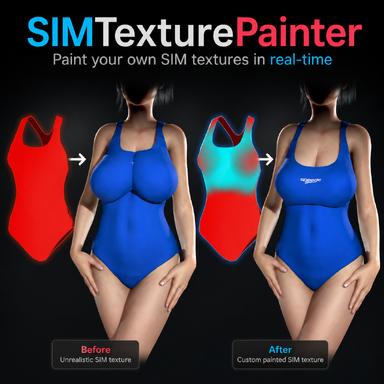
This is an example of how a created SIM texture looked in v1.1, vs what it looks like now in v1.2:


- "Pinned" now uses R=253 instead of R=255
A fully pinned texture (Red) now writes R=253 rather than R=255. In VaM, R=255 permanently locks clothing in place and cannot be undressed at all. R=253 still behaves as fully pinned during simulation, but allows the clothing to be fully removed when undressing. This way every SIM texture you make will be fully undressable.
- Finer brush size control
Brush size increments are now 10× more precise (0.001 steps instead of 0.01), so you can dial in an exact size without jumping over the value you want. The value shown still rounds off to 0.01, but typing 0.001 will correctly scale the brush size.
- Clothing Folder button
As requested by a user, the final sim textures are now saved in the same local clothing folder as the clothing preset and other local files of that particular clothing item. A new "Clothing Folder" button now opens to that folder in Custom/Clothing/…. The old PluginData folder button is still available for accessing working/old files.
- "Combined" material support
Clothing where all sub-meshes share a single SIM texture is now detected automatically and shown as one combined paintable part, rather than appearing as multiple broken parts that don't respond to painting. This occurred when a clothing had multiple separate mesh parts, but only one "Combined" material tab.
- Fixed wrong texture slot on multi-material clothing
On clothing with multiple material zones, painted textures could end up applied to the wrong slot. The plugin now correctly identifies which slot belongs to each painted part.
A small number of clothing items (particularly those with multiple separately-painted parts) can show issues such as parts being swapped, textures applying to the wrong zone, or certain parts not responding correctly. This is caused by how those items were set up in Clothing Creator, where the internal part order doesn't always match what the plugin expects. These cases are rare and I hope to revisit them in a future update.

v1.1 — Update Notes
- Textures are now saved to Saves/PluginData/SIMTextures/ instead of Saves/SIMTextures/. This location does not require a confirmation dialog when files are overwritten or deleted, which made it possible automatically get rid of the temporary work files. And so, it's no longer needed to manually delete a _work folder.
- If you have textures from v1.0 in the old Saves/SIMTextures/ folder, nothing breaks — existing presets still reference those files and will continue to work. New textures are saved to the new location automatically.
Major thanks to @perfectbloo for suggesting the use of Saves/PluginData/ as the save location!
- 3
-
 3
3