



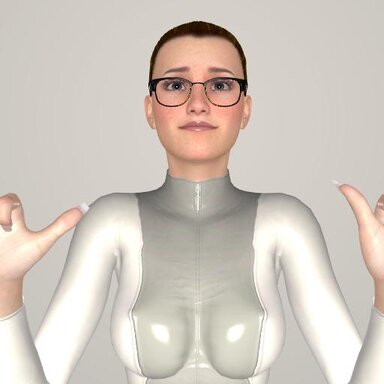


This environment helps you take preview photos in the same conditions.
Main goal of the scene is to combine front/rear/side view of your char in one preview screen in the same conditions (lighting, camera angles, etc) before save for example a clothing preset. This way you can observe more details later when choose a saved preset. Hope someone will find it useful.


Credits:
MacGruber: some code taken from MacGruber_Utils.cs
A special script SnapShot.cs is already on the person atom. It provides control over few virtual cameras targeting the atom's controllers. The script makes a photo/collage from that view(s).
The script usage:
1) Select/adjust pose (some are bind on the floating buttons),
2) Choose the target controller with the "Target Name" drop list ("control" is the main atom controller),
3) Choose some camera axis and view combination in the "Layout Name" drop list,
4) Adjust the "Camera Distance" slider,
5) Adjust the camera/target offsets with the four sliders on the right side, the values are matched to the selection of the drop list above.
Cameras are not rendering constantly so press the "Refresh View" button every time the atom is changed.
When the preview is good enough you can save the image. The resulted picture 512x512 pixels JPG/PNG could be saved somewhere, the file location is listed in the message log upon saving. There are four ways to choose the location:
1) The "Save picture PNG" button saves in the hardcoded location:
2) The "Save picture JPG" button opens the media browser dialog to choose the name and location in
The other ways are an automation to search a preset files you just create/save/load'ed. It could be a clothing, morph, appearance and so on preset that you just saved (.vap).
3) The "Find Last Updated File" button searches in
4) The "Get Used Preset" button searches for the last updated file all over atoms's preset tabs possible if its "Preset Name" field is not empty. Clothing/Hair item presets are searched over too.
The resulted file name appears under the button. The name could be ".vap" but saving will (over)write the corresponding .jpg only. After the file name appears you can press "Overwrite JPG". Please make sure that the file is what you want.
Hint: to implicitly point the searcher an long ago existing preset preview you want to update just save it with "Overwrite Preset". Please note if you follow the hint using a preset's tab button "Overwrite Overlay Preset" makes the current preset to become a merge preset (the .vap file is modified by VaM preset system). The consequences and workaround are shown in the video.
The following video demonstrates how to replace an existing preview .jpg with a new one made with SnapShot. Replace of a clothing item preset preview is demonstrated too.
Main goal of the scene is to combine front/rear/side view of your char in one preview screen in the same conditions (lighting, camera angles, etc) before save for example a clothing preset. This way you can observe more details later when choose a saved preset. Hope someone will find it useful.
Credits:
MacGruber: some code taken from MacGruber_Utils.cs
Deprecated since version 2: only "far" button works as on the following video but you still can add your own buttons. The spawn atoms themself are still in the scene. The mirror and the camera view are disabled by default. Please consider the vital requirements:
1) SpawnPoint is required as a main mechanic.
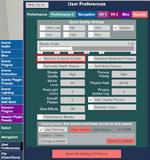
2) Mirrored surfaces must be enabled in the settings to make the left mirror to work.
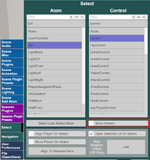
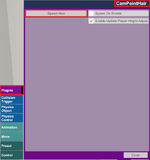
Usage hints: Use the floating buttons to pose the camera before take a photo. The default mirror/camera settings are for the standard 512x512 preview. The present view points are arranged for the standard FoV=40. The camera crop setting are located in the scene plugins. Most of controls are hidden, make sure to check 'Show Hidden' in the select UI to see them.
1) SpawnPoint is required as a main mechanic.
2) Mirrored surfaces must be enabled in the settings to make the left mirror to work.
Usage hints: Use the floating buttons to pose the camera before take a photo. The default mirror/camera settings are for the standard 512x512 preview. The present view points are arranged for the standard FoV=40. The camera crop setting are located in the scene plugins. Most of controls are hidden, make sure to check 'Show Hidden' in the select UI to see them.
The script usage:
1) Select/adjust pose (some are bind on the floating buttons),
2) Choose the target controller with the "Target Name" drop list ("control" is the main atom controller),
3) Choose some camera axis and view combination in the "Layout Name" drop list,
4) Adjust the "Camera Distance" slider,
5) Adjust the camera/target offsets with the four sliders on the right side, the values are matched to the selection of the drop list above.
Cameras are not rendering constantly so press the "Refresh View" button every time the atom is changed.
When the preview is good enough you can save the image. The resulted picture 512x512 pixels JPG/PNG could be saved somewhere, the file location is listed in the message log upon saving. There are four ways to choose the location:
1) The "Save picture PNG" button saves in the hardcoded location:
Saves/PluginData/SnapShot/SnapShot-[n].png. This is the only way to save PNG.2) The "Save picture JPG" button opens the media browser dialog to choose the name and location in
Custom/Atom/PersonThe other ways are an automation to search a preset files you just create/save/load'ed. It could be a clothing, morph, appearance and so on preset that you just saved (.vap).
3) The "Find Last Updated File" button searches in
Custom/Atom/Person folder recursively for the last updated file. The proceed is quite slow.4) The "Get Used Preset" button searches for the last updated file all over atoms's preset tabs possible if its "Preset Name" field is not empty. Clothing/Hair item presets are searched over too.
The resulted file name appears under the button. The name could be ".vap" but saving will (over)write the corresponding .jpg only. After the file name appears you can press "Overwrite JPG". Please make sure that the file is what you want.
Hint: to implicitly point the searcher an long ago existing preset preview you want to update just save it with "Overwrite Preset". Please note if you follow the hint using a preset's tab button "Overwrite Overlay Preset" makes the current preset to become a merge preset (the .vap file is modified by VaM preset system). The consequences and workaround are shown in the video.
The following video demonstrates how to replace an existing preview .jpg with a new one made with SnapShot. Replace of a clothing item preset preview is demonstrated too.


