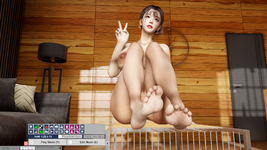
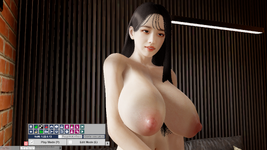
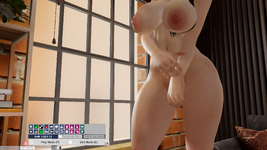
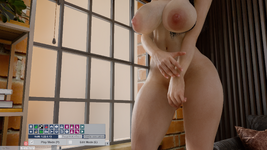
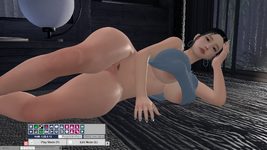
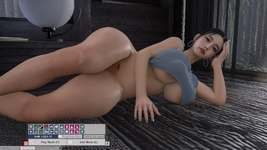
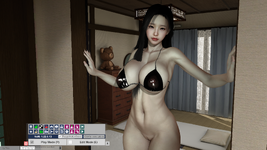
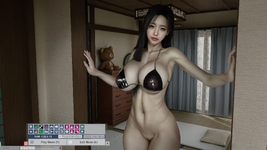
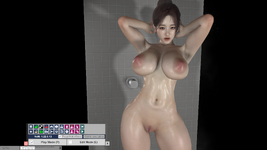
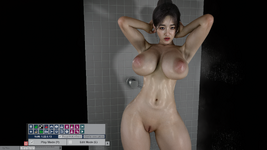
Guide on how I got mine working for free, theres two ways one if you want DLSS upscaling + DLSS5 or DLSS5 only that someone made to work on any DX11 game that has no DLSS support at all
Tested on a 5070 Ti 2560x1440.
Method 1 (DLSS Upscaling + DLSS5)
1. Download DLSSBridge-v0.19.19-beta14 from
arcalive or the direct link to the file
https://kio.ac/c/d7aGJJ6or6Tun9n_M6oAab
2. Download latest BepInEx from the
github, and download
BepInEx_win_x64_5.4.23.5.zip
3. From the BepInEx zip you downloaded, extract 'BepInEx' folder, 'doortstop_config.ini' and 'winhttp.dll' where vam.exe is
4. From the DLSSBridge zip you downloaded, extract 'BepInEx' folder where vam.exe is
5. Download ReShade 6.8.0 with full add-on support and install it to your vam.exe
6. Join the
renodx discord,if you don't see dlss5 thread go to 'browse channels', under event space, check #dlss5, once in, check the pin and download 'renodx-dlss5.addon64' and 'streamline.zip'
7. Put 'renodx-dlss5.addon64' where vam.exe is, extract all files inside 'streamline' folder (from streamline.zip) where vam.exe is, go through your bepinex folder 'BepInEx\plugins\VaMDLSSBridge\Streamline' and extract all files from the streamline folder into 'streamline'
8. Download the latest DLSS5-DX11-BRIDGE on this
github link and put it where vam.exe is
9. Launch Virtamate, to show the DLSS window press Ctrl + Shift + D, Choose DLAA or any quality mode (I've only tested DLAA so far) press Ctrl + Shift + D again to close DLSS window, press HOME key to open reshade, go to 'Add-ons',
you will see DLSS 5 DX11 Bridge addon and DLSS 5 Neural Rendering, under the DLSS 5 Neural Rendering you can see 'DLSSNR v310.8.0: ACTIVE - NR INJECTED' which means it's working
10. There's different styles under the addon, Default, Natural, Cinematic, in the image examples I provided before uses Cinematic and bumping up the intensity slider to max
Note : While you can use DLSS upscaling, I have a problem with browser assists not showing up or not working, so its best to use default scene browser for now
Making sure : have 'BepInEx' folder containing the DLSS bridge, renodx-dlss5.addon64, dlss5-dx11-bridge.addon64, 'dxgi.dll' (reshade), and the streamline nvidia dlss files placed in where vam.exe is
Method 2 (NO DLSS UPSCALING, just DLSS5) - I'm not sure of the quality difference between this and the DLSS upscaling method, but they almost look the same and works suprisingly well without needing DLSS (works in the Sims 4 in my testing)
1. Download dlss5-feed.addon64 and DLSS5_Feed.fx from
https://github.com/jlrouzies-fr/DLSS5-Feeder/releases/tag/v0.1.0
2. Download ReShade 6.8.0 with full add-on support and in the 'select effects to install' page, scroll down until you find 'iMMERSE by Marty McFly', tick the box and tick 'MartysModsLAUCHPAD.fx'
3. Put dlss5-feed.addon64 where vam.exe is and put DLSS5_Feed.fx inside the shader folder of reshade '\reshade-shaders\Shaders'
4. Also put renodx-dlss5.addon64 where vam.exe is, and extract all files from streamline folder to where vam.exe is
5. Launch virtamate, press HOME, scroll down until you see iMMERSE : Launchpad, press 'Active to top' button, now scroll down until you see DLSS5 Feed which should be placed below immerse launchpad
6. Check the add-ons and under dlss 5 neural rendering check you can see ''DLSSNR v310.8.0: ACTIVE - NR INJECTED' which means it's working
Note : Browser assists works completely fine
Making sure : have 'dxgi.dll' (reshade), have the DLSS5_Feed.fx inside the shader folder, dlss5-feed.addon64, renodx-dlss5.addon64 and the streamline nvidia dlss files placed in where vam.exe is
Expect FPS to be halved, image example below were using Method 2