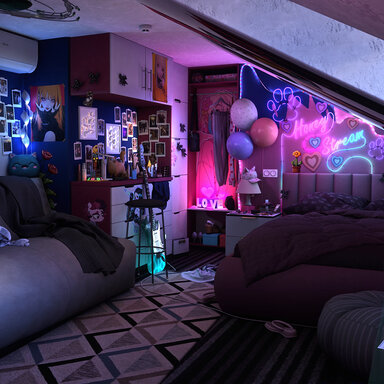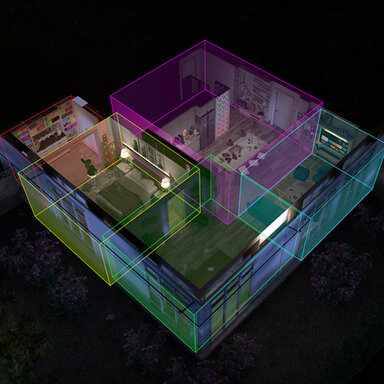



Presence Lighting automatically controls scene lighting depending on where a Person is located. Create a zone inside a room, assign InvisibleLight atoms to it, and Presence Lighting will automatically turn those lights on while a Person is inside the zone and turn them off when the zone becomes empty.
Multiple Presence Lighting zones work together, so the same light can be assigned to several areas without the zones fighting over its state. A shared light remains ON as long as at least one occupied zone requests it. The plugin automatically detects all Person atoms in the scene and tracks their hip/pelvis position. No manual Person assignment is required, and multiple Persons can occupy the same zone.
How to use
1. Add a zone atomFor a regular rectangular zone, add an Empty atom to the scene.
Move and rotate the atom so that it is positioned approximately in the room or area you want to control.
2. Add the plugin
Open the atom's Plugins tab, add a plugin and select:
PresenceLighting.cslist
The Presence Lighting interface will appear.
3. Adjust the zone
Use:
- Zone Width
- Zone Height
- Zone Depth
Move and rotate the Empty atom itself to position the zone in the scene.
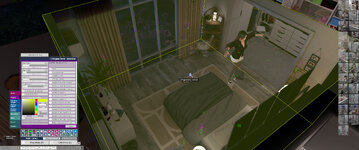
By default, the zone is displayed while its atom is selected. You can also enable Always Show Zone while setting up the scene.
Each zone can have its own debug color, which makes it much easier to work with several overlapping zones.
4. Assign lights
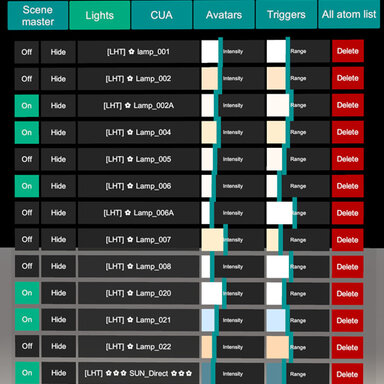
Presence Lighting automatically finds all InvisibleLight atoms in the scene.
In the LIGHTS list, enable the checkbox for every light that should belong to this zone.
That's it.
When a Person enters the zone, the assigned lights are switched ON. When the last Person leaves the zone, they are switched OFF.
You can create as many Presence Lighting zones as needed.
Custom-shaped zones
For rooms where a rectangular zone is not accurate enough, Presence Lighting can use a CustomUnityAsset mesh as the detection volume.Instead of an Empty atom:
- Add a CustomUnityAsset atom.
- Load your zone mesh into the CUA.
- Add PresenceLighting.cslist to that CUA.
- Assign the required lights in the same way as with a regular zone.
The mesh should represent a closed volume. Custom mesh zones can also contain several MeshFilters; they are treated as a combined zone.
The CUA zone mesh itself is hidden during normal scene use and becomes visible as a translucent colored volume while the zone is being edited.
Features
- Automatic Person detection
- Multiple Persons supported
- Automatic InvisibleLight detection
- Per-zone light assignment
- Multiple zones can share the same lights
- Box-shaped zones
- Custom closed-mesh CUA zones
- Irregular and concave zone shapes supported
- Multiple MeshFilters supported as one zone
- Automatic light list refresh
- Translucent zone visualization
- Visible zone outlines
- Individual debug color for each zone
- Always Show Zone debug mode
- Zone settings and light assignments are saved with the scene