• Hi Guest!

    We are extremely excited to announce the release of our first Beta1.1 and the first release of our Public AddonKit!
    To participate in the Beta, a subscription to the Entertainer or Creator Tier is required. For access to the Public AddonKit you must be a Creator tier member. Once subscribed, download instructions can be found here.

    Click here for information and guides regarding the VaM2 beta. Join our Discord server for more announcements and community discussion about VaM2.
  • Hi Guest!

    VaM2 Resource Categories have now been added to the Hub! For information on posting VaM2 resources and details about VaM2 related changes to our Community Forums, please see our official announcement here.
Preparing HDRIs in unity for  HLC - HDRI Light Creator

Guides Preparing HDRIs in unity for HLC - HDRI Light Creator

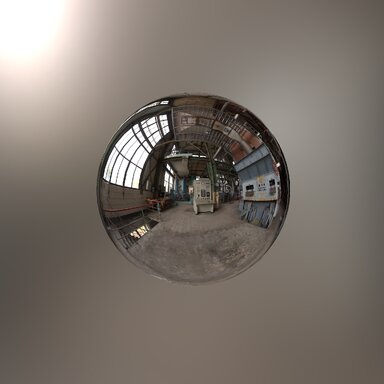
PREPARING HDRIs FOR HLC​

Here is how you prepare HDRIs for HLC - HDRI Light Creator and Skymagic Loader Plus
Please read and understand MacGruber brilliant guide about asset bundles.

Please note that my focus is on Texture Detail, Lighting and Chasing Realism regardless of how large the files get or slow my computer runs.​


1. GET A HDRI MAP​

Poly haven is a free place to get HDRIs they use a CC0 license for their works.
  1. Download maps at 4k or 8k
  2. Make sure they are .EXR format.
Please note : A map at 4k (4k x 2k) from Poly haven is only considered 2k in Unity 2018.


2. IMPORT YOUR HDRI MAP​

02.gif

OPTIMAL TEXTURE SETTINGS

Follow these steps to ensure your HDRI/Skybox looks sharp and functions correctly with Skymagic Loader Plus:
  • Texture Shape: Change from 2D to Cube
  • Convolution Type: Change from None to Specular (Glossy Reflection)
  • Fixup Edge Seams: Set to ON (Prevents visible lines where the cube faces meet)
  • Advanced > Read/Write Enabled: Set to ON
  • Advanced > Generate Mip Maps: Set to ON
  • Filter Mode: Update from Bilinear to Trilinear (Essential for smooth transitions between blur levels)
  • Apply: Click Apply to save changes.

HOW MIPMAPS WORK (Fake Depth of Field)

Skymagic Loader Plus uses Mipmaps to simulate Depth of Field.
Mipmaps are smaller, lower-resolution versions of your texture that the engine swaps in as objects get further away.

The Trade-off:
As you move or change resolution, the engine "transitions" between these levels.
  • On Desktop: High pixel density makes these transitions nearly invisible.
  • In VR: Because the resolution is stretched across a wider field of view.
Screen size 1k - Max size 2kScreen size 2k - Max size 2kScreen size 8k - Max size 2k
1k (Custom).jpg
2k (Custom).jpg
8k (Custom).jpg
Mipmaps are very noticeable; seams may appear.Mipmaps are subtle; good balance.Mipmaps are invisible; perfectly smooth.

FINDING THE "SWEET SPOT" (MAX SIZE)

Your Max Size setting determines the starting point of your resolution.
To find the "Sweet Spot"—where the image is sharp but the blur effect still works—use the Power of Two formula:

Formula: (Screen Width / 2) rounded to the nearest Power of Two
  • 8K Display: Use 4096 (4K Max Size)
  • 4K Display: Use 2048 (2K Max Size)
  • 1080p Display: Use 1024 (1K Max Size)
Note: In most cases, a Max Size of 512 or 1024 is the safest "universal" setting. It provides a clean look across all headsets and monitors without taxing the system.


3. SETTING UP THE SCENE​

Below is how we setup the HDRI into a clean scene.
  • Create a new Scene
  • Rename it to something that makes sense
  • Open the Scene
  • Delete everything in it
  • Add a Reflection Probe
  • Edit the Reflection Probe > Set it to Custom
  • Drag and Drop your imported HDRI map into Cubemap slot
  • Save your scene
03.gif


4. EXPORT TO ASSETBUNDLE​

Please read and understand MacGruber brilliant guide about asset bundles.


5. SET IT UP IN VAM​

You'll need to watch this one, there are a few steps.
Images and attachments
  • 01.gif
    01.gif
    23.9 KB · Views: 0
  • 04.gif
    04.gif
    390.1 KB · Views: 0
React to this content...

Share this resource

More resources from vamBear

Back
Top Bottom