



LiveOffset
Make any scene yours.
Make any scene yours.
Hi everyone! This is my first resource on the Hub, and I've really been looking forward to sharing this plugin.
Requires scenes animated with Timeline (most sex scenes use it). Works on desktop and in VR. Timeline is not included or modified.
What you can do with it
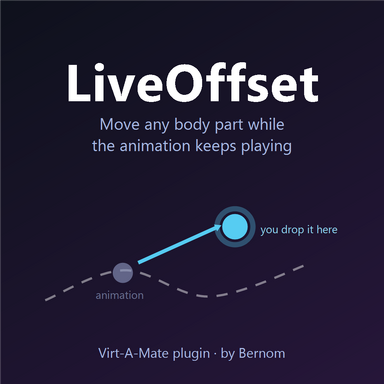
Grab any body part while the animation plays, drop it wherever you want, and the animation keeps going from there.For example, take any missionary pose. Push her legs back and put her feet exactly where you like them, bring her hands to her breasts, to your face, to your cock while you fuck her, wherever you want. Get behind her in doggy and turn her head so she looks back at you over her shoulder. Same old scene, set up your way, and changed again whenever you feel like it.
Quick start
- Add the plugin to the character.
- Let the animation play.
- Grab a body part and drop it where you want.
Guide
You choose what happens each time you drop a part:
You can also switch modes on the fly to bring a part back to life. Say her legs are spread and you pull her knee and foot up to her chest with the animation removed: switch to Keep the animation, touch the toe control, and her toes start moving again.
Everything is reversible. Nothing here edits the scene or its animations.
- Keep the animation: it continues from the new position. This is the normal mode.
- Remove animation from this part: the part stays exactly where you left it.
- Remove animation from the whole limb: grab a hand and the elbow and shoulder are released too.
You can also switch modes on the fly to bring a part back to life. Say her legs are spread and you pull her knee and foot up to her chest with the animation removed: switch to Keep the animation, touch the toe control, and her toes start moving again.
Everything is reversible. Nothing here edits the scene or its animations.
If you pull a hand further than the arm can reach, the control point ends up far away from the body and the tension builds up every time you move it. The magnet fixes that: after you let go, the point is pulled back towards where the body really got to, so the character stops being stretched.
You can set how much distance and rotation it tolerates before it acts. If you want a wrist or an ankle to keep a strong rotation, raise the rotation margin. And if a part moves back a little after small adjustments, raise the distance margin.
You can set how much distance and rotation it tolerates before it acts. If you want a wrist or an ankle to keep a strong rotation, raise the rotation margin. And if a part moves back a little after small adjustments, raise the distance margin.
When you move a hand or a foot, the elbow or knee can follow part of the way, so the limb bends naturally without you having to place each joint. There's a slider for how much they follow. Set it to 0 to turn this off.
It only works while the elbow or knee is On. When they're Off, they follow the hand or foot through physics, without help from the plugin.
It only works while the elbow or knee is On. When they're Off, they follow the hand or foot through physics, without help from the plugin.
Every move is remembered. You can undo step by step, and the plugin lists the parts you've moved, most recent first, so you can reset just one of them. Resets can be undone too.
When you remove the animation from a foot, its toes stay with it, but they can keep some of their movement so the foot doesn't look dead. The amount is adjustable.
- Activate on grab: if a part is switched off in the scene, it turns on when you grab it.
- Smooth transitions: resets and changes ease in instead of jumping.
- Scene button: a floating Reset button, hidden by default, that you can place anywhere. Very handy in VR.
Assigning a key works like in a video game: click the action's button in the menu, then press any key on your keyboard or any button on your controller (triggers LT/RT and the D-pad can't be used). Esc cancels, and Delete leaves the action without a key. Keys that VaM already uses can't be chosen.
You don't need to save the scene: your keys are remembered and show up on their own when you add the plugin in any other scene.
Key sets load in order: the first character you add the plugin to uses set 1, the next one set 2, and so on. If you want her to always have the same keys, always add the plugin to her first.
The default keys are on the numpad because that's what my keyboard has, and it's handy to have everything in one place. If yours doesn't have one, just change them once:
You don't need to save the scene: your keys are remembered and show up on their own when you add the plugin in any other scene.
Key sets load in order: the first character you add the plugin to uses set 1, the next one set 2, and so on. If you want her to always have the same keys, always add the plugin to her first.
The default keys are on the numpad because that's what my keyboard has, and it's handy to have everything in one place. If yours doesn't have one, just change them once:
- Reset this character: Numpad 0 (set 1), Numpad 1 (set 2), Numpad 2 (set 3), Numpad 3 (set 4)
- Keep the animation: Numpad 4
- Remove animation from this part: Numpad 5
- Remove animation from the whole limb: Numpad 6
- Undo: Numpad / (set 1), Numpad * (set 2), Numpad - (set 3)
If a part snaps back, the creator left that control off. The plugin turns it on when you grab it, and that part stops following its animation. It's barely noticeable, and it's nothing compared to being able to place her however you want.
If an arm deforms when you move a hand, grab the elbow and shoulder too. Same with legs: reposition the knee and hip as well and it will turn the way you want. And don't hesitate to hit Undo if a move goes wrong or you grab the wrong thing.
Reset when you switch positions. Otherwise the character arrives at the new position with your changes on top, and bodies can overlap in ugly ways.
If you save modified scenes, reset before saving or your adjustments will be baked into the scene.
If an arm deforms when you move a hand, grab the elbow and shoulder too. Same with legs: reposition the knee and hip as well and it will turn the way you want. And don't hesitate to hit Undo if a move goes wrong or you grab the wrong thing.
Reset when you switch positions. Otherwise the character arrives at the new position with your changes on top, and bodies can overlap in ugly ways.
If you save modified scenes, reset before saving or your adjustments will be baked into the scene.
- A Timeline control that uses Parent ignores the adjustment.
- Very sudden moves or very radical changes can make an animation look odd. Reset puts everything back: you can't break anything permanently.
After years of using VaM, my favourite scenes had started to feel stale, so I went looking for a way to change them without rebuilding them. I first tried blocking whole animations and body parts by hand, but it was far too complicated and had to be redone for every scene.
Then it clicked: what if I could just move whatever I wanted, without stopping anything? It may look like a simple plugin, but getting there took months of work and testing. It brought my whole library back to life, and the positions I always skipped are now the ones I use most.
Then it clicked: what if I could just move whatever I wanted, without stopping anything? It may look like a simple plugin, but getting there took months of work and testing. It brought my whole library back to life, and the positions I always skipped are now the ones I use most.
Feedback
I'm open to suggestions: tell me in the Discussion tab what you'd like it to do, along with any bugs you find. If something breaks, tell me the scene and what you did.I'll keep working on it, adding new features and fixing whatever comes up with other creators' scenes.
