

KiNeTiKMaN's - TrueLife Scene Painter
Timeline-free procedural custom walking tool, with integrated voice commands. Say “come here” and watch your character walk right up to you.
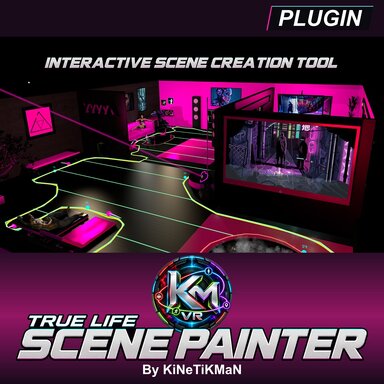
True Life Scene Painter lets you choreograph one or two VaM characters in a room you already have including VR passthrough in your own home. Draw where they can walk, outline the furniture to avoid, and place Activity Points where you want something to happen. Scene Painter animates their steps and turns as they travel. A character can walk around the coffee table, sit on the couch for 15 seconds, then cross the room to meet someone by the window. The possibilities are limitless.
What you can build
• Activities and routes. Make an activity point a destination, load a pose, play a built-in animation, or fire a VaM trigger. Set how long the character stays. They can move on automatically, wait for your cue, or fire a trigger as they leave. Put the stops in order in ROUTE CREATOR, or use Random on PLAY / MOVE to mix things up. You can move a point later and keep its place in the route.
• Voice, viewpoints, and TVs. Once you’ve drawn a floor, turn on LISTENING and try “come here.” The main character walks right up to you. Use “pause scene” or “next activity,” or create your own phrases. There are 19 built-in commands. You can also set up TV controls or switch between assigned Embody viewpoints, including the follow view.
• One-handed VR controls. Mount the panel on your left wrist, look at a button, then squeeze and release the left index trigger while the cursor is on it. On desktop, use the mouse.
Install and start
1. Put KiNeTiKMaN.TrueLifeScenePainter.1.var in VaM’s AddonPackages folder and open an environment. The single VAR includes the plugin and both walking setup poses. Walking and route building need no third-party downloads.
2. Add or select a PlayerNavigationPanel atom under your play area. In its Plugins tab, load 01 Floor FIRST.cslist.
3. On your main Person atom, load 02 Main Person SECOND.cslist. For two characters, load 03 Second Person OPTIONAL.cslist on the other Person.
4. Close the welcome panel, choose Desktop or VR, then use the arrows at the top to open SCENE PAINTER. Select NEW SCENE and confirm.
Build your first route
1. Outline the floor. Choose Walkable Floor, then Straight Edges. On desktop, aim at the floor and left-click each corner. In VR, point the selected controller at each corner and squeeze its index trigger. Select near the first corner to close the outline. Use Furniture Cutouts to draw around obstacles.
2. Place two activities. Under ACTIVITY POINTS, turn on Placement and select a spot on the floor. Choose an Activity Type and set its duration. Turn on Continue so the character leaves the first stop when its time is up, then press SAVE ACTIVITY. Place and save a second point.
3. Play the route. In ROUTE CREATOR, choose ADD ACTIVITY and select each stop in the order you want. Press SAVE ROUTE, then go to PLAY / MOVE and press PLAY SCENE.
Save your work and find help
SAVE SCENE in the Scene Painter header saves your map so you can load it in another VaM scene. VaM’s own scene save keeps the room, characters, and plugin setup together. The (*) menu beside X at the top right opens the illustrated offline FULL USER GUIDE. If the drawing controls don’t respond after setup, open that same menu and press RECONNECT CONTROLS.
Credits and license
I designed True Life Scene Painter and directed its development. AI wrote much of the plugin code under my direction. The plugin and the original KMTL walking setup poses are free and released under Creative Commons Attribution-NonCommercial-ShareAlike 4.0 International.
 creativecommons.org
Timeline-free procedural custom walking tool, with integrated voice commands. Say “come here” and watch your character walk right up to you.
True Life Scene Painter lets you choreograph one or two VaM characters in a room you already have including VR passthrough in your own home. Draw where they can walk, outline the furniture to avoid, and place Activity Points where you want something to happen. Scene Painter animates their steps and turns as they travel. A character can walk around the coffee table, sit on the couch for 15 seconds, then cross the room to meet someone by the window. The possibilities are limitless.
What you can build
• Activities and routes. Make an activity point a destination, load a pose, play a built-in animation, or fire a VaM trigger. Set how long the character stays. They can move on automatically, wait for your cue, or fire a trigger as they leave. Put the stops in order in ROUTE CREATOR, or use Random on PLAY / MOVE to mix things up. You can move a point later and keep its place in the route.
• Voice, viewpoints, and TVs. Once you’ve drawn a floor, turn on LISTENING and try “come here.” The main character walks right up to you. Use “pause scene” or “next activity,” or create your own phrases. There are 19 built-in commands. You can also set up TV controls or switch between assigned Embody viewpoints, including the follow view.
• One-handed VR controls. Mount the panel on your left wrist, look at a button, then squeeze and release the left index trigger while the cursor is on it. On desktop, use the mouse.
Install and start
1. Put KiNeTiKMaN.TrueLifeScenePainter.1.var in VaM’s AddonPackages folder and open an environment. The single VAR includes the plugin and both walking setup poses. Walking and route building need no third-party downloads.
2. Add or select a PlayerNavigationPanel atom under your play area. In its Plugins tab, load 01 Floor FIRST.cslist.
3. On your main Person atom, load 02 Main Person SECOND.cslist. For two characters, load 03 Second Person OPTIONAL.cslist on the other Person.
4. Close the welcome panel, choose Desktop or VR, then use the arrows at the top to open SCENE PAINTER. Select NEW SCENE and confirm.
Build your first route
1. Outline the floor. Choose Walkable Floor, then Straight Edges. On desktop, aim at the floor and left-click each corner. In VR, point the selected controller at each corner and squeeze its index trigger. Select near the first corner to close the outline. Use Furniture Cutouts to draw around obstacles.
2. Place two activities. Under ACTIVITY POINTS, turn on Placement and select a spot on the floor. Choose an Activity Type and set its duration. Turn on Continue so the character leaves the first stop when its time is up, then press SAVE ACTIVITY. Place and save a second point.
3. Play the route. In ROUTE CREATOR, choose ADD ACTIVITY and select each stop in the order you want. Press SAVE ROUTE, then go to PLAY / MOVE and press PLAY SCENE.
Save your work and find help
SAVE SCENE in the Scene Painter header saves your map so you can load it in another VaM scene. VaM’s own scene save keeps the room, characters, and plugin setup together. The (*) menu beside X at the top right opens the illustrated offline FULL USER GUIDE. If the drawing controls don’t respond after setup, open that same menu and press RECONNECT CONTROLS.
Credits and license
I designed True Life Scene Painter and directed its development. AI wrote much of the plugin code under my direction. The plugin and the original KMTL walking setup poses are free and released under Creative Commons Attribution-NonCommercial-ShareAlike 4.0 International.
Deed - Attribution-NonCommercial-ShareAlike 4.0 International - Creative Commons
creativecommons.org