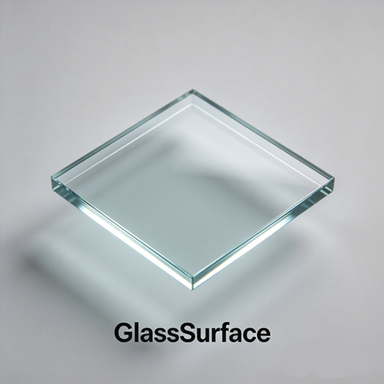



It is a complete glass solution package that includes CUA asset templates, shaders, and plugins.
What is it specifically used for?
Built-in glass block prefab CUA assets, combined with the GlassSurface plugin, make it easier for scene creators to achieve more ideal glass curtain walls.
Provides a Shader file package that supports creating glass effects in Unity 2018.


The materials created with the GlassSurface Shader can achieve various refraction effects, chromatic aberration, custom Cubemap environment reflections, Fresnel effects, and come with a real-time VAM material adjustment plugin that pairs with the Shader.
You can completely skip downloading the provided Shader toolkit—the plugin includes pre-made glass assets that are sufficient to meet most of your needs for glass components in scenes.
As a creator, you can even save time on testing: first, use the Square glass in VAM to adjust and find suitable parameters, then note down the UI settings or copy them to the clipboard to obtain precise material parameters. This makes it easy to apply the same parameters in Unity, ensuring consistent results before and after.
It is not perfect—at the very least, I haven’t fully grasped the Unity engine’s Shader architecture, and despite several attempts, I haven’t yet resolved the front/back sampling conflict when using screen grab for simulated refraction. However, as a completely free and community-oriented glass material solution for VAM, it has already exceeded expectations by fulfilling the vast majority of functional requirements.
Its initial development goal was to provide reusable, modular glass unit components. To support this, two additional small plugins were developed: CUA_Hammer and ShadowCastDisabler.
GlassSurface Standard Workflow:
1. Import the glass asset.
2. Mount the GlassSurface plugin to the asset. Click "Load presets from .mat files" once to synchronize the UI values, then begin modifying the material to your preference. Keep the plugin mounted; do not remove it, otherwise CUA will reinitialize the data.
3. Mount the ShadowCastDisabler plugin to the asset to permanently and automatically disable glass shadows. Keep it mounted if you want the glass to always transmit light and never cast shadows.
4. Mount the CuaHammer plugin to the asset to scale the glass's X, Y, and Z dimensions according to your needs. Keep it mounted; do not remove it, otherwise CUA will reinitialize the data.
5. After normal use, save the scene. (This is not a required action, but rather mimics your typical usage scenario)
6. When reopening the scene, you will see that the previous glass material parameters and scale transformations are correctly preserved.
7. If you need to modify the glass asset, be sure to enter its plugin panel and Reload the plugin once to "wake it up".
8. If you need to reset the asset to its default parameters, click "Load Presets from .mat files".
9. If you need to transfer data between identical glass assets, use the Clipboard functio
Currently, it only supports standalone model assets. It was originally designed to modularize glass components in scenes and reduce workload, with the ultimate goal of creating reusable individual glass prefabs. Of course, even for composite assets, the glass appearance remains unaffected without loading the plugin, as the plugin is only responsible for providing real-time material modification functionality.
You can also, as an advanced creator, use the provided Shader toolkit to design various styles of glass materials and apply them to your own models. Be sure to spend a little time reading the guidebook to understand the production specifications. The parameters of the material generated by the MF_GlassSurface Shader correspond one-to-one with those in the GlassSurface plugin.
The plugin architecture is isolated between atoms, allowing both Atom A and Atom B to load the same glass asset and use the plugin simultaneously without causing material cross-contamination. It complies with the VAM scene data inheritance mechanism. However, the next time you open the scene, although the previous glass material appearance has been preserved, if you need to modify the plugin parameters again, you will need to enter the plugin interface of the asset and manually Reload the plugin once to "wake it up." Don’t worry—this will not affect the material; the plugin is quite robust.
How the GlassSurface Plugin Operates:
Each time you load a glass asset with the plugin, the plugin captures the initial data of the material before creating a material instance. Therefore, each asset typically has two data sources: one is the fixed initial data, and the other is the real-time data inherited from the previous session (if any).
The Clipboard function helps you synchronize materials between identical glass assets.
At its core, MF_GlassSurface uses an approximation—for both refraction and environment reflections—tailored to VAM's current needs. It has certain limitations. Since it relies on screen-space capture, it cannot achieve perfect results in all scenarios.
For most common glass structures like curtain walls and windows, the transparency value is typically set to 1 (completely opaque). In a few cases, such as when you need to see inside a bottle, you might use a value like 0.980. However, this can still cause shadow pixelation issues, unless you use the ShadowCastDisabler plugin to disable shadow casting for the asset. Therefore, the transparency parameter is generally more suitable for small glass props like wine bottles, where the direct light shadows are less noticeable yet visually essential.
Render Queue:
The default render queue value is 3000, which is sufficient to handle classic issues like glass behind glass. The downside is that the model no longer supports depth writing at this setting.
Geometry (2000): Almost all opaque objects.
AlphaTest (2450): Almost all transparent/semi-transparent props.
------------ (2500): Depth buffer disabled below this line ------------------------------
Transparent (3000): Glass, water, effects.
If an opaque asset (like hair) is not displaying behind glass, you should first try adjusting the hair asset's render queue using a plugin that supports render queue editing, rather than modifying the render queue of the glass asset directly.
What is it specifically used for?
Built-in glass block prefab CUA assets, combined with the GlassSurface plugin, make it easier for scene creators to achieve more ideal glass curtain walls.
Provides a Shader file package that supports creating glass effects in Unity 2018.
The materials created with the GlassSurface Shader can achieve various refraction effects, chromatic aberration, custom Cubemap environment reflections, Fresnel effects, and come with a real-time VAM material adjustment plugin that pairs with the Shader.
You can completely skip downloading the provided Shader toolkit—the plugin includes pre-made glass assets that are sufficient to meet most of your needs for glass components in scenes.
As a creator, you can even save time on testing: first, use the Square glass in VAM to adjust and find suitable parameters, then note down the UI settings or copy them to the clipboard to obtain precise material parameters. This makes it easy to apply the same parameters in Unity, ensuring consistent results before and after.
It is not perfect—at the very least, I haven’t fully grasped the Unity engine’s Shader architecture, and despite several attempts, I haven’t yet resolved the front/back sampling conflict when using screen grab for simulated refraction. However, as a completely free and community-oriented glass material solution for VAM, it has already exceeded expectations by fulfilling the vast majority of functional requirements.
Its initial development goal was to provide reusable, modular glass unit components. To support this, two additional small plugins were developed: CUA_Hammer and ShadowCastDisabler.
GlassSurface Standard Workflow:
1. Import the glass asset.
2. Mount the GlassSurface plugin to the asset. Click "Load presets from .mat files" once to synchronize the UI values, then begin modifying the material to your preference. Keep the plugin mounted; do not remove it, otherwise CUA will reinitialize the data.
3. Mount the ShadowCastDisabler plugin to the asset to permanently and automatically disable glass shadows. Keep it mounted if you want the glass to always transmit light and never cast shadows.
4. Mount the CuaHammer plugin to the asset to scale the glass's X, Y, and Z dimensions according to your needs. Keep it mounted; do not remove it, otherwise CUA will reinitialize the data.
5. After normal use, save the scene. (This is not a required action, but rather mimics your typical usage scenario)
6. When reopening the scene, you will see that the previous glass material parameters and scale transformations are correctly preserved.
7. If you need to modify the glass asset, be sure to enter its plugin panel and Reload the plugin once to "wake it up".
8. If you need to reset the asset to its default parameters, click "Load Presets from .mat files".
9. If you need to transfer data between identical glass assets, use the Clipboard functio
Currently, it only supports standalone model assets. It was originally designed to modularize glass components in scenes and reduce workload, with the ultimate goal of creating reusable individual glass prefabs. Of course, even for composite assets, the glass appearance remains unaffected without loading the plugin, as the plugin is only responsible for providing real-time material modification functionality.
You can also, as an advanced creator, use the provided Shader toolkit to design various styles of glass materials and apply them to your own models. Be sure to spend a little time reading the guidebook to understand the production specifications. The parameters of the material generated by the MF_GlassSurface Shader correspond one-to-one with those in the GlassSurface plugin.
The plugin architecture is isolated between atoms, allowing both Atom A and Atom B to load the same glass asset and use the plugin simultaneously without causing material cross-contamination. It complies with the VAM scene data inheritance mechanism. However, the next time you open the scene, although the previous glass material appearance has been preserved, if you need to modify the plugin parameters again, you will need to enter the plugin interface of the asset and manually Reload the plugin once to "wake it up." Don’t worry—this will not affect the material; the plugin is quite robust.
How the GlassSurface Plugin Operates:
Each time you load a glass asset with the plugin, the plugin captures the initial data of the material before creating a material instance. Therefore, each asset typically has two data sources: one is the fixed initial data, and the other is the real-time data inherited from the previous session (if any).
The Clipboard function helps you synchronize materials between identical glass assets.
At its core, MF_GlassSurface uses an approximation—for both refraction and environment reflections—tailored to VAM's current needs. It has certain limitations. Since it relies on screen-space capture, it cannot achieve perfect results in all scenarios.
For most common glass structures like curtain walls and windows, the transparency value is typically set to 1 (completely opaque). In a few cases, such as when you need to see inside a bottle, you might use a value like 0.980. However, this can still cause shadow pixelation issues, unless you use the ShadowCastDisabler plugin to disable shadow casting for the asset. Therefore, the transparency parameter is generally more suitable for small glass props like wine bottles, where the direct light shadows are less noticeable yet visually essential.
Render Queue:
The default render queue value is 3000, which is sufficient to handle classic issues like glass behind glass. The downside is that the model no longer supports depth writing at this setting.
Geometry (2000): Almost all opaque objects.
AlphaTest (2450): Almost all transparent/semi-transparent props.
------------ (2500): Depth buffer disabled below this line ------------------------------
Transparent (3000): Glass, water, effects.
If an opaque asset (like hair) is not displaying behind glass, you should first try adjusting the hair asset's render queue using a plugin that supports render queue editing, rather than modifying the render queue of the glass asset directly.