



Contains executable files or external scripts. Ensure you trust the creator and apply your own security measures.
Hey all! Just wanted to make a quick tutorial on how I got DLSS 5 up and running in VaM.
Resources Needed:
A 50-series (maybe 40-series works too, I'm not entirely sure) NVIDIA GPU
iMMERSE-main.zip --- https://github.com/martymcmodding/iMMERSE (Click green "Code" dropdown -> Download ZIP)
renodx-dlss5.addon64 & streamline.zip --- Located in the pinned messages of the "DLSS5" channel of the RenoDX Discord server, here's an invite link: https://discord.com/invite/renodx
dlss5-feed.addon64 & DLSS5_Feed.fx --- https://github.com/jlrouzies-fr/DLSS5-Feeder/releases/tag/v0.7.0 (Click on these files in the "Assets" section to download them independently)
ReShade 6.8.0 with full add-on support --- https://reshade.me/#download
1) Double click "ReShade_Setup_6.8.0_Addon.exe", click "Ok" at the warning about multiplayer bans, and use the "Browse" option to locate "VaM.exe". Select "DirectX 10/11/12", and uncheck all effects (unless you know what you're doing!) and add-ons. ReShade should now be good to go!
2) Copy "renodx-dlss5.addon64" and all contents of "streamline.zip" to the same directory that contains "VaM.exe".
3) Within "iMMERSE-main.zip" -> "iMMERSE-main" -> "Shaders", locate "MartysMods_LAUNCHPAD.fx" and the "MartysMods" folder. Copy these into the "reshade-shaders" -> "Shaders" folder found in the same directory that contains "VaM.exe".
You'll also need to copy "iMMERSE_bluenoise_opt.png", found in "iMMERSE-main.zip" -> "iMMERSE-main" -> "Textures", into the "reshade-shaders" -> "Textures" folder found in the same directory that contains "VaM.exe".
4) Copy "dlss5-feed.addon64" to the same directory that contains "VaM.exe" and copy "DLSS5_Feed.fx" into the "reshade-shaders" -> "Shaders" folder found in the same directory that contains "VaM.exe".
5) Boot up VaM and load up the default scene. Once in, use "Home" to open the ReShade in-game overlay. Go ahead and skip the tutorial. On the "Home" tab, enable "iMMERSE: Launchpad", click "Active to top", THEN enable "DLSS 5 Feed". Switch to the "Add-ons" tab, then scroll down to the "DLSS 5 Neural Rendering" section. Click "Enable DLSS Neural Rendering" and the effect should now be active! Use the "NR Preset" and "NR Style" drop-downs or the "NR Intensity", "Local Tone Strength", "Local Structure Strength", and "Skin Structure Strength" sliders to tweak the final appearance. I wish I could tell you what these actually control, but unfortunately I'm not a smart person.
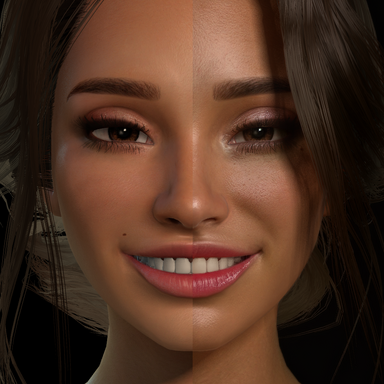
Here's a comparison using ICannotDie's gorgeous Rosa look:
Notes/Caveats:
Performance takes a major hit. The scene depicted above contains a single "Person" Atom with minimal clothing items and two spot lights. Without the effect enabled I'm rocking 300+ FPS, and with it enabled my FPS seems stable around 90 or so with my GPU at 90+% utilization. Whether that trade off is worth it for the visuals is entirely up to you.
Supershot does not seem to be able to capture the Neural Rendering effect (or any ReShade effect from what I can tell) Captures made using methods outside of VaM (Snipping tool, OBS, etc) work just fine.
Closing:
I don't have a lot of knowledge about what technical wizardry is happening here so I won't be of much help with troubleshooting, this is really just a compilation of tutorial steps from various places specifically tailored for VaM. Thanks for reading!
Contains executable files or external scripts. Ensure you trust the creator and apply your own security measures.

