

Contains executable files or external scripts. Ensure you trust the creator and apply your own security measures.
Real motion sequence driven by funscript scripts
Scripts embedded within the plugin deliver more realistic OSR movements.
Overview
FunSequencer loads funscript files and generates character bone motion directly within VaM. Funscripts are community-made timed motion curves originally designed for interactive hardware. A vast library of video‑paired funscripts is available on discuss.eroscripts.com. These pre-authored motion sequences deliver organic, smooth rhythmic movement. Instead of playing animations baked into Timeline, you can reuse thousands of shared funscripts to drive your character dynamically.Who this plugin is for
1. VaM Scene CreatorsTraditional animation workflows rely on fixed Timeline clips, which cannot flexibly adjust timing or swap motion content. With FunSequencer you can slice funscripts into named, independent Segments. Each segment stores separate motion parameters, and can be triggered on demand. You can combine funscript-driven core movement with Timeline animations for hands, facial expressions and secondary body motion to build layered, lifelike scenes.
2. Scene builders wanting flexible interactive logic
Segments support looped playback and can be activated or halted via Timeline triggers. You can switch between different motion segments during scene runtime without reworking pre-recorded animations.
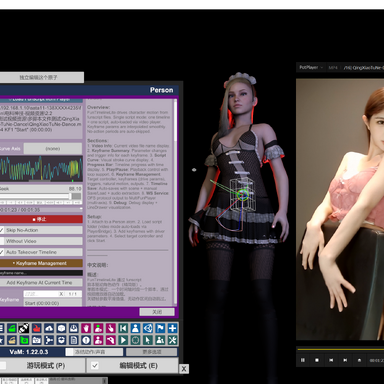
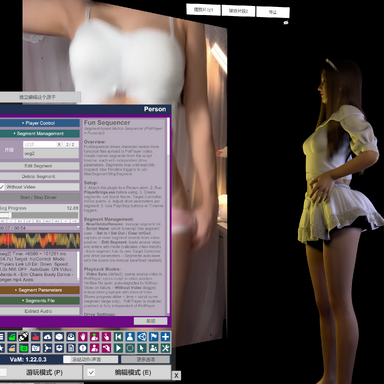
This video demonstrates using buttons to invoke two motion segments via triggers, paired with their corresponding source‑video clips. It achieves an effect where the character within the scene appears to mimic the reference video.
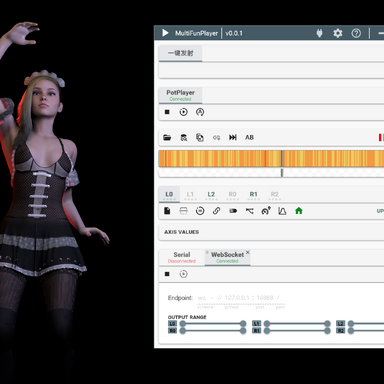
This video demonstrates the plugin driving OSR hardware by interfacing with MFP over the WebSocket protocol.
Core Features
- Import funscript files and create trimmed Segments with custom In / Out range markers
- Every segment saves independent motion settings: drive mode, axis range, playback speed and auto gain
- Three physical drive modes: Physics Link / Force / Direct
- Multi-axis control: stroke, surge, sway, twist, roll, pitch adjustable separately
- Natural Motion secondary follow system: adds linked subtle movement for head, shoulders, chest, arms, hips and limbs
- Built-in OFS WebSocket output: forward multi-axis funscript data to MultiFunPlayer
- Integrated audio extractor to export matched audio clips from source video for your segments, bringing natural ambient sounds and vocals to your scenes.
- All segment configurations persist directly within your scene file
Usage Guide
- First run PlayerBridge.exe to enable linkage between the plugin and PotPlayer. Place AudioExtractor.exe into the custom directory (this file is unnecessary if you do not require audio extraction).
Note: Due to strict review policies for executable files on the Hub community, no EXE files are included within this plugin archive. Users may compile PlayerBridge.exe and AudioExtractor.exe themselves by building PlayerBridge\PlayerBridge.cc and AudioExtractor\AudioExtractor.cc contained in the archive. Pre‑compiled binaries are also available for download on GitHub:
Release v1.0 - AudioExtractor & PlayerBridge · nbnb9527/nb-VaMTools
Full Changelog: https://github.com/nbnb9527/nb-VaMTools/commits/v1.0 What's Changed / 更新内容 AudioExtractor / 音频提取器 Extract audio from video files via ffmpeg 通过 ffmpeg 从视频文件中提取音频 Usage / 用法: Playe... github.com
- Load the plugin onto your character atom.
- Open your script‑enabled video within PotPlayer.
- Open the plugin UI and click Load Funscript from Player to load the funscript into the plugin.
- Create Segments: set In / Out points to trim the desired section of the funscript, then give each segment a name. Each segment stores its own independent motion parameters.
- Configure segment parameters: drive mode, L0 direction, six‑axis range (stroke, surge, sway, twist, roll, pitch), auto gain, etc.
- Start the Segment Driver. The plugin will automatically take over the target controller, with motions driven by the active segment.
- Other common settings:
- target control: Body part driven by the script
- L0 Direction: Principal‑axis orientation. For example, set to Down for dance animations; set to Back for dual‑interactive combat‑style scenes.
- Stroke / Surge / Sway / Twist / Roll / Pitch: Six‑axis range of motion per segment
- Natural Motion: Natural Motion: Enables natural follow‑through movements for the head, shoulders and hands. This produces stochastic secondary motion. Disable this option if your scene already has pre‑configured head‑shoulder‑hand animations. It is recommended to enable it under frozen or static‑pose conditions.
- debug: Toggle this on to diagnose motion‑related anomalies. - OSR driving modes:
- Plugin playback position is synced with PotPlayer, allowing PotPlayer to feed into MFP for OSR driving.
- The plugin can also drive OSR via the WS protocol: enable WS Output on the plugin side, and select OFS as the input source within MFP.
- Direct plugin‑native OSR driving can be implemented with minimal modifications; this will be considered for future updates.
Timeline Integration (Critical for scene workflow)
Available trigger actions you can call inside Timeline keyframes:- StartSegment(SegmentName)
Activate segment playback in standalone timer mode (Without Video). - StopSegment(SegmentName)
Halt the specified running segment - StopAllSegments
Terminate all active motion segments
The video below demonstrates the complete workflow of extracting a script segment and inserting it into the LapDance scene of AWAKENING.
First, try to find a funscript that matches the scene as closely as possible. Use the video timeline, Set In, and Set Out tools to clip the script segment. Next, configure the script‑driven parameters and preview the result until it meets your requirements.
Then open the timeline configuration panel. Create a new trigger track, add a trigger keyframe at the appropriate position to fire startsegment('s1'). Add another trigger keyframe at a position aligned with the segment duration to fire stopsegment('s1'). Note that the segment will keep playing indefinitely if you do not call stop.
FunSequencer Demo Scene & Step‑by‑Step Build Tutorial
nb.FunSequencer_demo: This demo contains two motion animations. You can trigger them via on‑screen UI buttons, or use keyboard shortcuts F2 / F3. Both animations are driven by approximately 1-minute-long funscript segments created inside FunSequencer.Unlike baked VAM Timeline animations, these motions feel more natural. Corresponding original audio from the source video is also included. The scene is just for demonstration, no extra limb animations or facial expressions have been added.
Source funscript and video are downloaded from:
https://discuss.eroscripts.com/t/kuzu-v0-160/324990
I am not good at scene creation; the character poses are referenced from murn.MiniScene17.
https://hub.virtamate.com/resources/miniscene17.68455/
Basic Workflow to create your own scene:
- Load the FunSequencer plugin onto your Person atom.
- Launch the bridge program to establish communication between the plugin and your media player, then load the funscript and synchronize playback time.
- Locate suitable time ranges in your source video for your scene.
For reference, segments used in this demo:
‑ Segment1: 00:53:30 ~ 00:54:22
‑ Segment2: 01:13:33 ~ 01:14:28 - Select your segment in the segment manager and configure driving parameters. Click Start Driver to preview. Important note: Set L0 Direction to Forward for this demo’s motion.
- Use the Extract Audio feature to export matching audio clips for segments.
Set an output path inside your Custom folder, run the generated bat file to export all audio files. After extraction completes, clicking Start Driver will play the corresponding audio automatically. - Add UIButtons. In button triggers, call StartSegment(s1) / StartSegment(s2) to play segments. Use StopAllSegment to halt all motion.
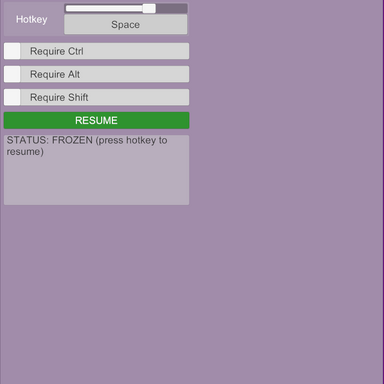
- Shortcuts F2 / F3 require the Keybindings plugins installed.
- Package and publish as a VAR file. One important note: you need to set the VAR package name in the segments file section before publishing.
Direct OSR Hardware Driving
This scene supports direct OSR hardware driving. Since motions are powered natively by funscript data, you do not need motion output from ToySerialController. The plugin can forward raw funscript data over WebSocket to drive your OSR physical device directly.
- Enable WS Output inside the FunSequencer plugin UI.
- In MultiFunPlayer, add an OFS input source, set endpoint to localhost:18888, then connect.
- Once connected, whenever you trigger StartSegment, the plugin will stream the corresponding funscript segment data to MultiFunPlayer via WebSocket.
中文版
FunSequencer
Funscript 时序编排动作驱动插件 for VaM
概述
FunSequencer 在 VaM 内加载 Funscript 脚本并实时生成角色骨骼运动。Funscript 是社区创作者制作的时序运动曲线,最初为互动体感设备设计。海量公开脚本包含大量自然流畅、富有节奏感的动态素材。在discuss.eroscripts.com社区可以找到大量配套视频的 Funscript 脚本资源。你不再局限于 Timeline 预烘焙动画,可以直接复用社区脚本动态驱动人物。适合人群
1. VaM 场景制作者传统动画方案依赖固定 Timeline 片段,难以灵活调整节奏、更换动作素材。FunSequencer 支持将 Funscript 截取为独立命名片段(Segment),每个片段拥有一套专属动作参数,支持按需触发运行。你可以将脚本驱动的主体动作,搭配 Timeline 制作的手部、表情、次要肢体动画叠加使用,分层构建更真实的场景。
2. 需要交互式动态逻辑的创作者
片段支持循环播放,可通过 Timeline 触发器随时启动、终止。场景运行过程中能够自由切换不同动作片段,无需反复修改预制作动画。
此视频演示通过按钮借助触发器调用两段动作片段,并搭配对应的源视频片段,实现场景内角色模仿参考视频的效果。
本视频演示该插件通过 WebSocket 协议对接 MFP,驱动 OSR 硬件。
核心功能
- 载入 Funscript,自定义截取区间,创建命名动作片段(Segment)
- 每个片段独立保存全套参数:驱动模式、各轴幅度、播放速度、自动增益
- 三种物理驱动模式:Physics Link / Force / Direct
- 六轴独立调节:前后行程、进退、左右摆动、扭转、俯仰、横滚
- Natural Motion 次级跟随系统:为头部、肩、胸、手臂、髋部等添加联动微动
- 支持 OFS WebSocket 输出,可向 MultiFunPlayer 转发多轴脚本数据
- 内置音频提取工具,可从源视频导出与动作片段匹配的音频,为你的场景增添自然的环境音效与人声。
- 所有片段配置直接保存在场景文件内
使用流程
- 先运行PlayerBridge.exe,用来插件和potplayer联动。将AudioExtractor.exe放到custom目录(如果不做音频提取就不需要这个文件)。
- 将插件加载到人物原子
- Potplayer打开带脚本视频
- 打开插件界面,点击Load Funscript from Player即可加载脚本到插件
- 创建片段(Segment):设置 In / Out 截取区间,为片段命名。每个片段独立保存一套动作参数。
- 配置片段参数:驱动模式、L0 方向、六轴活动范围(stroke、surge、sway、twist、roll、pitch)、自动增益等。
- 启动 Segment Driver,由当前激活片段驱动动作。
- 其它常见设置:
- target control 脚本驱动部位
- KF L0 Direction 主轴方向,比如舞蹈是下,双人战斗可能要换成后
- KF L0 ~ KF R2 六轴活动范围
- Natural Motion 随驱动部位,其它的头、肩、手的自然动作,因为只是随机运动,如果场景本身配置好头、肩、手动作的,不要设这个。如果是冻结、静止状态,推荐打开。
- debug 动作出现异常的时候可以打开看看是哪里出问题了 - OSR驱动方式:
- 插件播放进度和potplayer实现了联动,可以让potplayer接入MFP驱动OSR
- 插件也可以通过WS协议驱动OSR,插件端勾选WS Output,MFP输入端选择OFS
- 后期也很容易改写成插件直驱,后面再看吧
Timeline 集成(场景制作核心)
可在 Timeline 关键帧直接调用触发器指令:- StartSegment (片段名称)
以离线独立模式启动片段 - StopSegment (片段名称)
停止指定片段 - StopAllSegments
停止全部正在运行的片段
下面的视频演示了截取一段脚本 segment 并插入到 AWAKENING 的 LapDance 的完整流程
首先尽量寻找与场景类似的视频脚本,利用视频进度条、set in、set out 工具截取脚本 segment,然后配置脚本的 driven 参数,预览效果,直至满足要求。
然后进入 timeline 配置窗口,新建 trigger 层,在合适的位置添加 trigger 关键帧,触发 startsegment ('s1'),根据 segment 的长度再在合适的位置增加 trigger 关键帧,触发 stopsegment ('s1')。注意如果不 stop,segment 会一直持续播放。
FunSequencer 示例场景 & 分步搭建教程
nb.FunSequencer_demo: 本场景内置两段运动动画,可以点击界面 UI 按钮触发,也可以使用键盘快捷键 F2、F3 触发。两段动画均由 FunSequencer 截取的两段约 1 分钟时长的 funscript 片段驱动。
对比 VAM 原生 Timeline 烘焙动画,该方式生成的动作更加自然;场景附带视频对应的原生音频。因仅作演示示意,本示例没有额外添加其他肢体动作与表情。
本场景使用的脚本与视频来源:
https://discuss.eroscripts.com/t/kuzu-v0-160/324990
我不擅长场景制作,人物姿势参考了 murn.MiniScene17.
https://hub.virtamate.com/resources/miniscene17.68455/
示例场景制作流程:
- 将 FunSequencer 插件挂载到人物原子。
- 运行桥接程序,建立插件与播放器之间通信,加载 funscript 脚本并同步播放时间。
- 在源视频中挑选适合场景节奏的时间片段。
本场景使用的片段参考:
‑ 片段 1:00:53:30 ~ 00:54:22
‑ 片段 2:01:13:33 ~ 01:14:28 - 在片段管理器选中对应 segment,配置驱动参数,点击 Start Driver 预览动作。注意:本场景动作需要将 L0 主轴方向设置为向前。
- 使用提取音频功能,导出片段对应的音频。
设置输出路径到 Custom 文件夹内,运行生成的 bat 批处理文件,批量导出全部音频。导出完成后,点击 Start Driver 即可自动播放对应音频。 - 添加 UI 按钮,在按钮触发器中调用 StartSegment (s1)、StartSegment (s2) 播放片段;调用 StopAllSegment 停止全部动作。
- 快捷键 F2/F3 功能依赖 Keybindings 插件。
- 打包成VAR文件并发布,仅需要注意一点,发布时需要在segments file部分设置VAR package name
脚本直接驱动 OSR 设备
场景支持直接驱动 OSR 物理设备。因为动作由 funscript 原始数据直接驱动,不再依赖 ToySerialController 输出动作,插件可以通过 WebSocket 转发原始脚本数据,直接驱动 OSR 硬件。
- 在 FunSequencer 插件界面开启 WS Output。
- 在 MultiFunPlayer 中添加 OFS 输入源,Endpoint 填写 localhost:18888,点击连接。
- 连接成功后,只要触发StartSegment,插件就会通过 WebSocket 向 MultiFunPlayer 输出对应片段的脚本数据。
Contains executable files or external scripts. Ensure you trust the creator and apply your own security measures.