

LuluFurAlpha Fur Shader — User GuideLuluFurAlpha
Huge thanks to regguise for the provided tutorial, and to the community for the continuous support. It’s because of this help that I was able to make this work a reality.
Showcase
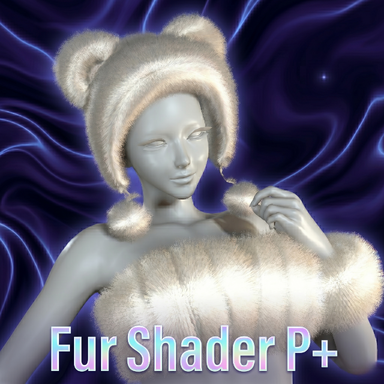
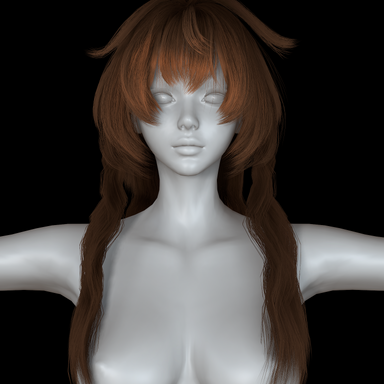
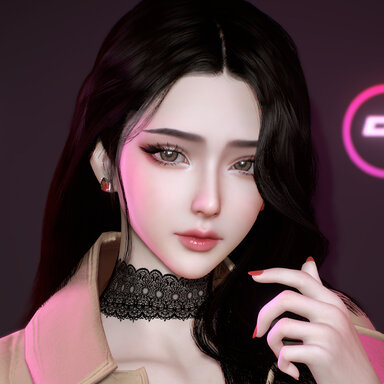
Beautiful preview model: Mio by dnaddr.
 hub.virtamate.com
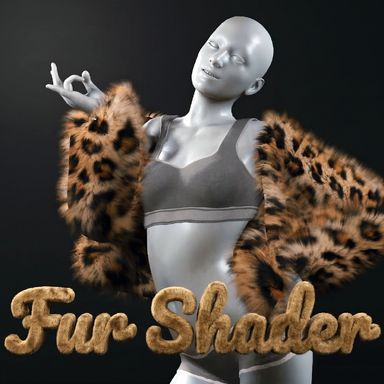
The showcase is just one example. By swapping out the mask textures and tweaking the parameters, you can create a huge variety of fur effects. I'll leave the exploration up to you. Have fun and good luck! ~
This shader can ONLY be used with my plugins: CustomShaderLoaderAlt or the Custom Shader Loader & Sim Proxy Combo. > Why? Because this shader requires their specific compatibility support for Texture Tiling modes.
 hub.virtamate.com
 hub.virtamate.com

LuluFurAlpha_V2 User Guide
Changelog
V2
Quick Start
Step 1: Basic Setup
Step 2: Shape the Fur
Step 3: Control Fur Direction
Step 4: Adjust Lighting
Parameter Reference
System
Shape (Fur Appearance)
These parameters control the visual shape of the fur — the most frequently adjusted settings.
Noise Textures
The two noise textures are automatically blended 50/50, producing more natural fur than a single texture.
Masks & Length Map
Fur Parameters
Forces (Fur Direction)
Controls fur lay-down and flow direction.
Tips:
Lighting
Root Shading
Anisotropic Highlights
Simulates the streak-like shine along fur strands seen on real hair. Intensity defaults to 0 (off) — increase it to see the effect.
Tips:
Rim Light
Adds a glow around the fur silhouette edges for depth and atmosphere.
Emission
Makes fur glow on its own, independent of scene lighting.
Shadow
VaM Native Properties
These affect the skin base layer beneath the fur, controlled by VaM's built-in material system:
Huge thanks to regguise for the provided tutorial, and to the community for the continuous support. It’s because of this help that I was able to make this work a reality.
Showcase
Beautiful preview model: Mio by dnaddr.
Mio - Paid Looks -
Thanks to the excellent plugin authors and clothing authors for their works: https://hub.virtamate.com/resources/postmagic.161/
hub.virtamate.com
The showcase is just one example. By swapping out the mask textures and tweaking the parameters, you can create a huge variety of fur effects. I'll leave the exploration up to you. Have fun and good luck! ~
 Important Requirement:
This shader can ONLY be used with my plugins: CustomShaderLoaderAlt or the Custom Shader Loader & Sim Proxy Combo. > Why? Because this shader requires their specific compatibility support for Texture Tiling modes.
Custom Shder Loader And Cloth Sim Proxy Combine - Plugins + Scripts -
-- Content: - Integrated Custom Shader Loader with Cloth Sim Proxy, and resolved the compatibility issues. -- Description: -An edit to the original Custom Shder Loader by @regguise and Cloth Sim Proxy by @Stopper。 -Ensures that Custom...
hub.virtamate.com
CustomShaderLoaderAlt - Plugins + Scripts -
CustomShaderLoaderAlt Improvements over Regguise/CustomShaderLoader v1.72 ✦ How To Use Please load the CustomShaderLoaderAlt.cslist file to activate the plugin. For detailed examples, please check out the demo video at the end of this post. ✦...
hub.virtamate.com
LuluFurAlpha_V2 User Guide
Changelog
V2
- Fixed fur layers being overly transparent
- Fixed shadow rendering errors
- Fixed backlight causing incorrect anisotropic highlight behavior
- Anisotropic highlights are now affected by VaM's native Specular texture, resulting in more natural highlight distribution
Quick Start
Step 1: Basic Setup
- Apply the shader to the target material in VaM
- Make sure GPU Skinning and VaM Lighting are both enabled
- Set up your skin texture and color
Step 2: Shape the Fur
- Load a Length Map and adjust its Tiling. Different length maps will change the base shape of the fur. A few common maps are included in the folder — try them out
- Adjust Length Map Strength, Length, and Tip Curve to control fur length and tip fade
- Load a Noise Texture to refine the fur detail (optional)
- Use Density to adjust fur thickness (Note: higher values = sparser fur)
- Use Coverage Mask to control fur length across different areas
Step 3: Control Fur Direction
- Use Comb Direction to set the overall fur lay-down direction
- For finer directional control, load a Flow Map and increase Flow Strength
- For making Flow Maps, check out this tutorial: Shader Tutorial: Flow-Map (Medium)
Step 4: Adjust Lighting
- Adjust Root Occlusion and Root Brightness for natural darkening at the fur base
- Want fur shine? Set Intensity (anisotropic highlight) above 0, then tweak Shift for highlight position, Sharpness for clarity. Use different colors on the two layers to simulate realistic dual-tone fur luster
- Want rim light? Set Rim Intensity above 0
- Want glow? Set the Emission color and increase its alpha channel. Use Emission Mask to limit glow to specific areas
Parameter Reference
System
| Parameter | Description | Default |
|---|---|---|
| GPU Skinning | Must be enabled in VaM, otherwise the model won't follow animations | On |
| VaM Lighting | Uses VaM scene environment lighting; disable for simplified lighting | On |
Shape (Fur Appearance)
These parameters control the visual shape of the fur — the most frequently adjusted settings.
Noise Textures
| Parameter | Description | Default |
|---|---|---|
| Noise Texture 1 | Primary fur texture, defines strand pattern and distribution | None |
| Noise 1 Tiling | Repeat density of texture 1; higher = finer strands | 4.0 |
| Noise Texture 2 | Secondary fur texture, blended with texture 1 for richer detail | None |
| Noise 2 Tiling | Repeat density of texture 2 | 4.0 |
The two noise textures are automatically blended 50/50, producing more natural fur than a single texture.
Masks & Length Map
| Parameter | Description | Default |
|---|---|---|
| Coverage Mask | Controls where fur grows (white = fur, black = no fur) | None |
| Coverage Tiling & Offset | Scale and offset for the coverage mask | Default |
| Length Map | Controls fur length per area (white = long, black = short) | None |
| Length Tiling & Offset | Scale and offset for the length map | Default |
- Use Coverage Mask to block fur on areas like eyes or lips (paint them black)
- Length Map controls the base shape of the fur: white areas keep full fur, black areas get clipped short. Use gradients for natural contours — e.g. shorter fur at ear edges, belly shorter than the back
Fur Parameters
| Parameter | Description | Default |
|---|---|---|
| Length | Fur length — start with a small value | 0.005 |
| Density | Fur density. Note: this is inverted — higher = sparser, 0 = thickest | 0.5 |
| Length Map Strength | How much the length map affects clipping; higher = more visible short areas | 5.0 |
| Opacity | Overall fur transparency, 1 = fully opaque | 1.0 |
| Tip Curve | Tip fade: low = round plump tips, high = sharp thin tips | 1.5 |
Forces (Fur Direction)
Controls fur lay-down and flow direction.
| Parameter | Description | Default |
|---|---|---|
| Comb Direction | Global combing direction (X = left/right, Y = up/down) | 0, 0 |
| Flow Map | Directional flow texture for fine-grained per-area fur direction | None |
| Flow Tiling | Repeat density of the Flow Map | 1.0 |
| Flow Strength | Flow Map influence strength. Default 0 = disabled, increase to activate | 0.0 |
Tips:
- Comb Direction is for overall direction — e.g. all fur laying downward
- Flow Map is for local detail — e.g. swirls on the head, parting lines on the forehead
- They stack: set the overall direction with Comb, then fine-tune with Flow Map
Lighting
Root Shading
| Parameter | Description | Default |
|---|---|---|
| Root Occlusion | Root darkening depth — lower = darker roots, simulating natural shadow at the base | 0.1 |
| Root Brightness | Minimum root brightness, prevents roots from going fully black | 0.5 |
| Light Wrap | Softens lighting. Positive = softer shading, negative = harder | 0.0 |
Anisotropic Highlights
Simulates the streak-like shine along fur strands seen on real hair. Intensity defaults to 0 (off) — increase it to see the effect.
| Parameter | Description | Default |
|---|---|---|
| Use Bitangent | Highlight direction: On = horizontal streaks, Off = vertical streaks | On |
| Highlight 1 Color | First highlight layer color | White |
| Highlight 2 Color | Second highlight layer color | White |
| Shift 1 | First layer highlight position offset | -0.1 |
| Shift 2 | Second layer highlight position offset | 0.1 |
| Sharpness 1 | First layer clarity — higher = sharper | 32 |
| Sharpness 2 | Second layer clarity | 64 |
| Intensity | Overall highlight strength, 0 = off | 0.0 |
| Jitter | Random variation to break up the highlight band for a more natural look | 0.3 |
Tips:
- The two layers simulate primary and secondary shine — use different colors for rich effects
- e.g. warm white for layer 1, light gold for layer 2 to mimic blonde hair luster
- Shift controls the vertical position of each highlight band — small adjustments go a long way
Rim Light
Adds a glow around the fur silhouette edges for depth and atmosphere.
| Parameter | Description | Default |
|---|---|---|
| Rim Color | Rim light color | White |
| Rim Intensity | Rim light strength, 0 = off | 0.0 |
| Rim Sharpness | Rim light width — higher = narrower, more concentrated on edges | 2.0 |
Emission
Makes fur glow on its own, independent of scene lighting.
| Parameter | Description | Default |
|---|---|---|
| Emission | Glow color — alpha channel controls intensity | Black (off) |
| Emission Mask | Glow area mask (white = glow, black = no glow) | None |
Shadow
| Parameter | Description | Default |
|---|---|---|
| Contrast | Shadow contrast — above 1 = sharper edges, below 1 = softer | 1.0 |
| Intensity | Shadow depth — higher = more visible shadows | 1.0 |
VaM Native Properties
These affect the skin base layer beneath the fur, controlled by VaM's built-in material system:
| Parameter | Description |
|---|---|
| Main Texture | Skin texture |
| Color | Overall color (affects both skin and fur) |
| Specular Color | Specular highlight color |
| Specular Texture / Intensity / Offset | Specular map and adjustments |
| Gloss Texture / Gloss / Offset | Glossiness map and adjustments |
| Alpha Texture / Alpha Adjust | Transparency mask and adjustments |
| Normal Map | Normal map (surface bump detail) |
| Normal Strength / Highlight Strength | Normal map intensity |
| Decal Texture | Decal overlay (skin layer only) |
| Fresnel | Edge reflection intensity |
| Diffuse Texture Offset | Skin brightness fine-tuning |