• Hi Guest!

    We are extremely excited to announce the release of our first Beta1.1 and the first release of our Public AddonKit!
    To participate in the Beta, a subscription to the Entertainer or Creator Tier is required. For access to the Public AddonKit you must be a Creator tier member. Once subscribed, download instructions can be found here.

    Click here for information and guides regarding the VaM2 beta. Join our Discord server for more announcements and community discussion about VaM2.
  • Hi Guest!

    VaM2 Resource Categories have now been added to the Hub! For information on posting VaM2 resources and details about VaM2 related changes to our Community Forums, please see our official announcement here.

VaM 1.x How to lengthen just the legs without bending them, and have the height increase automatically (no other body parts changed)?

Threads regarding the original VaM 1.x

chinei

New member
Joined
Nov 7, 2024
Messages
5
Reactions
0
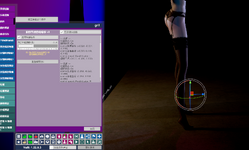
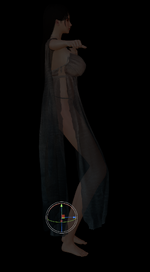
I’ve been struggling with this issue for a long time – I only want to stretch the legs alone on the VAM character, but it seems the legs will bend due to the height limit of the character model.
QQ截图20260208020029.png
If I adjust the torso length or the overall height of the character, the body will be forced to compress to fit the fixed height.

And adjusting the body proportions just makes the character thinner instead.

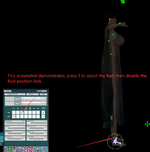
Other than setting the Foot Control to Off(this is the only way I can stretch the legs without bending for now), is there any other method to lengthen the legs alone without causing them to bend?
123.png
I want to achieve the same leg-stretching effect as when the foot control is turned off, but in a way that works permanently.

P.S. Turning off the Foot Control only fixes the issue in the current scene – it doesn’t work at all when I import the character into other animated scenes.
 
What happens is that changing this also applies to your characters' bones. The controls of your feet are set to On, which, well, controls their positions. Since your character's dimensions changed, you have to adjust the pose by etiher: 1) move the feet nodes a little bit down, or 2) move the other body parts nodes up.
Regarding swapping her into another scene, it won't ever match 100% correctly because probably the other scene was made with characters with common proportions in mind.
 
Upvote 0
Thank you very much for your patient explanation. Does your answer mean that the skeleton and height of the female character in this game cannot be modified through morphing, plugins, or other such means?


If I forcibly lengthen the female character's legs while keeping other body parts unchanged, and then import it into another scene for character replacement, is the only way to prevent the legs from bending by pulling down the position of the foot bones? Every time I press the T key to pull down the foot bones, the legs snap back to their original position as soon as the dance animation plays in the scene. What should I do about this? For example, the timeline dance in DJker.
What happens is that changing this also applies to your characters' bones. The controls of your feet are set to On, which, well, controls their positions. Since your character's dimensions changed, you have to adjust the pose by etiher: 1) move the feet nodes a little bit down, or 2) move the other body parts nodes up.
Regarding swapping her into another scene, it won't ever match 100% correctly because probably the other scene was made with characters with common proportions in mind.
 
Upvote 0
It can be modified, but you'll encounter issues when trying to import these characters into other scenes because they weren't made for that lower body scale.

So what happens in your case is that the timeline animation controls the nodes positions, and these nodes are adjusted based on a person of usual proportions. Even if you modify the nodes of first keyframe on the timeline animation, if you hit the playback it's going to snap back on subsequent keyframes. The solution would be to manually adjust every keyframe of the whole timeline animation to account for the new character with longer legs.
Or (maybe, perhaps) you could try to decrease the whole scale of the model after you adjust the legs length. But then your character may look too small (head, arms, etc).
 
Upvote 0
It can be modified, but you'll encounter issues when trying to import these characters into other scenes because they weren't made for that lower body scale.

So what happens in your case is that the timeline animation controls the nodes positions, and these nodes are adjusted based on a person of usual proportions. Even if you modify the nodes of first keyframe on the timeline animation, if you hit the playback it's going to snap back on subsequent keyframes. The solution would be to manually adjust every keyframe of the whole timeline animation to account for the new character with longer legs.
Or (maybe, perhaps) you could try to decrease the whole scale of the model after you adjust the legs length. But then your character may look too small (head, arms, etc).
I roughly get it now. So that means I can’t fully replace the original character in the scene, and the original character’s skeleton still remains? Is that what’s causing this issue?

After replacing the character (appearance preset), I tried scaling the character’s overall size—not in the female morph settings, but in the Controls & Physics tab. I adjusted the scale from 1.000 down to 0.5000, but it didn’t work; the legs were still bent. When you said scaling down the model’s overall proportions, were you referring to the Scale option in the morph settings?
 
Upvote 0
Bruh, I speak several languages but Mandarin is not one of them, sorry 😂 thanks for providing the english version.

Not exactly, what I meant is actually the opposite. When you click to swap the looks, it replaces everything: morphs, textures, clothes, etc. However, the nodes are still in the same place. The nodes are controlled by the pose and the timeline animation, and not the appearance.

Yeah I was referring to the same setting you tried to adjust, I figured that scaling the overall size could maaaybe work such that you wouldn't have to go through all the trouble, but nah.
 
Upvote 0
Bruh, I speak several languages but Mandarin is not one of them, sorry 😂 thanks for providing the english version.

Not exactly, what I meant is actually the opposite. When you click to swap the looks, it replaces everything: morphs, textures, clothes, etc. However, the nodes are still in the same place. The nodes are controlled by the pose and the timeline animation, and not the appearance.

Yeah I was referring to the same setting you tried to adjust, I figured that scaling the overall size could maaaybe work such that you wouldn't have to go through all the trouble, but nah.
Sorry about that – I typed in English, but my browser auto-translated it to Chinese and sent it over. I apologize for the trouble this may have caused you.
Thank you so much for your help. It seems there’s no solution to this after all, and adjusting the position of the foot joints frame by frame is far too cumbersome. I’ll do some more searching to see if there are any plugins for joint editing; if there aren’t any, I’ll just have to give up on this.
 
Upvote 0
No worries mate, we're a multicultural commmunity 🫡

Maybe someone else has a solution for you problem, but unfortunately I know of no other way besides manually adjusting every keyframe. Because your edited model is too different from the base one, you'll probably always encounter this issue.

Btw, which specific morph did you adjust to get the legs to the length you wanted?
 
Upvote 0
The green nodes are fixed points in space relative to the persons control node. If you morph the characters proportions they will bend and compress into that space. For animation however those points do scale with the total "body scale" slider in the "Control & Physics 1" tab. To use existing animations with a taller character, you could set the body scale higher and then use morphs to adjust down the body and head proportions to make them look natural. That will make the feet stay on the ground and move everything else up. That will scale the whole animation up though, so that will only work for a single person animation, it will change the relative alignment to anything/anyone else in the scene.
 
Upvote 0
The green nodes are fixed points in space relative to the persons control node. If you morph the characters proportions they will bend and compress into that space. For animation however those points do scale with the total "body scale" slider in the "Control & Physics 1" tab. To use existing animations with a taller character, you could set the body scale higher and then use morphs to adjust down the body and head proportions to make them look natural. That will make the feet stay on the ground and move everything else up. That will scale the whole animation up though, so that will only work for a single person animation, it will change the relative alignment to anything/anyone else in the scene.
Thank you so much for your explanation. Do you mean that after replacing the character, I should first increase the overall body scale, and then adjust the body proportions? However, from my perspective, this doesn't directly increase the leg length. When I zoom out the camera with the mouse wheel, the character's leg proportions remain the same the entire time, and the leg length isn't increased directly.
 
Upvote 0
Back
Top Bottom