

Rig Manager
control for character physics and linking
The ultimate tool for managing character rigs, constraints, and joint physics. Whether you are setting up complex scenes, optimizing performance, or in VR, this plugin simplifies everything into a single, intuitive dashboard.

control for character physics and linking
The ultimate tool for managing character rigs, constraints, and joint physics. Whether you are setting up complex scenes, optimizing performance, or in VR, this plugin simplifies everything into a single, intuitive dashboard.
Explore the features below to see how it works:
Located at the top of the interface, the Rig and Temp. header buttons give you instantaneous access to your saved presets. Instead of navigating tedious file browser windows, one click opens a sleek overlay popup containing all your templates.
• Rig : Designed specifically for structural joint setups, constraints, and link templates.
• Temp. : Perfect for quick, hot-swappable physics adjustments or situational poses during scene building.
The Attach system lets you instantly anchor any chosen body part to another object or character in your scene without dealing with VaM's native parent-link dropdown lists.
• Attach (Ctrl): Pins the selected bones directly to the target object's primary controller.
• Attach (Bone): Advanced mode. Realigns and binds the chosen parts seamlessly to the specific underlying skeletal structure/bone of the target.
• Detach (Reset Link): Instantly breaks the bond and restores the bone's default state.
A highly versatile selection grid engineered for speed, offering seamless desktop and VR workflows.
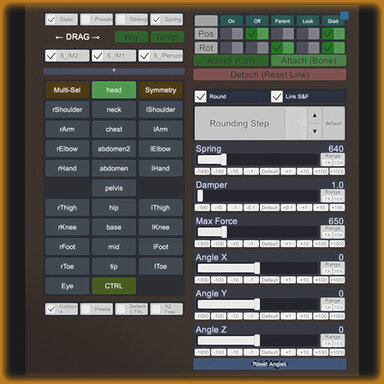
• Bone Grid Layout: A mirror representation of the character's body. Left-click selects a bone, middle-click clears it, and right-click selects it in the 3D scene. Double-clicking any slot quickly forces focus to that controller.
• Multi-Sel (Multi-Select): Turn this on to select and adjust a group of bones simultaneously (e.g., both legs or the entire spine).
• Symmetry: Mirroring engine. Adjust any parameter on a left limb, and the plugin automatically calculates and mirrors the precise math onto the right limb, accounting for complex inverse rotation axes.
• Sync-Sel (Sync Selection): Real-time scene tracking. When active, selecting any controller directly in the VaM 3D workspace instantly focuses and selects that specific joint inside the plugin grid.
| Slot Panel (Slot 0-9) | The plugin supports up to 10 characters at the same time! Select a slot to control a specific atom (character). |
| Bone Grid | A visual map of the body (Head, Shoulders, Arms, Legs, etc.). Click a body part to configure it. • Right Click - select a bone in scene. • Double Click (VR) - select this bone directly in the 3D scene. |
| Multi-Sel (Multi-Select) | Enable this to select multiple bones at once (e.g., both arms and the neck) and adjust their sliders simultaneously. (You can also do this by holding Shift). |
| Symmetry | A massive time-saver. Enable this, adjust the left arm, and the right arm will adjust automatically like a mirror! |
| Sync-Sel (Sync Selection) | Connects the UI to the 3D world. If enabled, clicking any bone on the character in the scene will automatically switch the plugin to that bone. |
| Collision / Freeze | Collision: Toggles physical body collisions on/off. Useful to disable if you need to boost your FPS. Freeze: Instantly freezes the character's physics (turns them into a solid statue). Shift + C |
Take full control over how controllers interact with physics forces and your input devices.
• On / Off: Instantly toggles active physical tracking. Turning it off completely relaxes the joint.
• Parent: Engages the constraint linkage system to follow parent targets.
• Lock: Freezes the chosen bones rigidly at their current global 3D space coordinates.
• Grab (Pos / Rot): Toggles your ability to physically grab and move the joint via desktop mouse or VR triggers. Great for locking a hand in place so you don't accidentally disturb it.
The bottom row acts as an emergency dashboard and optimization hub for the selected characters.
• Collision: Toggles overall physics collisions, soft-body modifiers, and advanced colliders on/off. Perfect for clearing clipping or saving performance.
• Freeze:** Instantly stops all physics updates on the selected atoms, freezing them in place like a solid statue.
• Detach CTRL:** Commands the primary navigation/control node to disconnect, giving you isolation control over the sub-joints.
• XZ Free:** Toggles rotation locks on the X and Z axes for the main controller, allowing free-form physics movement.
• Hold Pos / Hold Rot Springs: Controls how stubbornly the character maintains their location and posture in space. Higher values prevent sagging and drooping under gravity.
• Hold Pos / Hold Rot Dampers: ** Regulates the dampening force applied to the holding springs. This stops joints from violently vibrating or oscillating when external forces or heavy proxy clothing are introduced.
configuration of internal skeletal "muscle" tension.
• Spring / Damper / Max Force:** Controls the underlying physical limits of internal muscle tension.
• Link S&F (Spring & Force):** A vital safety feature. Automatically matches your Max Force capacity to your Spring stiffness value, preventing joints from snapping out of bounds.
• Round & Rounding Step:** Restricts values to neat intervals (e.g., increments of 10, 50, 100) for consistent rig numbers. Dampers and Angles are automatically isolated from this system to preserve necessary decimal accuracy.
• Angle X / Y / Z sliders:** Manually forces joint bending coordinates. The Reset Angles button resets all directional targets back to absolute zero.
1.Regular presets - record all bones and all parameters.
2.Choose any VaM poses, the rig settings will be extracted from them.
3-4. The main feature is that, unlike regular presets, these only save the selected bones (marked in the selector).
directory hierarchy within:
"Rig" :\Saves\PluginData\VL_13\Rig_manager\link_templates\. (Thus, the "ToLink" presets are grouped into a separate menu - similar to the Link filter).
"Temp." :\Saves\PluginData\VL_13\Rig_manager\templates\.
The "Save" buttons below each group save the presets to the relative subfolder.
5. Loading filters. For example, if you only want the stiffness settings (Physic) from a preset but don't want to change your current pose (Angle), simply turn off the Angle button before loading.
You can call some functions through triggers.

 Hotkeys and UI Controls:
Hide UI (Default: I key): Instantly hides or shows the plugin interface so it doesn't block your view.
Freeze (Default: Shift + C): Emergency physics freeze.
Resize: There is a small blue square in the bottom right corner — pull it to expand the right panel if the text or sliders feel too small.