

Please note:
To avoid letting this tutorial become too bloated, it is assumed the reader is decently familiar with VaM's native clothing system, Blender, and general 3D modeling concepts (weights, bones, UVs etc.)
This is a quick start guide on how to import clothing item to support the use of ReCloth plugin:
 hub.virtamate.com
1. Create clothing item (Depending on your work flow, you may want to do this step only *AFTER* step 3.c , in case you need to change your clothing mesh during weight transfer/paint)
 hub.virtamate.com
 hub.virtamate.com
2. Weight Transfer (via DAZ Transfer Utility. If you know how, you can transfer weights in Blender too)


3. Export bone weights
 hub.virtamate.com


4. Export morphnodes


5. Test in VaM


6. (optional) Setup Guide mesh for multi-layer simulation


 hub.virtamate.com


As you can probably tell, this is not a simple process. There are many points during flow that can, (and most likely WILL, for your first a few attempts) go wrong. Below are a couple of things that may help you locate the issue faster.
 hub.virtamate.com
You can also always post your questions here in the thread or DM me. I will try to answer them the best I can.
To avoid letting this tutorial become too bloated, it is assumed the reader is decently familiar with VaM's native clothing system, Blender, and general 3D modeling concepts (weights, bones, UVs etc.)
This is a quick start guide on how to import clothing item to support the use of ReCloth plugin:
ReCloth - Plugins + Scripts -
ReCloth This a plugin that, when enabled as a clothing plugin, renders the clothing item using an alternative pipeline. Key features: Bone weight skinning + morph nodes refit. This allows for: Almost zero wrap deforms across the board. Fine...
hub.virtamate.com
1. Create clothing item (Depending on your work flow, you may want to do this step only *AFTER* step 3.c , in case you need to change your clothing mesh during weight transfer/paint)
a. port your mesh as a clothing item using VaM clothing creator
b. wrap result doesn't matter for the most part. it will be bypassed once ReCloth is enabled. But it should still more or less fit the body.
c. setup materials like you normally would
d. If you need to sim the clothing, generate sim data. If not, you can skip it.
e. if you plan to use simulation but without guide mesh, set the sim texture in the creator.
i. Currently for single layer simulation (non-guide mesh), you cannot set new sim texture from the plugin, so you will need to set the one when during creation. I will fix this in next update
f. save the clothing item.
g. modify vaj file to enable ClothingPluginManager
i. check below guide on how to set up clothing plugin manager
Clothing Plugins - Guides -
What is a "Clothing Plugin"? It turns out that you can trick VAM into loading plugins when an item of clothing is loaded. These plugins don't go into the default Atom plugin UIs and are generally their own separate thing. What can I do with a...
hub.virtamate.com
ii. I recommend using this utility to save you some sanity:
Clothing Plugins Util - Plugins + Scripts -
A small utility for clothing creators to initialize Stopper's Clothing Plugin Manager on their clothing, and later fix all Clothing Plugin issues in a prepped package before release. I made this so that I wouldn't go crazy working on my...
hub.virtamate.com
2. Weight Transfer (via DAZ Transfer Utility. If you know how, you can transfer weights in Blender too)
a. Open DAZ, load a scene with a G2 person in it.
b. (optional) if you want to use a morphed person shape as the baseline, apply those morphs now.
c. import the clothing mesh into the scene
d. right click on the 'scene' pane (usually on upper right), choose Asset -> Transfer Utility
e. in diag, select the person as source, the clothing as target. If the person is morphed, set 'Item Shape' of the source to "Current"
f. Click on "Show Options".
i. Under 'General Options', untoggle everything except "Weight Maps".
ii. Under 'Post Transfer Options', untoggle everything except for 'Remove Original Target'
iii. Click Accept
g. Export the clothing mesh as fbx
3. Export bone weights
a. Open Blender, install all three python scripts as addons
i. download the blender scripts here:
ReCloth Blender Export Tools - Toolkits + Templates -
ReCloth Blender Export Tools This is Blender scripts to export required binaries for use with ReCloth plugin. https://hub.virtamate.com/resources/recloth.64517/ For usage, refer to the guide here...
hub.virtamate.com
ii. no need to unzip, install from local disk and pick the zip file directly
iii. after install, make sure all these addons are enabled
b. load the fbx exported in 2.g.
c. (optional) repaint/adjust weights as you see fit
d. Select the clothing mesh (not the armature) in object mode, go to File -> Export -> Bone Weights (BIN)
e. save the file into to the clothing item's directory (where the vaj file is). The file name should be the same as the clothing item name. The script will append the file extension automatically
f. the file name will be <clothing_item_name>.recloth.boneweights
4. Export morphnodes
a. still in Blender, load a G2 model (or the morphed version, if you used one in step 2)
b. in object mode, left click on the person, then shift-left click the clothing mesh.
c. Go to File -> Export -> Morph Node Graph (BIN)
d. in diag, check the driver mesh and driven mesh are set correctly. In this case, driver mesh should be the G2 person, the driven mesh should be the clothing mesh
e. Make sure the "File Extension" chooser is set to "Skin->Cloth"
f. save the file into to the clothing item's directory (where the vaj file is). The file name should be the same as the clothing item name. The script will append the file extension automatically
g. the file name will be <clothing_item_name>.recloth.morphnodes
5. Test in VaM
a. Open VaM. Put on the clothing item
b. load ReCloth.cslist as a clothing plugin
c. Toggle "Enable"
d. pose the person to see if looks fine. If weights needed repaint, go back to Blender, repaint and re-export weight file. Then reload the plugin.
i. if parts of the mesh clips into skin too much, adjust 'Push Out' slider under skinning tab
ii. you can also disable push out if you need clothing to sit under the skin.
iii. You can exclude bone influences quickly by adding individual bones to the bone mask. But it won't always works in your favor, since some times certain vertices will only have weights from a single bone.
e. Adjust smoothing parameters under smoothing tab
i. to skip smoothing altogether, set iteration to 0
ii. toggle off "Bilateral Smooth" will revert to VaM's native smoothing
iii. Add submesh (parts of the mesh that were using different material) to smoothing mask to disable smoothing only for that submesh
e. If you need to sim, toggle on "Sim enabled" (requires sim data generated during clothing creation)
f. Adjust sim parameters under simulation tab
g. Once done, save the clothing plugin preset via ClothingPluginManager.
6. (optional) Setup Guide mesh for multi-layer simulation
a. in Blender, model a guide mesh that follows along the clothing mesh part where you need to simulate
i. if you have used Stopper's sim proxy, same principles apply here when creating the guide mesh.
b. You'll need to export 3 additional files for guide mesh simulation:
i. sim data for guide mesh: ( <clothing_item_name>.recloth.gm.simdata )
1. set up a UV fo the guide mesh. It doesn't need to be very good, usually use minimum stretch should be enough. You can cut seams if you want, but not required.
2. Paint a sim texture for the guide mesh using the UV
a. you can follow this guide on how to paint a sim texture:
Cloth Sim Paint With Blender - Guides -
Here is a quick guide on how to use blender to paint VAM cloth sim. Video is short and no words. Here are some tips First, this method can only apply to what you created or import other's cloth. For shared by other, you best bet is Photoshop...
hub.virtamate.com
3. Select the guide mesh in object mode. Go to File -> Export -> Cloth Geometry Data (BIN)
4. In the export diag, pick the sim texture image you just painted as the Blend/Strenth sampling source
5. Save the file into to the clothing item's directory (where the vaj file is). The file name should be the same as the clothing item name. The script will append the file extension automatically
ii. morph node file from skin to guide mesh ( <clothing_item_name>.recloth.gm.skin.morphnodes )
1. similar to step 4. generate a morph node file where driver mesh is the person, driven mesh is the guide mesh. **Set "File Extension" chooser to be "Skin->Guide Mesh"**
2. Save the file.
iii. morph node file from guide mesh to clothing mesh ( <clothing_item_name>.recloth.gm.cloth.morphnodes )
1. similar to step 4. generate a morph node file where driver mesh is the guide mesh, driven mesh is the clothing mesh. **Set "File Extension" chooser to be "Guide Mesh -> Cloth"**
2. Save the file.
c. Check all three files are present. Then in plugin, enable sim, then toggle on "Sim Enabled" and "Use Guide Mesh"
(Advanced) Generate morphnodes with vertex group filtering1. To use this feature. it is important to understand what exactly morph nodes do. Morph nodes is a data structure that link a vertex being driven, to a group of driver vertices (morph nodes). As driver mesh deforms, the morphnodes are used to 'refit' the clothing mesh onto the morphed body, before the bone driven skinning takes place. When morph nodes are generated, it finds the closest vertices and its neighbors. Therefore, sometimes you want to specify the candidate group of the driver mesh, instead of using all of its vertices as candidates, to avoid the morph nodes to be naively generated from closet. This is conceptually similar to when we specify a collection of triangles to wrap to when we are doing clothing rewraps with VaM native cloth wraps.
2. To do this when exporting morphnodes from Blender, we need to create vertex groups in driver/driven meshes with matching names, so that the morph nodes will be generated only from the candidates that are in the matching vertex groups.
3. Another reason for using this is to setup partial guide mesh simulation. See example.2 below
Example 1:
Armor piece, the mesh should only 'attach' the forearm but the mesh protrudes over the elbow and upper arm.
a. First, assign the vertices to a vertex group named "_mn_0", where "_mn_" is the default group prefix, you can change it to whichever you choose.
b. Then, assign the candidate vertices you'd like the morph nodes to be generated from to a group with the same name.
c. Then generate morphnodes the same way in earlier steps. If you used a different group prefix, change it to match what you used in the export diag
d. you can have as many groups as you want, just make sure the names on both meshes match. If for a vertex, a matching group cannot be found, the morph nodes will be generated using all vertices as if no groups is specified for that vertex.
e. Below is the difference between using a morphnode with group filtering vs without:
i. Without filtering:
ii. With filtering
Example 2: Partial Guide mesh simulation
1. Sometimes when setting up guide mesh simulation, you would want to only simulate part of the clothing mesh.
2. However, if you only create guide mesh for part of the clothing, the rest of the clothing mesh will still try to attach to that partial guide mesh, causing major deforms.
3. This is where a special vertex group comes in: the "none" group.
For this mesh, I need to have the loin cloths to use guide mesh sim, but rest of the belt to be non-simmed. I only created the guide mesh for the loin cloths, but not the belt.
a. Assign all the vertex that should *NOT* follow the guide mesh to a vertex group "_mn_none"
b. Then you can generate the Guide Mesh -> Cloth morph nodes with a partial guide mesh. No need to set up none group on the guide mesh.
c. As a result, for vertices in "none" group, it will passthru the guide mesh simulation and use the bone weight skinning result.
Tips/Important things to keep in mind:As you can probably tell, this is not a simple process. There are many points during flow that can, (and most likely WILL, for your first a few attempts) go wrong. Below are a couple of things that may help you locate the issue faster.
- *ALWAYS* pay attention to vertex count when exporting/importing fbx/obj across difference software. If vertex count doesn't match across the board, everything will break
- Similarly, if any clothing mesh modification needs to be done, do it before creating the clothing item in VaM. Once the item is created, all further generation should stick with the clothing mesh you imported into VaM.
- Re-assigning vertex groups don't count as mesh modification. But any geometry changes do.
- After the weight transferred fbx is loaded into Blender, pose the bones to make sure everything looks OK. This is where you would check/fix any weight issues.
- *ALWAYS* double check the morph nodes export diag settings, since there are basically 3 versions of morph nodes files that can be generated.
- As a quick reference, these are the files you need to prepare for the plugin:
- Always required:
- <clothing_item_name>.recloth.boneweights // This contains the bone weights for clothing mesh
- <clothing_item_name>.recloth.morphnodes // This is Skin->Cloth, where drive mesh is your G2 person skin, driven mesh is clothing mesh
- Only required for guide mesh sim:
- <clothing_item_name>.recloth.gm.skin.morphnodes // This is Skin->Guide Mesh, where drive mesh is your G2 person skin, driven mesh is the guide mesh
- <clothing_item_name>.recloth.gm.cloth.morphnodes // This is Guide Mesh->Cloth, where drive mesh is your guide mesh, driven mesh is the clothing mesh
- <clothing_item_name>.recloth.gm.simdata // This is the simulation data (joints, particle data) of the guide mesh
- Always required:
- As a quick reference, these are the files you need to prepare for the plugin:
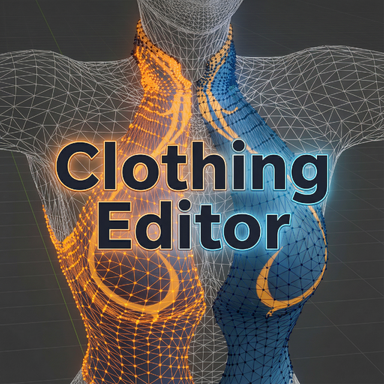
- For non-guide mesh sim (single layer), the sim data being used is the one you generated in clothing creator, that means it will have wrap deforms baked into it. If you need to get a rid of the wrap deform, use Clothing Editor plugin to generate a no-deform sim data and save it.
Clothing Editor - Plugins + Scripts -
Clothing Editor This is a plugin that aims to provide a bit finer control to the clothing creation process. Main features include: 1. Visualization of clothing/skin meshes of base/morphed/drawn position. 2. Full/partial rewraps 3. base mesh...
hub.virtamate.com
- If guide mesh is modified, the two morph nodes files it participates need to be re-exported, (Skin->Guide Mesh, Guide Mesh->Cloth), as well as the simdata file.
- If you see some mysterious local deforms on non-simmed part of the clothing, and you think the weights and morphnodes are correct, export Skin->Cloth morph nodes with "Generate Rotation Base" *unchecked*, and then try again.
You can also always post your questions here in the thread or DM me. I will try to answer them the best I can.