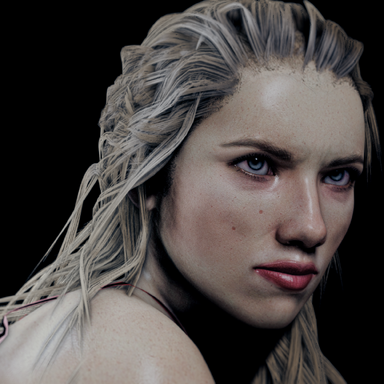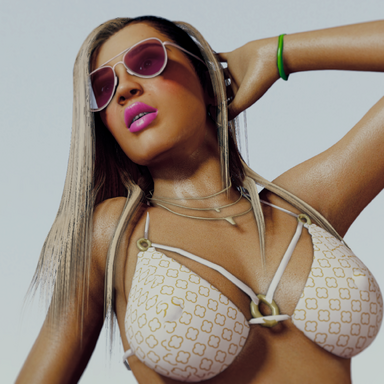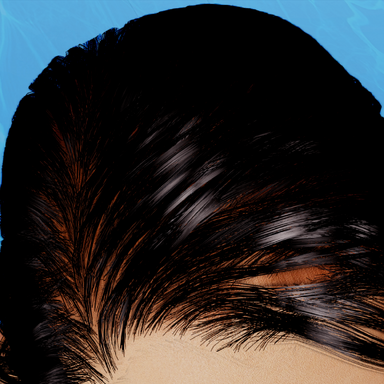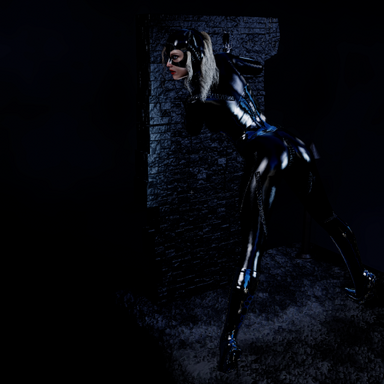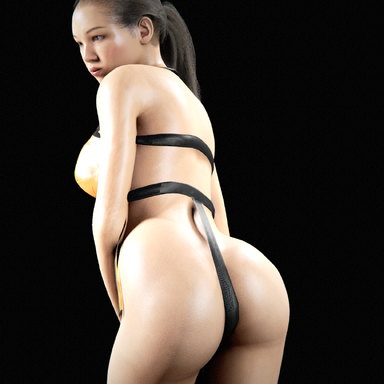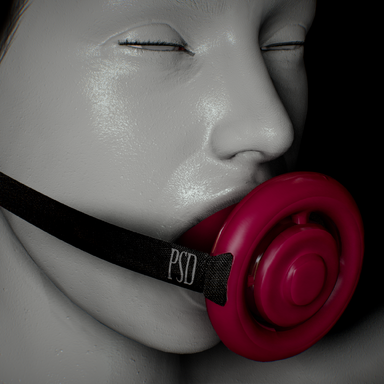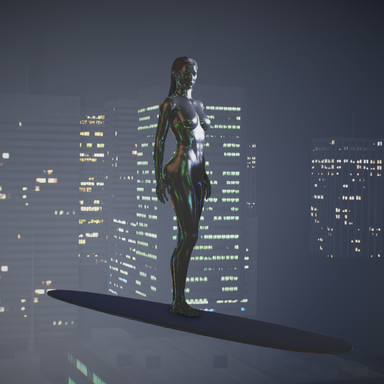


JustFrog-Entertainment was inquiring about this, it's quite simple to do. Technically do not even require a custom texture, though it helps. This is how to get this effect -
In vam open Open Main UI (far left bottom) then apply these settings In "Scene lighting"
> Global Ilum Master Intensity = 0.10/0.20
Global Ilum Spec intens = 1.24
>Camera Exposure - 2.0 +
> Set Unity Ambient light to fully black, or extremely low
The Skybox used will effect the reflective surface, try SkyCyberblur this seems to work best for me.
Then in your model settings menu, go to Skin Materials 2
Set your Diffuse Offset Texture to overright whatever base texture you have on, until it's plain and flat. The idea here is to remove detail, not add-it.
Then, go into Skin Materials 1
Change Skin color, specular color and Off-Set Color until it resembles dark metal. The scene by default will automatically make it brighter
The Skybox used will effects the reflective surface, try SkyCyberblur this seems to work best for me.
Set your Diffuse Offset Texture to oversight whatever base texture you have on, until it's plain and flat.
-
Can tweak it further, and combine it with your own custom texture to enhance it, but it works in conjunction with your scene lighting. Ensure as well your met/gloss is high.
Recommend 2-3 spot lights, use hard light not diffuse flat lighting.
Side-note: This can be applied to eyeballs/Irish also, you can save time just copy pasting the textures from the main texture to them as opposed to redoing everything again.