




PassthroughKey
Clean Virtual Desktop chroma-key passthrough for VaM – by CraSh.it
Put your VaM characters into your real room on Quest, with a clean key: no holes in the character, no fringing on the background, and a VaM menu that stays solid.
What it does
Virtual Desktop's PC passthrough works by chroma key: it cuts out every pixel close to one chosen colour. The catch is that the colour has to be exact, and anything near it gets cut too – including parts of your character. PassthroughKey handles both sides:
How it differs from Camera Background Color
Sally Whitemane's Camera Background Color sets the camera's background colour and was the go-to approach – and the inspiration for this plugin. But that colour still runs through the whole render pipeline, where effects can shift it away from the key, and nothing stops Virtual Desktop from cutting holes where the character's colours are close to the key. Hiding the room and the see-through menu are left to you. PassthroughKey enforces the exact key at the end of the frame and protects everything that isn't background.
Requirements
Quick start
The Full User Manual was uploaded to the Discussion tab.
Feedback and bug reports welcome!
Clean Virtual Desktop chroma-key passthrough for VaM – by CraSh.it
Put your VaM characters into your real room on Quest, with a clean key: no holes in the character, no fringing on the background, and a VaM menu that stays solid.
What it does
Virtual Desktop's PC passthrough works by chroma key: it cuts out every pixel close to one chosen colour. The catch is that the colour has to be exact, and anything near it gets cut too – including parts of your character. PassthroughKey handles both sides:
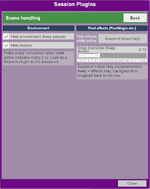
- Exact background colour. The background is set to the precise key colour as the very last step of rendering, so lighting, bloom, grain, colour grading and anti-aliasing can't shift it.
- No holes in the character. Every character pixel is kept just outside what Virtual Desktop cuts, so dark hair, shadows and clothes stay solid – even with a black key.
- Solid VaM menu. The menu and its black text stay visible instead of being keyed through.
- Room hidden automatically. Floors, walls and props disappear, people stay. Works in normal scenes, not just empty ones.
- Post effects handled. PostMagic and similar effects are paused while active (or kept, with the background corrected).
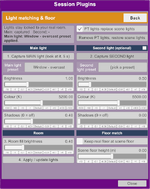
- Light matching. Look at your real lights to capture where they are, pick a preset, and the scene lighting matches your room – locked to your room as you move around.
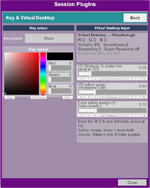
- Exact Virtual Desktop values. Copying the VaM colour straight into Virtual Desktop only works for black, white and pure colours: through the video stream VD reads in-between values brighter (VaM's 188 arrives as ~194), enough to make the key patchy or fail. Virtual Desktop's keyer was measured, and the plugin shows the corrected R G B to enter.
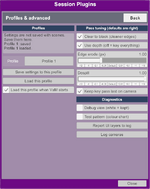
- Profiles. Four save slots – one per room if you like – with optional auto-load when VaM starts.
- Desktop-friendly. Switches itself off in desktop mode, on again in VR.
How it differs from Camera Background Color
Sally Whitemane's Camera Background Color sets the camera's background colour and was the go-to approach – and the inspiration for this plugin. But that colour still runs through the whole render pipeline, where effects can shift it away from the key, and nothing stops Virtual Desktop from cutting holes where the character's colours are close to the key. Hiding the room and the see-through menu are left to you. PassthroughKey enforces the exact key at the end of the frame and protects everything that isn't background.
Requirements
- VaM, a Quest headset and Virtual Desktop (chroma-key passthrough). Quest Link / Air Link are not supported.
- In Virtual Desktop: the R G B and Similarity shown by the plugin, Smoothness 0, Sharpening 0, Snapdragon Game Super Resolution off.
- Load as a Session plugin.
Quick start
- Add PassthroughKey as a Session plugin (optional: Session Plugin Presets > Change User Defaults so it always loads).
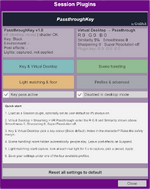
- In Virtual Desktop (Settings > Streaming > VR Passthrough) enter the R G B and Similarity shown on the plugin's main page.
- Optional – match your room lighting: Light matching page > Capture, look at your real light for 5 s, pick a preset, Apply.
- Save your settings to a profile – session plugin settings are not saved with scenes.
The Full User Manual was uploaded to the Discussion tab.
Feedback and bug reports welcome!


Quest Link and Air Link have no chroma-key passthrough.