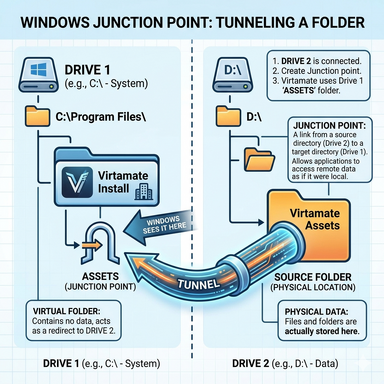


Did you know you can use a windows feature to store and access files that are kept on a different drive?
It's called a Windows Junction Point.
Want to store larger files, music, video, whatever on a different drive but still be able to access it from within VAM?
This is how you do it.
Vam think the folders are local and the files aren't actually in your install.


Junction Point
When to use which:
It's called a Windows Junction Point.
Want to store larger files, music, video, whatever on a different drive but still be able to access it from within VAM?
This is how you do it.
Vam think the folders are local and the files aren't actually in your install.
Symlink vs Junction Point in Windows
Both let you create a "pointer" to another location, but they behave differently under the hood.Junction Point
- Links directories only (not files)
- Works on local volumes only — target must be on the same machine
- No special privileges required to create (on most systems)
- Older technology (NTFS reparse point), supported since Windows 2000
- Target is resolved at the kernel level — most apps are unaware it's a redirect
- Created with: mklink /J LinkName Target
- Works for both files and directories
- Can point to network paths and relative paths
- Requires Administrator or Developer Mode enabled to create
- More flexible and closer to Unix-style symlinks
- Created with:
- mklink LinkName Target (file)
- mklink /D LinkName Target (directory)
| Feature | Junction | Symlink |
|---|---|---|
| Files | ✗ | ✓ |
| Directories | ✓ | ✓ |
| Network targets | ✗ | ✓ |
| Relative paths | ✗ | ✓ |
| Admin required | No | Yes (or Dev Mode) |
| Cross-volume | ✗ | ✓ |
When to use which:
- Junction — redirecting a local folder (e.g. moving a game's data folder to another drive) without needing admin. Dead simple and reliable.
- Symlink — you need file-level links, network targets, or relative paths. More powerful but requires elevated rights.