Demos or "Lite" versions of Paid Content
JoiHUD v24 and iamjoi Link 4.5 go together.

JoiHUD v24
  • Your actions sit in their own strip above the HUD. It folds on its own, shows three actions at a time, and the rest scroll. Child actions are indented, and < goes back to the parent. With more than one AI character, name chips pick who the action is for. Turn it off under Joi HUD → Show HUD user actions.
  • Extract can write a saved outfit into the character. Scene clothes keeps what she is wearing. Hair, eyes, and the rest of the body stay, and the person in the scene is not dressed.
  • Update, between Go and New on the characters grid, writes the loaded character back over the same file and takes a new thumbnail.
  • The actions strip now pages through Your Actions and then each AI character who has actions.
  • Her page shows what she is doing now and what she can do next. Click one to direct her into it: she says a line, and her action and state update.
  • Your actions has a hint above the buttons: add an action to your message exactly as it is written to catalyze it.
  • Show actions panel (under HUD expands to the left) shows or hides the whole strip. This is the old Show HUD user actions toggle, moved and renamed.
  • The Characters grid pages in groups of 500, with < and > on the sides and a "Page x/y" count. Search, favorites, and sort still cover the whole library.
  • The starting action waits until the Context's plugins have finished importing, so the opening pose is not lost.
iamjoi Link 4.5
  • Mic and voice failures now say what went wrong: a Whisper problem, a missing Chrome or Edge install, a silent clip, or the real Kokoro error. If Chrome speech cannot start, Link says why and then tries Local Whisper.
  • Test microphone, on the Local tab, listens with Chrome speech or Local Whisper and prints what it heard, or the error, in Link. Nothing is sent to VaM. Turn the HUD mic off first if it is already on.
  • Forwards a click on a character's action page to Playground. You need to be signed in. Signed out, including local mode, Link tells you to sign in.
  • Local Whisper works with the English-only model again. Test microphone and the HUD mic no longer fail after that model downloads.
The HUD now shows its package version (JoiHUD AI v22). On the Joi HUD tab, HUD expands to the left flips the footer so the panel grows up and to the left. That choice is saved with your other HUD toggles.

While she is speaking, ReadMyLips Jaw Limit stays at 0 for the whole line, including after an outfit finishes loading. It returns to -11 a second after lipsync stops.

Outfits

Saved outfits now have a description plus three kinds of labels:
  • Setting (1 or 2): Fantasy, Everyday, Formal, Party, Swimwear, Athletic, Sleepwear, Intimacy
  • Custom (up to 2): your own words
  • Trait (up to 3 by hand): style tags such as Sensual, Playful, Romantic, Practical
The outfit panel is Load, Setting Label, Trait Label, Custom Label, Description, Clear All, and Auto Classify. Close it with the X at the top right. Saving a label or a description keeps the preview open and puts you back at the same place in the list.

Save and Update take a cleaner thumbnail: gray sky, even lighting, and other people hidden for the shot. Your scene’s sky, skybox toggle, light level, people, and renderers all go back afterward.

Auto Classify (full JoiHUD, signed in to iamjoi Premium) looks at that thumbnail and writes a short clothing description, 1 or 2 setting labels, and 3 trait labels. If you already set the setting labels, those stay and the traits are chosen for them. Custom labels are kept.

When she wears a saved outfit in paid Playground, the same classification runs if a description, a setting label, or traits are missing. An outfit that already has all three is left alone. She uses those labels and the description, along with her personality, when she picks what to wear.
Premium Playground

She can look through those saved outfits and put one on during chat. After she changes, she remembers that outfit. If you wrote a description, she uses it when you ask what she is wearing. If you left it blank, she looks at the preview photo and keeps a short description of the clothes. A new look clears that.

Local mode (no account)

In Link, on the Local tab, "Wear saved outfits" is on by default. She only opens the wardrobe when you say it in this form:
  • "change your outfit"
  • "change your outfit to party"
  • "change your outfit to sleepwear sexy"
You can name up to three labels you actually saved. Other wording does not open the list. She sees the names and labels, picks one, and puts it on. Descriptions are not used in local mode.
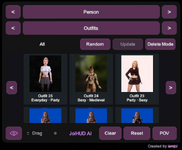
Implemented a new Outfits page in the HUD, which sits between Characters and Actions. The full HUD is now Main, Characters, Outfits, Actions and Context.

Before you press Load, the page is a set of tools:
  • Save Outfit stores whatever the character is wearing, frames the monitor camera for a preview shot, then puts the camera back.
  • Random Look Outfit dresses them from a saved appearance look. Scan Look Outfits only indexes those looks.
  • Random Pack Outfit dresses them from creator outfits inside downloaded packages. Scan Pack Outfits only indexes those.
After clicking Load, the footer button switches between Load and Clear, and the page becomes a browser:
  • A thumbnail grid of saved outfits, stored under Saves/PluginData/JoiHUD/.
  • Official category arrows: All, Everyday, Formal, Party, Swimwear, Athletic, Sleepwear, Sexy, and Unlabeled.
  • Random picks one outfit from the category you are viewing.
  • Tap an outfit to open it: wear it, or tag it with up to two built-in categories and up to two custom labels.
  • Update re-saves the clothing and preview for the outfit you last wore from this page.
  • Delete Mode lets you select thumbnails and remove them.

Attachments

  • Screenshot 2026-09-30 222225.png
    Screenshot 2026-09-30 222225.png
    122 KB · Views: 0
Back
Top Bottom