• Hi Guest!

    We have posted a new VaM2 dev log on Patreon, starting a monthly cadence of written progress updates between Beta releases. Highlights include the new Gizmos System, Selection Carousel, and Modes System with Context-Specific Editing. Beta1.2 is 15 of 21 items complete.

    Read the full post on Patreon, or follow progress on the public Trello roadmap.
Clothing Decal Placer - Workhorse Beta

Plugins + Scripts Clothing Decal Placer - Workhorse Beta

Download [<1 MB]
I am not a coder, just made this plugin with AI because there was nothing similar on the hub. Already fixed some bugs and revamped it, so i will drop it now here.
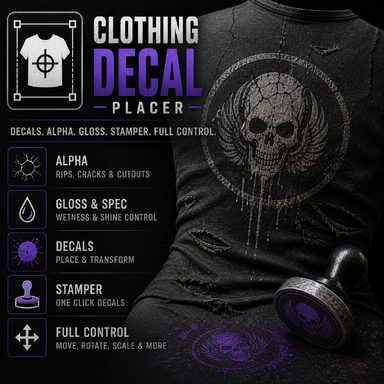
Its a simple "workhorse" Plugin, to place decals onto clothing in different ways. It is also usable via Trigger e.g. Timeline.
Because of the VAM load lags of scene Stuff, the best way is, to save the setup and reload it after scene load. Mostly its enought to push/trigger the "refresh clothing" button after the scene is fully loaded.

Maybe i will keep working on the plugin, but i dont have much time for it.

I already added some ugly info textboxes next to the sliders and buttons as a short description inside the plugin.
Its more a workhorse for creators to create some things with clothings.
And Yes, the GUI is ugly as hell.


This is the longer version:


🛠️ Layer & Slot Management​

  • Layer: chose between decal, alpha, spec and gloss textures. Remember, Gloss needs always a spec.
  • Slot (1-20): Each slot holds 4 Layers (textures)
  • +1 / -1 Slot: Quick buttons to cycle through your available slots.

🎯 Target Selection​

  • Clothing Item: The specific clothing piece you want to apply the decal to.
  • Material Index: The specific fabric zone (submesh) of the clothing. e.g. if the clothing has more than one texture.

🖼️ Decal Properties​

  • Image: Select your decal texture (PNG/JPG).
  • Visibility: Opacity/transparency of the current decal (0 = invisible, 1 = fully visible).
  • U Offset / V Offset: Moves the decal horizontally (U) and vertically (V) across the clothing.
  • Scale: Adjusts the size of the decal.
  • Rotation: Rotates the decal around its center.
  • Mirror U / Flip V: Flips the image horizontally (Mirror) or vertically (Flip).

💥 Contact Stamp (Interactive Placement)​

  • Tool Atom: Select an atom (e.g., a Capsule) to act as your "stamp tool". Touching the clothing with it places the decal exactly there.
  • Max Distance: How close the tool needs to be to the clothing to trigger a stamp.
  • Cooldown: Wait time (in seconds) before the next stamp can trigger.
  • Single Per Touch: Ensures only one decal is placed per continuous touch. You must lift the tool and touch again for the next one.
  • Next Free Slot: Automatically moves to the next empty slot after stamping, so you don't overwrite the previous decal.

📐 Calibration​

  • Auto Calibrate: Automatically stretches the decal to match its original aspect ratio, preventing distortion.
  • Stamber Calibrations: Stamping Tip Position, Manually Decal Calibration for targetting. Tip Debug (visible Tip).


React to this content...

Share this resource

Credits

Creator Support Link
L LeChuck99
Back
Top Bottom