Background Image Helper
Overview
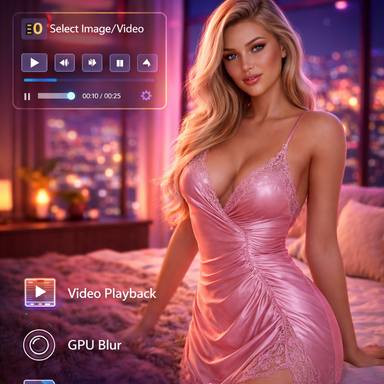
Transform your VaM scenes with immersive background images and videos. Background Image Helper provides a powerful, GPU-accelerated background system with full video playback support, cinematic camera effects, and seamless scene integration.
Key Features
Image & Video Support
- Load any image (JPG, PNG) or video file (MP4, WebM, etc.) as your scene background
- Automatic format detection and optimized rendering
- Support for high-resolution media with GPU acceleration
- Dedicated folders: Images go in Saves/Images/, Videos go in Saves/Videos/
Full Video Playback Controls
- Play/Pause/Stop buttons for precise control
- Seek slider - scrub to any point in your video
- Playback speed - adjust from 0.1x to 3.0x speed
- Loop toggle - seamlessly repeat videos
- Mute/unmute audio control
- Real-time video time display
GPU-Accelerated Blur
- Hardware-accelerated blur effect (0-100 intensity)
- Smooth performance even with 4K backgrounds
- Perfect for creating depth of field effects
Cinematic Camera Detachment
- Detach from Camera feature for advanced cinematography
- Creates parallax effects when camera moves
- Background stays fixed in 3D space while camera orbits
- Adjustable distance for perfect framing
Image Adjustments
- Zoom - Range from -10 to +5 for perfect framing
- Brightness - Lighten or darken your backgrounds
- Saturation - Adjust color intensity
- Crop controls - Fine-tune positioning (X/Y offset, width/height)
- All adjustments work in real-time
Scene Integration
- JSON Persistence - backgrounds save/load automatically with scenes
- All settings (blur, zoom, brightness, video position) are preserved
- Seamless workflow - set it once, save it forever
Installation & Setup
1. Install the plugin (either as loose files or VAR package)
2. The plugin will automatically create two folders:
- VirtaMate/Saves/Images/ - Put your background images here
- VirtaMate/Saves/Videos/ - Put your background videos here
3. Add the plugin to any atom (Camera recommended)
4. Click "Load Image" or "Load Video" to browse your media
5. Adjust settings to your liking!
Video Codec Compatibility
This plugin uses Unity's VideoPlayer which supports most common video formats (MP4, WebM, AVI, MOV, etc.). However, some MP4 files using proprietary codecs (like H.265/HEVC) may not play and will show a white screen.
For best compatibility, use:
- Video codec: H.264
- Audio codec: AAC
- Container: MP4 or WebM
If you see a white screen, your video codec isn't supported. Convert it using VLC or HandBrake to H.264/AAC MP4.
Perfect For
- Creating immersive environments without heavy 3D assets
- Music videos and cinematic scenes
- Photography and portrait setups
- Storytelling and narrative scenes
- Performance optimization (background images use far less resources than 3D environments)
How to Use
Basic Setup
1. Add the plugin to any atom (Camera recommended)
2. Place your images in VirtaMate/Saves/Images/
3. Place your videos in VirtaMate/Saves/Videos/
4. Click "Load Image" or "Load Video" to select your media
5. Enable the background with the "Enabled" toggle
6. Adjust zoom, blur, and other settings to taste
For Videos
1. Use the playback controls (Play/Pause/Stop)
2. Adjust playback speed (0.1x - 3.0x)
3. Enable loop for continuous playback
4. Use the seek slider to jump to specific times
For Cinematic Effects
1. Enable "Detach from Camera"
2. Zoom in slightly (-2 to -5) to avoid edge visibility
3. Move your camera to create parallax effects
4. Combine with blur for realistic depth of field
Saving Your Setup
- Everything saves automatically with your scene!
- All settings (media path, blur, zoom, brightness, video time, etc.) persist
- When you load the scene, your background will be exactly as you left it
Tips
- Use negative zoom values (-5 to -10) to show more of your background
- Combine blur + detachment for realistic depth of field when camera moves
- Use video speed control (0.5x) for slow-motion background effects
- Crop controls help you focus on specific parts of ultra-wide images
- Videos in Saves/Videos/ folder work both as loose plugin and VAR package
Technical Details
- GPU-accelerated rendering for smooth performance
- Supports both ScreenSpaceCamera (attached) and WorldSpace (detached) rendering modes
- Optimized video decoding via Unity VideoPlayer API
- Efficient RenderTexture usage for blur effects
- VAR-compatible path resolution for packaged distribution
- C# 6.0 compatible, tested on VaM 1.20+
Overview
Transform your VaM scenes with immersive background images and videos. Background Image Helper provides a powerful, GPU-accelerated background system with full video playback support, cinematic camera effects, and seamless scene integration.
Key Features
- Load any image (JPG, PNG) or video file (MP4, WebM, etc.) as your scene background
- Automatic format detection and optimized rendering
- Support for high-resolution media with GPU acceleration
- Dedicated folders: Images go in Saves/Images/, Videos go in Saves/Videos/
- Play/Pause/Stop buttons for precise control
- Seek slider - scrub to any point in your video
- Playback speed - adjust from 0.1x to 3.0x speed
- Loop toggle - seamlessly repeat videos
- Mute/unmute audio control
- Real-time video time display
- Hardware-accelerated blur effect (0-100 intensity)
- Smooth performance even with 4K backgrounds
- Perfect for creating depth of field effects
- Detach from Camera feature for advanced cinematography
- Creates parallax effects when camera moves
- Background stays fixed in 3D space while camera orbits
- Adjustable distance for perfect framing
- Zoom - Range from -10 to +5 for perfect framing
- Brightness - Lighten or darken your backgrounds
- Saturation - Adjust color intensity
- Crop controls - Fine-tune positioning (X/Y offset, width/height)
- All adjustments work in real-time
- JSON Persistence - backgrounds save/load automatically with scenes
- All settings (blur, zoom, brightness, video position) are preserved
- Seamless workflow - set it once, save it forever
Installation & Setup
1. Install the plugin (either as loose files or VAR package)
2. The plugin will automatically create two folders:
- VirtaMate/Saves/Images/ - Put your background images here
- VirtaMate/Saves/Videos/ - Put your background videos here
3. Add the plugin to any atom (Camera recommended)
4. Click "Load Image" or "Load Video" to browse your media
5. Adjust settings to your liking!
Video Codec Compatibility
This plugin uses Unity's VideoPlayer which supports most common video formats (MP4, WebM, AVI, MOV, etc.). However, some MP4 files using proprietary codecs (like H.265/HEVC) may not play and will show a white screen.
For best compatibility, use:
- Video codec: H.264
- Audio codec: AAC
- Container: MP4 or WebM
If you see a white screen, your video codec isn't supported. Convert it using VLC or HandBrake to H.264/AAC MP4.
Perfect For
- Creating immersive environments without heavy 3D assets
- Music videos and cinematic scenes
- Photography and portrait setups
- Storytelling and narrative scenes
- Performance optimization (background images use far less resources than 3D environments)
How to Use
Basic Setup
1. Add the plugin to any atom (Camera recommended)
2. Place your images in VirtaMate/Saves/Images/
3. Place your videos in VirtaMate/Saves/Videos/
4. Click "Load Image" or "Load Video" to select your media
5. Enable the background with the "Enabled" toggle
6. Adjust zoom, blur, and other settings to taste
For Videos
1. Use the playback controls (Play/Pause/Stop)
2. Adjust playback speed (0.1x - 3.0x)
3. Enable loop for continuous playback
4. Use the seek slider to jump to specific times
For Cinematic Effects
1. Enable "Detach from Camera"
2. Zoom in slightly (-2 to -5) to avoid edge visibility
3. Move your camera to create parallax effects
4. Combine with blur for realistic depth of field
Saving Your Setup
- Everything saves automatically with your scene!
- All settings (media path, blur, zoom, brightness, video time, etc.) persist
- When you load the scene, your background will be exactly as you left it
Tips
- Use negative zoom values (-5 to -10) to show more of your background
- Combine blur + detachment for realistic depth of field when camera moves
- Use video speed control (0.5x) for slow-motion background effects
- Crop controls help you focus on specific parts of ultra-wide images
- Videos in Saves/Videos/ folder work both as loose plugin and VAR package
Technical Details
- GPU-accelerated rendering for smooth performance
- Supports both ScreenSpaceCamera (attached) and WorldSpace (detached) rendering modes
- Optimized video decoding via Unity VideoPlayer API
- Efficient RenderTexture usage for blur effects
- VAR-compatible path resolution for packaged distribution
- C# 6.0 compatible, tested on VaM 1.20+