


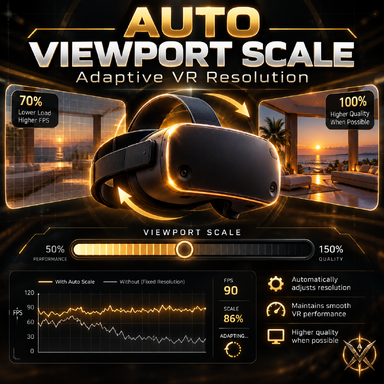


Auto Viewport Scale — Adaptive VR Resolution
Keep your VR smooth, even when your scenes get heavy.Auto Viewport Scale is a lightweight Session Plugin for Virt-A-Mate that automatically adjusts VR rendering resolution based on performance.
When your FPS drops, the plugin gradually reduces the rendering scale to ease GPU load. When performance improves, it carefully increases the scale again to restore image quality.
The goal is simple: maintain your desired frame rate while preserving as much visual detail as possible.
Unlike changing the standard render resolution setting, the plugin uses Unity's XRSettings.renderViewportScale to make small, smooth adjustments without repeatedly recreating the VR eye textures.
Features
- Automatic adaptive resolution — dynamically responds to FPS changes.
- Smooth scaling — small resolution adjustments that are usually barely noticeable.
- Configurable FPS target — choose the frame rate you want to maintain.
- Adjustable resolution range — set minimum and maximum viewport scales.
- Response presets — Smooth, Balanced, Fast and fully customizable settings.
- Intelligent recovery — cautiously tests higher resolutions and rolls back when performance is insufficient.
- UI protection — pauses adaptation while using VaM menus, Atom controls or BrowserAssist.
- UI readability — prevents the viewport scale from becoming too low while interacting with protected menus.
- Scene loading protection — suspends resolution changes during detected scene and resource loading, with an adjustable cooldown.
- Live diagnostics — monitor FPS, viewport scale, controller status and recent actions.
- Restore original scale — stop the controller and return to the initial viewport scale.
Getting Started
- Install the package and add Auto Viewport Scale as a Session Plugin.
- Open the plugin interface.
- Click AUTO viewport resolution to enable automatic scaling.
- Set your desired Target FPS, Minimum viewport scale and Maximum viewport scale.
- Choose a response preset if you want to change how quickly the controller reacts.
Recommended Starting Settings
The default configuration was developed and tested with a 90 Hz VR setup using spacewarp:- Target FPS: 45
- Reduce below FPS: 42
- Minimum viewport scale: 0.50
- Maximum viewport scale: 1.00
- Response preset: Balanced
Settings
GeneralEnable or disable automatic resolution, configure the viewport scale range and FPS targets, and view live performance statistics.
Presets
Choose between Smooth, Balanced and Fast response profiles, or customize the sampling intervals, resolution steps and recovery timings.
Protection
Configure protection for VaM's main UI, Atom UI, BrowserAssist and scene loading. You can also adjust the minimum UI scale and recovery delays.
Compatibility
Tested and working:- Virt-A-Mate 1.22.0.13
- Meta Quest 3
- Virtual Desktop, running VaM without SteamVR
- NVIDIA GeForce RTX 3060 12 GB
During testing, viewport scale changes were detected, but they did not provide the expected FPS improvement during active scene playback. SteamVR users should not expect the plugin to work as intended.
Desktop Mode: The plugin loads without errors, but adaptive resolution requires an active VR device and does not optimize ordinary desktop rendering.
Other VR configurations have not yet been verified. Community feedback is welcome!
Known Issues and Limitations
Some effects that depend on screen-space rendering may not work correctly when the viewport scale changes.Known compatibility problems include:
- Bloom: May produce visual artifacts.
- UncleBurrito DLSS: Not recommended for simultaneous use with adaptive viewport scaling.
- TiSeb Colortone / TonemapOnly.unity: Can cause visible image cropping or an incorrectly scaled view.
- The plugin is designed primarily to reduce GPU rendering load. It cannot resolve FPS limitations caused by CPU-heavy physics or other non-rendering bottlenecks.
- Scene loading protection relies on VaM's loading signals and may not detect every background operation.
- This plugin does not perform upscaling, frame generation or supersampling above the original resolution.
- Avoid running multiple plugins that control XRSettings.renderViewportScale simultaneously.
About This Release
This is the first public beta release of Auto Viewport Scale.The plugin has been tested extensively on the author's VR setup, but compatibility with other systems is still being explored.
If you encounter a problem, please share your headset, VR runtime, GPU, VaM version and a description of the issue.
Feedback and suggestions are appreciated!
Created by Vumbrix.
