
Outliner Remake (collections blender like)

Plugins + Scripts Outliner Remake (collections blender like)

Download [<1 MB]

EvilBox

Well-known member
Joined
Aug 24, 2023
Messages
159
Reactions
1,982
EvilBox submitted a new resource:

Outliner panel (alpha) - Easy control of lamps and other atoms

Main Purpose

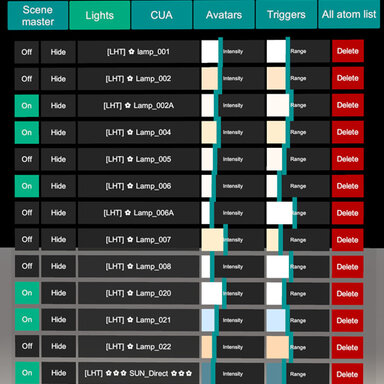
Outliner provides a clear interactive interface for managing Atoms in a scene. It allows you to quickly see their status, filter by type, and adjust properties directly from the UI. Well, that's the idea. :)

Hotkeys

  1. F2 — Toggle Outliner menu visibility.
  2. Alt + Left Click on an object in the list — Focus the camera on the...

Read more about this resource...
 
Nice! I immediately have a use for this. I have ~80 CUA plants in a scene that need to be 'hidden.' Your interface is far easier to hide them compared to VAMs click-all-over-the-place UI.

Oops, I spoke too soon. The 'hidden' button does not affect the 'Hidden' attribute of any of my atoms. Instead, the 'hidden' button affects 'Interactable in Play'. Is that intentional?
 
Last edited:
Very nice. Works great in VR. I like to downscale the size, and attatch it to my left arm with rubberleash. Your plugin makes it fast to delete atoms. It would be great with add atoms function as well. Great work.🙂
 
EvilBox updated Outliner panel (alpha) with a new update entry:

Hotkeys, camera tracking, probes.

1. Menu can be linked to the camera and hidden or shown in any time. Very handy. (in the plugin settings menu)
2. Reflect probes added
3. Now you can see intensity and range and type of lighs
4. Fixed issues (except hide/show atom)
5. Autocolor update
6. The menu cannot be more than 50% of your monitor's vertical resolution.

View attachment 536605

Read the rest of this update entry...
 
Thanks Evilbox. This is a great plug in, and I can also verify that it works well in VR. It is a fantastic idea to group the atoms by type instead of VAM's native flat list of all atoms approach.

I also echo the request to add more info on the lights such as Spot, Point etc. This will further aid me in identifying and tweaking lights in scenes that I did not create (my primary intended use for this great plugin).

As I said in my positive review for your plugin, I often tweak the lights in scenes I download. As you can imagine, in complex scenes, it's a PITA to navigate through the atom list, click on a light control, toggle light to see what it does and find its approximate location, turn on halo to be more precise in locating and moving it (if necessary). After IDing the light, I find myself having to rename it so I can keep track,

Your plug in certainly speeds up this tedious process. But to really help things along, it'd be great if your plugin would allow me to quickly get to the light's control panel (e.g. by double clicking on it). This would allow me to toggle the halo (to find the location of the light, rename it etc.

I'm not sure if this is within the scope of what you intended, but I would like to request a means to teleport the player to the atom (or vice versa). This would really take the navigational aspect of your categorized atom list to the next level.
 
EvilBox updated Outliner panel (alpha 2a) with a new update entry:

Alpha 4

1. When you hide the menu outliner switches to performance/freeze mode. The menu is literally not taking any resources and not stealing frames.
2. Safe mode by default
3. Added button "copy atoms" (not all atoms are copied yet)
4. Fixed the scroll menu - one step of mouse wheel scrolls the list up or down on one atom
5. Added button to сontrol collisions for CUA (enable/disable)

Read the rest of this update entry...
 
Does grab not work for anyone else? Have the latest version and I cannot move this awesome piece of marvelous work to any location after it spawns in. Clicking grab just stairs blankly at me like I'm just not cool enough 🤔
 
EvilBox updated Outliner panel (alpha 4) with a new update entry:

Light preset system, CUA duplication, Improved menu & GrabMe

1. Light preset system. You can save lights and load any configuration.
Presets folder - Saves\PluginData\Outliner_Exports
2. Improved list menu. Selected atom is highlighted in the list for better visibility.
3. "Grab me" fixed (drag function work correctly in the scene space)
4. CUAs duplication (including links to prefabs and assetbundles)
5. Changed the logic of sticking to the main camera (does not work perfectly)
6. Recovery system after errors of loading presets. Exception handling...

Read the rest of this update entry...
 
Nice! I immediately have a use for this. I have ~80 CUA plants in a scene that need to be 'hidden.' Your interface is far easier to hide them compared to VAMs click-all-over-the-place UI.

Oops, I spoke too soon. The 'hidden' button does not affect the 'Hidden' attribute of any of my atoms. Instead, the 'hidden' button affects 'Interactable in Play'. Is that intentional?
Fixed
Thanks Evilbox. This is a great plug in, and I can also verify that it works well in VR. It is a fantastic idea to group the atoms by type instead of VAM's native flat list of all atoms approach.
I also echo the request to add more info on the lights such as Spot, Point etc. This will further aid me in identifying and tweaking lights in scenes that I did not create (my primary intended use for this great plugin).
As I said in my positive review for your plugin, I often tweak the lights in scenes I download. As you can imagine, in complex scenes, it's a PITA to navigate through the atom list, click on a light control, toggle light to see what it does and find its approximate location, turn on halo to be more precise in locating and moving it (if necessary). After IDing the light, I find myself having to rename it so I can keep track,
Your plug in certainly speeds up this tedious process. But to really help things along, it'd be great if your plugin would allow me to quickly get to the light's control panel (e.g. by double clicking on it). This would allow me to toggle the halo (to find the location of the light, rename it etc.
I'm not sure if this is within the scope of what you intended, but I would like to request a means to teleport the player to the atom (or vice versa). This would really take the navigational aspect of your categorized atom list to the next level.
I'm planning to add a switch for different lighting types, but right now I'm focusing on what I think is important. For example presets for lighting also good thing for scene management.
teleportation... well I need to think about how to implement it without making the interface more complicated.
Does grab not work for anyone else? Have the latest version and I cannot move this awesome piece of marvelous work to any location after it spawns in. Clicking grab just stairs blankly at me like I'm just not cool enough 🤔
Partially fixed. I haven't quite managed to create logic that would allow for menu to maintain its position relative to main game camera movements, strictly orienting it by angle and distance.
If you disable “Towards menu to camera” menu will restore to origin position of atom.
 
Hi. The plugin has been installed a few days now and I'm loving it. But in a few instances (e.g. when I load to just play scenes as opposed to edit/modify), I would rather that it be defaulted "OFF." In the future, would you consider giving us the option of defaulting ON or OFF on scene load?
 
EvilBox updated Outliner panel v 1.0 (Out from Alpha/Beta) with a new update entry:

1.1

Improvements v1.1:
Added preset renaming functionality
Added preset import from other scenes (works if the light names match between scenes)
Added visual gizmos for lights (range sphere for point lights, range and angle cone for spot lights)
Added highlight for the selected CUA
Added a reflection probe (as a demo for interaction)
Added a CUA pole (as a demo object for interaction)

Read the rest of this update entry...
 
EvilBox updated Outliner CUA & Light panel (Out from Alpha/Beta) with a new update entry:

1.2

New​

  • Added Reset buttons to Scene controls:
    • Master Intensity
    • Diffuse Intensity
    • Specular Intensity
    • Unity Ambient Light on Assets
    • Camera Exposure
    • Shadows
  • Added Allow Grab / Not Allow control for CUA atoms
    • Quickly enables or disables gizmo interaction
    • Controls both position and rotation grab states
  • Added preset reordering buttons
    • Move presets up
    • Move presets...

Read the rest of this update entry...
 
Looks awesome! Some things i noticed:

First: if i change fov, the plugin window changes. Could it be posible in "stick" mode, to make it really fixed? Whatever i change, fixed to a static position.
Second: is it possible for the UI to be in a layer over macgrubber postmagic? If i have a vignette or a glow set in postmagic, the ui gets covered by vignette or is unusable due to the glow in the text.
Third: if i have the scene lights inside a subscene, would it possible fore them to appear both in the light section and subscene section?

Thats it hehe. I really am looking forward to use it, clearly a lot of great work and thought went into this plugin, but cant use it if can´t see it each time i change fov or post effect hehe... easier to open the original vam ui than to be resizing and moving the plugin window all the time :S
 
Looks awesome! Some things i noticed:

First: if i change fov, the plugin window changes. Could it be posible in "stick" mode, to make it really fixed? Whatever i change, fixed to a static position.
Second: is it possible for the UI to be in a layer over macgrubber postmagic? If i have a vignette or a glow set in postmagic, the ui gets covered by vignette or is unusable due to the glow in the text.
Third: if i have the scene lights inside a subscene, would it possible fore them to appear both in the light section and subscene section?

Thats it hehe. I really am looking forward to use it, clearly a lot of great work and thought went into this plugin, but cant use it if can´t see it each time i change fov or post effect hehe... easier to open the original vam ui than to be resizing and moving the plugin window all the time :S
1. Well In theory this may be possible, but it would be difficult to implement. In VR the menu in front of you is a 3d canvas it actually exists in 3d space. Outliner remains a 3d object positioned in front of the camera, so changing the FOV inevitably changes its apparent size and position on the screen. It is like changing the FOV while looking at a cube: its appearance changes, we see a distortion of the edges, and the same happens to the menu geometry.
2. I will look into PostMagic. It all depends on where MacGruber placed these effects in the rendering pipeline. I do not yet know at what stage PostMagic applies its vignette and glow. If they are applied as final camera post effects simply changing the Unity Layer will not help. In any case I will see what can be done.
3. Lights from subscenes can be shown together with regular scene lights in one list. I can create a special view mode that combines subscene lights with the regular ones. Or even better, I could add a mode in settings menu where the entire subscene is visually merged with the main scene.
 
1. Well In theory this may be possible, but it would be difficult to implement. In VR the menu in front of you is a 3d canvas it actually exists in 3d space. Outliner remains a 3d object positioned in front of the camera, so changing the FOV inevitably changes its apparent size and position on the screen. It is like changing the FOV while looking at a cube: its appearance changes, we see a distortion of the edges, and the same happens to the menu geometry.
2. I will look into PostMagic. It all depends on where MacGruber placed these effects in the rendering pipeline. I do not yet know at what stage PostMagic applies its vignette and glow. If they are applied as final camera post effects simply changing the Unity Layer will not help. In any case I will see what can be done.
3. Lights from subscenes can be shown together with regular scene lights in one list. I can create a special view mode that combines subscene lights with the regular ones. Or even better, I could add a mode in settings menu where the entire subscene is visually merged with the main scene.
Awesome, thanks :D
 
w00t! Looks beautiful!! Totally going to set this as default and try it full-time now. 😁

The placement / orientation of the GUI is a little wonky in VR but works well when the GUI is in front of my face. :love:

(I always launch VAM in VR mode and switch back and forth between VR and Desktop workflows, observations are around that experience)

Questions:
  1. When in VR mode and the headset is on the desk (hybrid workflow using mouse-keyboard for some tasks and VR for others), is there a way to align the Outliner GUI to the monitor screen instead of headset?
  2. When in VR mode and Settings "Face the camera" = Off, "Fixed distance" = Off, "Stick to screen" = Off... pressing "Free" button to toggle "Stick" mode works well, but then pressing "Stick" button to toggle Free mode does not restore my preferred setting of "Face the camera" = Off and instead leaves that On. Is not restoring my preferred setting intentional?
  3. When in VR mode, the GUI camera orientation behavior looks a bit wonky when "Face the camera" = On and "Fixed distance" = Off. With these settings, the GUI orientation is affected by the headset Up vector tilt and Right vector tilt which is "wonky" IMO. Is this tilt behavior intentional? I think the GUI Forward vector should always point at the camera position and the GUI should rotate around its Forward vector such that the GUI always looks Up (whatever that means :unsure::LOL:)
  4. When in VR mode, is there a way to manually position the GUI with the VR controllers? (I tried grabbing the GUI but did not figure it out... to reposition the GUI I currently toggle the positioning modes On in Settings, then move the headset until the GUI is positioned and oriented where I want it, then turn off all the position/orientation tracking modes... it's awkward but workable... though... maybe I will grow to prefer it :unsure:🙃)
  5. Is there a Discord channel?
Looking forward to using this (y)(y)(y)
 
@Miztress mostmagic is fine @MacGruber already accounted for this and uses a separate layer for it. Outliner is already working properly with his plugin. subscenes can now be merged with the main scene list, but this option is disabled by default. You just need to go into the settings and switch the toggle to the merged mode.
@yesferatu The old version (v8) had the vertical billboard mode you were talking about. I’m going to bring that mode back. Right now in VR the window should be movable by grabbing the header at the top where it says "Outliner" text. Looks like I may need to bring back the old “Grab Me” label there 🙃 Just grab the header and move it around. Let me know if you can’t move it in VR. The toggles and the Stick mode are leftovers from an older version, and yeah… they do work but in a pretty weird way. I agree that they’re confusing in the current setup. Thanks for pointing that out! I need to think how that mode should work.
I’m not really confident about anything when it comes to VR. Either way I’ll try to look into what options we have for anchoring the window, and whether we can actually choose what it attaches to.
no, I don’t have discord.
 
Last edited:
@Miztress , @yesferatu
Guys, please test this build. I added the things you asked for, but I need confirmation that these solutions are actually viable and work the way they should.
I’m going to bend the site rules a little and share a MEGA link here. Hopefully the moderators will forgive me 🤗 I’ve fully unlocked all the controls for VR mode - I deleted the link (rules)
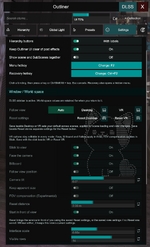
What I need from you now is a screenshot of the settings you end up using for VR mode and VR Reset. You can save your settings by clicking the disk icon. menu should now be draggable by grabbing the top header. Billboard mode has been added as well, along with an experimental FOV compensation. The Reset button currently ignores the distance set with the slider and places the menu at a fixed distance of 2 meters.
Your feedback and the settings you end up using, will help define the default outliner configuration for VR.


d.png
 
Last edited:
First thanks for the work :D So, now the new options for postmagic and fov work great yay! Couple things (i use desktop mode only):

There is a bug, but have not been able to isolate when it happens. Sometimes the interface scale slider gets stuck in a size, even though it doesnt match the actual ui size. For example, i set it to 0.60x, load a new scene, and plugin interface appears at 1x, but slider says 0.60x o_O. Only happened twice and dunno when or why. If i isolate the scenario when it happens ill tell you.

The plugin window position save won´t work across vam restart. Maybe i am not doing something right. What i mean is i would like to set the plugin size and position where i like, save session pIugin preset as default, and each time i open vam the plugin will always appear where i saved it. Now i have to always hit ctrl+f2 when i reopen vam cause plugin window is out of bounds and cant see it, then reposition it again (scale loads ok). My settings: plugin interface scale (0.60x). Stick to view active. Keep aparent size active. Fov compensation active. Reset distance 2m. Start in front view inactive.

Again, great job!
 
First thanks for the work :D So, now the new options for postmagic and fov work great yay! Couple things (i use desktop mode only):

There is a bug, but have not been able to isolate when it happens. Sometimes the interface scale slider gets stuck in a size, even though it doesnt match the actual ui size. For example, i set it to 0.60x, load a new scene, and plugin interface appears at 1x, but slider says 0.60x o_O. Only happened twice and dunno when or why. If i isolate the scenario when it happens ill tell you.

The plugin window position save won´t work across vam restart. Maybe i am not doing something right. What i mean is i would like to set the plugin size and position where i like, save session pIugin preset as default, and each time i open vam the plugin will always appear where i saved it. Now i have to always hit ctrl+f2 when i reopen vam cause plugin window is out of bounds and cant see it, then reposition it again (scale loads ok). My settings: plugin interface scale (0.60x). Stick to view active. Keep aparent size active. Fov compensation active. Reset distance 2m. Start in front view inactive.

Again, great job!
I actually didn’t design Outliner to be used as a session plugin. I normally attach it to an Empty atom or a CUA :ROFLMAO: Using it this way should also solve the off-screen position problem, because the menu will always start at the spawn position of that atom. Thanks for the report!
The view-saving buttons were added mainly to help us find the right menu settings. They are still an experimental calibration tool, which is probably why this bug occurs. Once we finish calibrating the menu, especially its VR behavior, I will most likely remove these buttons.
 
Back
Top Bottom