

You are using an out of date browser. It may not display this or other websites correctly.
You should upgrade or use an alternative browser.
You should upgrade or use an alternative browser.

Paid Plugins + Scripts Voxta (Virt-A-Mate Plugin)
- Author Acid Bubbles
- Creation date
- Hub-Hosted VAR
- CC BY-ND
v1.8.1 — VaM package #95
**InterruptSpeech action.** Stop a character mid-sentence with a single click or hotkey. Wire a scene UIButton or Keybindings binding to the new `InterruptSpeech` action under `# Voxta Actions:`, and the character will go silent immediately. The chat continues normally — STT re-arms within a few hundred milliseconds, the chat history shows the truncated message with the server's `…interrupted by {{user}}` template, and any queued sentences for the interrupted reply are dropped before they play.
**More actions for scene scripting.** `RefreshRemoteLists` and `ReplayLastCharacterMessage` are now bindable `JSONStorableAction`s, so they can be wired to UIButtons, Keybindings hotkeys, or Triggers like any other Voxta action.
## Bug fixes
- **Chat hung after the bootstrap message** when activating the plugin via a scene UIButton (or any path other than opening the Chat tab first). The chat input bar stayed stuck on *"Start a chat to send messages…"* and the workaround was to toggle Active off then on. Fixed.
- **Auto-lipsync didn't apply on most activation paths.** Only the in-plugin Start Chat button ran the auto-lipsync setup; UIButton triggers, Keybindings actions, and saved-scene auto-start all silently skipped it. Lipsync now applies on every activation path.
## Upgrade notes
No breaking changes. Existing scenes continue to work as-is.
Posted by: lapiro
v1.8.0 — VaM package #94
Highlights
The AI now sees your scene cleanly — no more red dots, blue lines, or floating bulbs polluting its view. Vision toggles remember what you set them to. Chat input works on the first try when you trigger it from VaM buttons. A bunch of "should just work" stuff that wasn't quite working — now does.
New — Clean vision captures
- Editor handles and gizmos are hidden from the AI — no more red/green free-controller dots, blue parent-link lines, atom bulbs, or selection rings showing up in what the character "sees". Scene only.
- Subscene connection lines are hidden too — those long blue lines spanning rooms while you're building.
- Face accessories stop blocking the Eyes camera. Thick lashes, glasses, brow piercings, or fancy iris add-ons that used to bump right up against the camera and ruin the view get cleanly clipped now.
- New "Eyes Near Clip" slider — fine-tune the cutoff for ultra-close-up scenes. Default catches all the typical face chrome out of the box.
- Per-source chrome toggles for both Screen and Eyes — turn the cleanup off if you ever want the editor look back. Screen one is on by default because clean captures are what you almost always want.
New — Things that just work now
- Vision toggles remember your scene save. Saved with "Let Character See Eyes" turned on? It stays on when you load. Used to silently flip off and need a manual reset on every load.
- Plugin reload no longer auto-starts a chat you stopped — your scene loads quiet, the chat begins when you click Start.
- VaM button triggers actually start the chat properly. If you triggered Active = true from a UI button, the character would speak but you couldn't reply until you opened the plugin manually and toggled something. Fixed — your buttons now fully kick off chat with no extra clicks.
- Better Eyes camera defaults — wider field of view, refined position, smarter clipping. All dialed in on real scenes so it just works the moment you turn it on.
- Tuned default positions for the chat input bar and subtitles so they sit where readers expect on a fresh scene. Custom positions you've already saved are untouched.
Tiny touches
- Save Capture Now now dumps both Eyes and Screen JPGs in a single click instead of just the most recent one.
- Show Live Previews toggle shows the latest capture instantly when turned on — no more stale or empty image.
- Connection Status field is now tall enough to display multi-line error messages without you having to scroll.
- Log Layer Diagnostics debug button for the curious — peek under the hood at what the Eyes camera is rendering.

Posted by: lapiro
v1.7.0 — VaM package #91
Highlights
Character POV vision, a full debug toolkit for tuning it, and live preview panels right in the Settings tab so you can actually see what the AI sees — no more guessing.
New — Eyes vision (POV)
- Let Character See Through Eyes — new independent toggle. A POV camera parented to the character's head bone captures what they see, complementing the existing screen-share mode.
- Fully independent from Screen. Two separate toggles: "Let Character See Screen" and "Let Character See Through Eyes". Turn either on, both on, or neither — the server-side "Continuous Vision Source" setting (Screen / Eyes / Both) drives which ones get requested.
- On-demand render. The POV camera is disabled by default and only renders when the server asks for a capture, so there's basically zero FPS cost even with both sources active.
- VR-safe. POV camera forced to mono (stereoTargetEye = None) so offscreen captures don't come back stereo-skewed in VR sessions.
New — Vision Debug section
- Eyes FOV slider (30–120°, default 60°) — tweak the POV camera's field of view live.
- Eyes Offset Forward / Up / Right sliders — reposition the POV camera relative to the head bone in real time. Fix framing without editing code.
- Exclude UI Layer toggle (default on) — keeps VaM's UI layer out of Eyes captures so the plugin's own panel doesn't bleed into what the AI sees.
- Info readout — live text field showing the last capture's source, resolution, head bone name, FOV, offset, and culling mask. Answers "what was in that frame?" at a glance.
- Auto-save captures to disk toggle (opt-in per session) — each capture gets written to Saves/PluginData/Voxta/VoxtaVisionDebug-Eyes.jpg and ...-Screen.jpg. Open in any image viewer with auto-refresh for a live ground-truth window.
- Save Capture Now button — dumps the most recent capture to disk on demand.
New — Live Previews
- Show Live Previews toggle (default off) — when on, reveals two image panels on the right side of the Settings tab: one for Eyes, one for Screen. Each updates per capture from its own source, so they never fight or flicker even with both vision toggles active.
- Zero-cost when off. Hidden previews skip the JPG-decode work entirely.
Fixes
- Plugin now advertises both Screen and Eyes sources to the server, so each incoming visionCaptureRequest is routed by its actual source field instead of being force-labeled as Screen.
- POST URL correctly sends source=Eyes vs source=Screen so the server associates each capture with the right source on the AI side.

Posted by: lapiro
Highlights
a floating chat input bar so you can type to the character (great for VR, clutch when voice isn't working), native subtitles with no VAMOverlays dependency (now with a distinct color for /event / /note / /story narration), and screen-share vision so the character can actually see what's on your monitor.
New — Chat input bar
- Floating chat input bar at the bottom of the view. Type a message, hit Enter or the SEND button, and the character responds. Pressing Enter on an empty field asks the current character to continue speaking.
- Works in VR. Click the input field with your controller laser, VaM's on-screen keyboard pops up, SEND button handles submit because VaM's keyboard Enter doesn't always fire. Separate Vertical Position / Width / Scale sliders for VR.
- Real mic mute. Clicking the mic icon disables the SpeechToText service on your Voxta server via REST — Deepgram actually stops, you actually stop paying for STT while muted.
- Real speaker mute. Clicking the speaker icon disables the TextToSpeech service. Characters still generate text replies and you still see subtitles, but no audio plays.
- State syncs across clients. Mic/speaker toggles go through the server config, so toggling from voxta-talk updates the VaM plugin's icon live (and vice versa).
- Procedural icons (pencil, mic, speaker, paper-plane) drawn at runtime — no external assets needed, crisp in both desktop and VR.
- Slash-command picker. Click the pencil icon for a grid of common commands: /event, /story, /note, /noreply, /context, /summarize, /infer. Click to paste the prefix — caret lands at the end so your next keystroke appends instead of wiping it.
- Reply suggestions. Click "Suggestions…" from the pencil menu and the server returns three reply options (positive / neutral / edgy) that fill the input on click.
- Smart ready state. When chat isn't started yet, the pencil goes dim, the input is greyed out, and clicking the input opens the plugin's Custom UI directly on the Chat tab — so first-time users never get stuck clicking a dead text box.
- Hover feedback on all four bar buttons so you can tell they're clickable.
New — Subtitles
- Native subtitles overlay. Voxta now renders subtitles directly — no external plugin needed. Character speech in pink, user speech in blue, both fully tweakable.
- Subtitles tab with independent character / user / events text toggles, color pickers, font size (desktop/VR), vertical position (desktop/VR), VR tilt, fade duration, auto-hide toggle + delay, and a preview toggle that shows sample lines side-by-side so you can tune without starting a chat.
- VR-aware: separate font-size and vertical-position sliders for VR so text sits comfortably in your field of view.
- Events & narration color. Special messages from /event, /note, and /story now show in the subtitle overlay in orange — matching how voxta-talk styles them. These were previously invisible in VaM.
New — Vision
- Share-screen capture. When Voxta continuous-vision is enabled on the server, the plugin now snapshots VaM's render, downscales, and POSTs it so the character has visual context of the scene. Tested end-to-end against Deepgram STT with continuous vision — the model produces accurate scene descriptions (including OCR of on-screen text) and references visual details in its replies.
- Opt-in. Settings → Vision → "Let Character See Screen" toggle is off by default and re-disables on every plugin load (privacy-first). Toggling it flips the server's ComputerVision service via REST, so all capture paths really stop when you turn it off.
New — Chat tab
- Replay Last Character Message. New button re-voices the last reply through the full audio + subtitle + trigger pipeline — perfect for iterating on subtitle colors / position / fade or audio routing without burning LLM + TTS tokens on a fresh reply. Doesn't add a new turn to chat history.
New — Lipsync
- Auto-configure on Start Chat. Clicking Start Chat now applies the correct mouth settings to every Person audio target automatically. Default-scene users just get working mouths — no more hunting for the old "Enable Lip Sync" button.
- New Settings tab houses the behavior toggles (auto-lipsync checkbox, manual "Apply Lipsync Now" action) and is where new global tweaks will live going forward.
New — UI polish
- Connection status field goes green when you're actually connected, white otherwise — at-a-glance health check.
- Uniform tab strip. All tabs share the same pale-blue resting color; the selected tab pops in saturated blue, so your current tab is obvious.
- Subtitles tab layout rebalanced — Text Size moved to the top of the right column.
Fixes
- Subtitle no longer flickers bare "Catherine:" during inter-sentence silence gaps.
- Subtitle keeps the previous sentence visible through short silence pauses instead of fading to blank and back.
- silence: placeholder AudioUrls (sent when TTS is disabled) no longer error — the playback pipeline now simulates the requested duration and still fires subtitle / state transitions.
- Chat-input canvas registered with VaM's VR pointer system so the bar is actually clickable with a controller laser — previously the canvas rendered fine but clicks silently missed.
- /story narration now displays subtitles even when your scene has no Narrator atom configured (text-only fallback).
Breaking changes — coming from .87
- VAMOverlays integration removed. Scenes that were routing Voxta subtitles through VAMOverlays's string param will no longer display text via that route. Subtitles are native now. The handful of existing scenes will log harmless warnings about stored subtitle-routing keys on next load; just re-save the scene to clear them.
Migrating old scenes
If your scene had the older Scripter + VAMOverlays subtitle setup wired up, you'll see two subtitles at once after upgrading: one from Voxta's new native overlay, and one from your Scripter still pushing text into VAMOverlays.
Cleanest fix — just remove VAMOverlays from the scene entirely:
After that, subtitles come from Voxta alone and everything is tunable from the Subtitles tab.
- Delete the Overlays atom (or remove the VAMOverlays plugin from it).
- If you have a Scripter snippet that references VAMOverlays (the overlays, setSubtitles, subtitlesColor variables in the Voxta docs example), delete those lines from your Scripter's index.js. Timeline / action routing in the same file can stay — only the overlays-related bits need to go.
Posted by: lapiro
- 1
-
 1
1
v1.3.0 — VaM package #87
Highlights
A UI overhaul of the plugin's Custom UI plus VR HUD fixes and smaller polish.
New
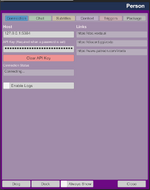
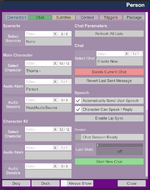
- Reorganized plugin Custom UI into 6 focused tabs with color-coded tabs and primary/destructive action buttons
- "Open Plugin UI" HUD button — open the full plugin UI directly from the HUD
- Start/Stop Chat button on the Chat tab, with label reflecting whether it starts a new chat or resumes one
- API Key field masked with bullets and a Clear button
- Package tab made readable
- Chat tab columns swapped — characters on the left, session actions on the right
Fixes
- VR: Toolbar button now tilts with the HUD, and the main HUD stays visible when the plugin UI is opened
- VR: HUD menu scaling fixed at non-default worldScale
- Character list no longer appears empty on first plugin load
- Bundled resource files are now found when they carry Voxta's version suffix
- "Voxta Active" toggle removed from the HUD quick menu (was redundant with new controls)
Attachments
Posted by: lapiro
- 1
-
1
🎛 New: Quick-Access HUD Menu
A new Voxta button on the VaM toolbar opens a quick-access floating panel on the main HUD with a Voxta Active toggle. The plugin's Active state stays in sync between the quick menu, the main plugin UI, and any external triggers.
New storables — last message metadata
Five new read-only JSONStorableString parameters expose info about the most recent chat message, useful for driving triggers and scene logic from other plugins:
- LastMessageRole — user / assistant / system
- LastMessageScenarioRole — the role as defined in the scenario
- LastMessageSenderId — character/user ID
- LastMessageSenderName — display name
- LastMessageText — the message content
OnMessage trigger now fires on updates
The OnMessage trigger previously fired only when a new message was received. It now also fires on in-flight message updates (partial/streamed content, edits), so reactive triggers get every state change.
🗨 Improved chat event handling
Client now handles two additional server events — chatLoadingMessage (while a message is being generated) and chatStarting (session boot) — for smoother session start-up and loading UX.
Posted by: lapiro
- 2
-
2
- Support for Voxta API 2025-11
- Register a label for the Virt-A-Mate Plugin for Voxta
- Register an example snippet in the scenario scripts editor
- Log clearer error on user interaction requests
- 2
-
2
- Support for Voxta Server v1.0.0-beta.150 (API 2025-08)
- Built-in support for subtitles (VAMOverlays)
- Fix error when inspectorScenarioEventExecuted is displayed
- Auto-configure lip sync button
- Fix error logs for loading and inspector messages
- Better error messages for unauthorized responses

This release is all about increasing stability, plus a few goodies on the server as usual!