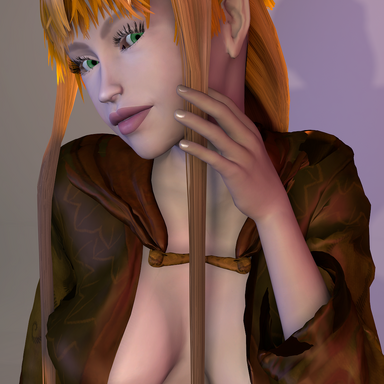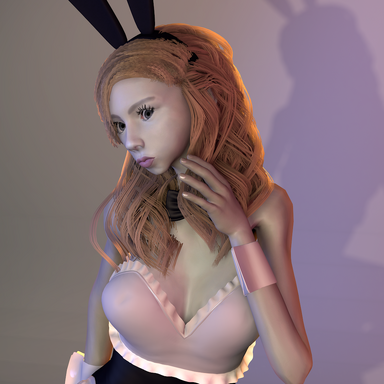
UnknownPeasant's Collection Manager (UCM) is a management and search tool for VAM designed to make working with clothing, hair, and morphs faster and more organized.
Select any Person atom in the scene, then browse and search its available clothing, hair, or morph library from one interface or use a predefined collection.
UCM provides an Equipped Items view, making it easy to see what is currently active and quickly equip, remove, or deactivate items.
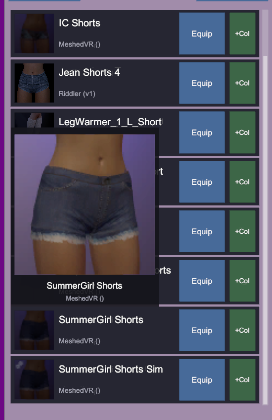
The goal of UCM is to provide a single, fast interface for finding, previewing, equipping, and organizing character assets without repeatedly navigating VaM's standard clothing, hair, and morph interfaces.
2. Select the atom (person) to use and click "Reload"
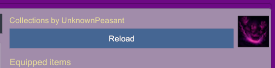
3. Create your first collection and have fun!
Select any Person atom in the scene, then browse and search its available clothing, hair, or morph library from one interface or use a predefined collection.
UCM provides an Equipped Items view, making it easy to see what is currently active and quickly equip, remove, or deactivate items.
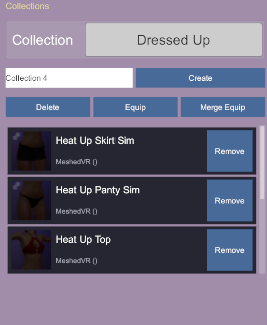
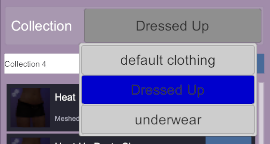
Collections
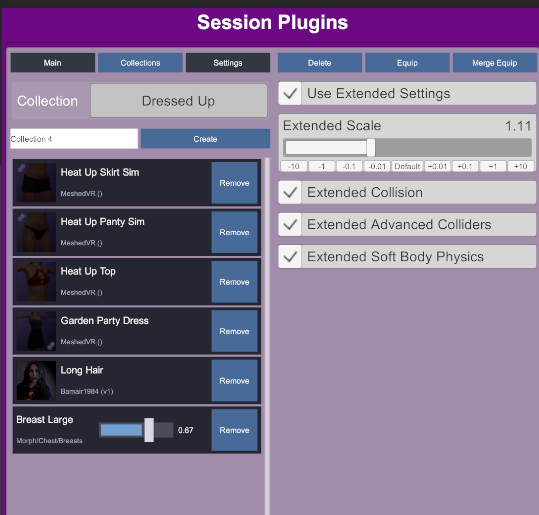
Create reusable collections containing any combination of Clothing, Hair and Morphs all in a single manageable view, this makes applying different combinations of these to any atom super easy.
Extended Collection Settings
Collections can optionally store additional character settings, including Character scale, Collision state, Advanced colliders and Soft-body physics. All of These settings are automatically applied when the collection is equipped.
Additional Features
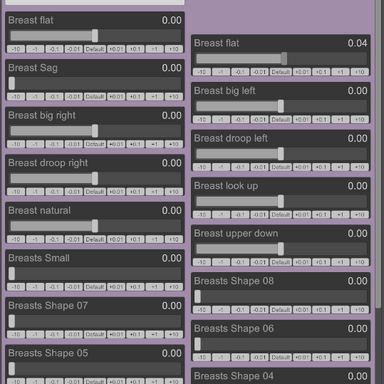
UCM includes thumbnail previews, configurable search debounce, adjustable page size, fast indexed searching for large morph and hair libraries, collection creation and deletion, bulk collection actions, individual morph value controls, refresh controls, and tools for quickly deactivating clothing or all managed items.The goal of UCM is to provide a single, fast interface for finding, previewing, equipping, and organizing character assets without repeatedly navigating VaM's standard clothing, hair, and morph interfaces.
Usage Guide
1. Add the plugin as an session plugin2. Select the atom (person) to use and click "Reload"
3. Create your first collection and have fun!