


Messenger for VaM
About
Messenger for VaM is a customizable in-scene messaging system for Virt-A-Mate. It allows you to create conversations between characters and display their messages through an interactive messaging interface.The plugin supports multiple conversations, customizable message bubbles, automatic message playback, and two display modes.
Features
- Multiple Conversations: Create, rename, and switch between conversations. Each conversation maintains its own prepared messages and playback position.
- Message Editor: Add character names, select a sender, write messages, and choose whether each message is incoming or outgoing.
- Two Display Modes:
- Window: Displays the messaging interface as a screen-space window.
- Atom: Displays the interface on a World Space Canvas attached to the plugin's atom.
- Display Customization: Adjust panel size, position, alignment, bubble colours, text colour, transparency, and header visibility.
- Message Playback: Automatically play prepared messages or advance through them manually.
- Built-in Message Sounds: Optional synthesized sounds for incoming and outgoing messages. No external audio files are required.
- Live Preview: Choose whether editing prepared messages updates the display immediately.
- VaM Action Triggers: Control display visibility and message playback through other VaM plugins and triggers.
Credits and License
Author: murn + ChatGPTLicense: Creative Commons Attribution-ShareAlike 4.0 International (CC BY-SA 4.0)
https://creativecommons.org/licenses/by-sa/4.0/
How to Use
1. Creating a Conversation
- Enter a name in Conversation Name.
- Click New Conversation.
- The new conversation will become the active conversation.
- Use Select Conversation to switch between your conversations.
- To change a conversation's name, enter the new name and click Rename Conversation.
2. Adding Character Names
- Enter a character's name in Add Character Name.
- Click Add Name.
- The name will become available in the Message Sender selector.
3. Creating Messages
- Select the conversation you want to edit.
- Choose a character from Message Sender.
- Select the Message Direction:
- Incoming: Displays the message as an incoming message.
- Outgoing: Displays the message as an outgoing message.
- Enter your message in Message Text.
- Click Send.
Use Select Saved Message to select an existing message for editing. When done editing or switching form out going to incoming do not hit 'send' That creates a new message. Select "New Message" and continue.
- Send: Adds a new message or saves changes to the selected message.
- Delete Selected Message: Removes the selected prepared message.
- Clear Prepared Conversation: Removes all prepared messages from the active conversation.
- Clear Display Only: Clears the visible messages without deleting the prepared conversation.
4. Live Preview
Live Preview controls whether changes to prepared messages update the display.
- ON: The display updates when messages are added, edited, or deleted. Enabling Live Preview also refreshes the display using the complete prepared conversation.
- OFF: Changes to prepared messages do not update the existing display.
5. Message Playback
The playback controls are located in the settings section.
- Auto Play: Enables or disables automatic playback. Turning it off pauses active playback.
- Playback Delay (Seconds): Sets the delay between automatically displayed messages.
- Play: Starts automatic playback from the current playback position.
- Pause: Pauses automatic playback while retaining its position.
- Next Message: Immediately displays the next prepared message.
Each conversation remembers its own playback position. Switching conversations pauses active playback.
6. Display Settings
Display Mode- Window: Displays the messaging interface in screen space.
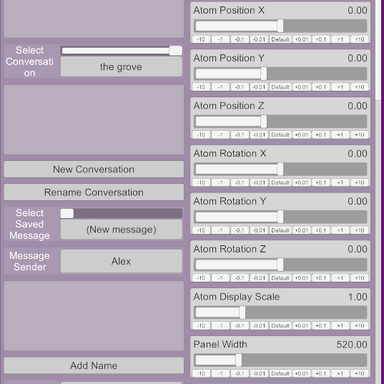
- Atom: Attaches the messaging interface to the plugin's atom as a World Space Canvas.
- Atom Position X / Y / Z: Adjust the display's position relative to the atom.
- Atom Rotation X / Y / Z: Adjust the display's rotation.
- Atom Display Scale: Adjust the display's size.
Window and Panel Controls
- Panel Width: Adjusts the display panel's width.
- Panel Height: Adjusts the display panel's height.
- Horizontal Offset: Adjusts horizontal positioning.
- Vertical Offset: Adjusts vertical positioning.
- Display Alignment: Positions the panel to the Right, Left, or Center.
- Show Display: Shows or hides the messaging interface.
- Show Header: Shows or hides the header bar and title.
- Bubble Transparency (%): Adjusts the transparency of message bubbles. 0% is opaque; 100% is fully transparent.
- Display Window Transparency (%): Adjusts the background transparency of the main display panel independently.
- Incoming Bubble Colour: Changes the background colour of incoming messages.
- Outgoing Bubble Colour: Changes the background colour of outgoing messages.
- Bubble Text Colour: Changes the colour of sender names and message text.
7. Message Sounds
Incoming and outgoing message sounds can be controlled independently.
- Incoming Message Sound: Enables or disables the sound played when an incoming message appears.
- Outgoing Message Sound: Enables or disables the sound played when an outgoing message appears.
8. VaM Action Triggers
Messenger for VaM exposes six actions for use with VaM's Action Trigger system. There are more but the main ones listed| Action | Function |
|---|---|
| ShowDisplay | Shows the messaging interface. |
| HideDisplay | Hides the messaging interface. |
| Play | Starts automatic message playback. |
| Pause | Pauses automatic message playback. |
| NextMessage | Displays the next prepared message. |
| SelectConversation | Loads the conversation currently selected in the plugin's conversation selector. |
Note: SelectConversation uses the conversation currently selected in the plugin. It does not accept a conversation name or index as an argument.
Tips
- Prepare conversations in advance, then use Action Triggers to control when the display appears.
- Turn Live Preview off when editing messages without changing the current display.
- Use Atom mode when you want the messaging interface positioned within the scene rather than fixed to the screen.
- Use Clear Display Only when you want to remove visible messages while keeping the prepared conversation intact.
- Use separate conversations to organize different characters, scenes, or parts of your story.