

HDRI Light Creator
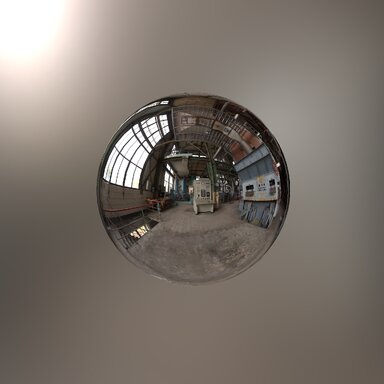
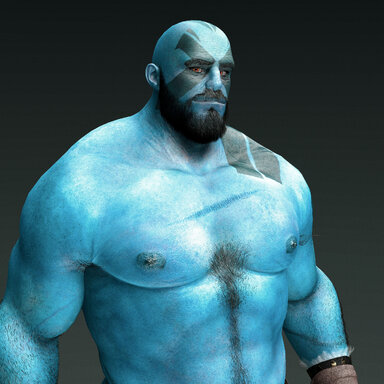
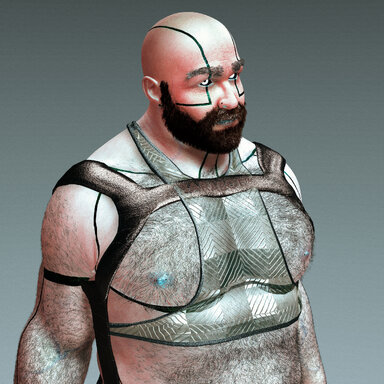
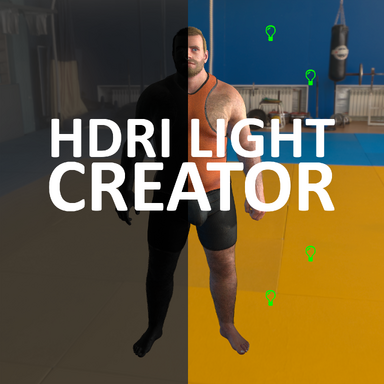
A light generation plugin that analyzes HDRI textures and automatically creates matching light setups. By sampling the color, intensity, and direction of bright areas in an HDRI environment, it adds native VaM lights that replicates the atmosphere and mood of the original scene.** VERY VERY IMPORTANT **
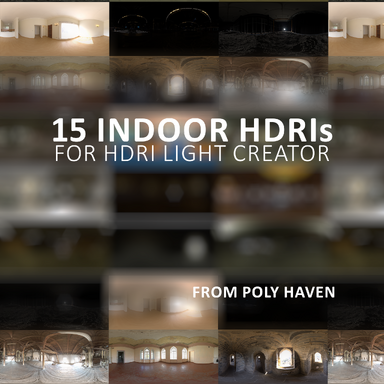
This plugin doesn't work with any released HDRI packs yet (sorry!). I am working on a fix but it's taking some time - Right now it needs hdri's to be READ/WRITE. Below is what it needs.- HDRI Maps have to be prepared in unity 2018.1.9f with read/write enabled. I'm working on a fallback but it's not ready yet. Here is an indoor pack I've released.
- Sky magic Loader Plus must be used to load the HDRI from the asset bundle.
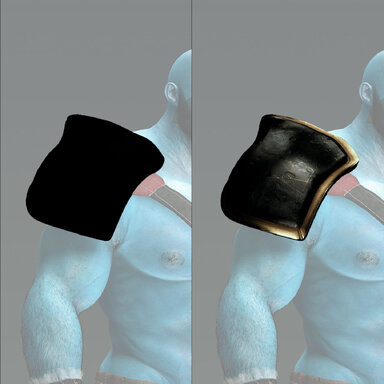
| Before | After | Before | After |
Quick Start
- Select Source - Choose your SkyMagic HDRI atom.
- Select Atom & Target - Pick your Atom and the Target to light.
- Tweak Light Count - Select amount of Key and Fill lights.
- Create Lights - Click CREATE LIGHTS to generate KEY and FILL lights
- Adjust - Fine-tune distance, rotation, intensity, color temperature
| This shows ALL the steps involved in setting it up. |
Some Useful Tips
- After you press CREATE all the sliders for GLOBAL, KEY and FILL are live allowing you to adjust everything to your liking.
- GLOBAL LIGHT SETTING affect all the lights
- KEY LIGHTS affect all key lights.
- FILL LIGHTS affect all fill lights.
- The Shadow slider for both KEY LIGHTS and FILL LIGHTS have some smart logic. If they are set to 1 shadows turn off. FILL LIGHTS default to 1, shadows are off.
- KEY Render Mode is set to Force Pixel while FILL Render Mode is set to Auto. You can quickly change them to Force Pixel. Force Pixel overrides your User Preferences > Pixel Light Count.
- Balance is a really important slider. I've made sure to prioritize color contrast differences vs brightness values for FILL LIGHTS. It follows the HDRI intensity and they might be low. Balance will universally bring up all the low values until they equal the set Intensity. This is also good for KEY LIGHTS because our pecived brightness is different
- Value Boost will bring down the lightness while maintaining the hue and saturation. Bringing this down and bringing the Intensity up allows more richness. It also ensures that the Kelvin Influence is more affected.
- When I'm balancing all the light values I load up my HDRI using SkyMagicLoaderPlus. Adjust the Scene Exposure slider and look around the HDRI using the Scene Rotate. Usually you'll slide this down and allow the HDRI to have Shadows - Mids - Highlights. Most of the time the HDRI will be Mids - Highlights. Once you are happy with that, bring in your ATOM, then this plug-in and balance the KEY and FILL lights.
UI INFORMATION
1: TARGET SETUPS
- Source Atom (dropdown): Select the atom containing your HDRI/SkyMagic source
- Center Target (dropdown): Select the atom to aim lights at (usually your character)
- Target Part (dropdown): Choose specific body part to focus lights on (head, chest, hipControl, etc.)
- Refresh Lists (button): Updates atom list if you've added/removed atoms
2: GENERATED LIGHT COUNT
- KEY Light Count(slider): Number of key lights from bright HDRI areas
- FILL Light Count (slider): Number of fill lights from darker HDRI areas
3: HDRI ANALYSIS TWEAKS
- Analysis Threshold (slider): Brightness cutoff for detecting lights
- Min Separation Angle (slider): Minimum distance between lights
- Show Debug Lines (toggle): Displays colored lines showing light positions
4: CREATE
- SCAN HDRI (button): Analyzes HDRI to find light positions (preview mode)
- CREATE LIGHTS (button): Generates actual light atoms based on scan
- REMOVE ALL LIGHTS (button): Deletes all generated lights
5: GLOBAL LIGHT SETTINGS (AFTER CREATING LIGHTS THESE BECOME LIVE LINKS)
- Lights Distance to Target (slider): Distance from center to place lights
- Lights Height Offset (slider): Vertical position adjustment
- Lights Rotation around Target (slider): Rotates lights around center
- Sync Skybox HDRI to Rotation (toggle): Links light rotation to skybox
- Global Shadow Res (dropdown): Shadow quality (Low/Medium/High/VeryHigh)
6: KEY LIGHTS (AFTER CREATING LIGHTS THESE BECOME LIVE LINKS)
- KEY Intensity (slider): Brightness of key lights
- KEY Balance (slider): Blend natural vs. set intensity
- KEY Kelvin Influence (slider): Color temperature (-1 cool to +1 warm)
- KEY Saturation (slider): Color vibrance
- KEY Value Boost (slider): Brightness multiplier
- KEY Spot Angle (slider): Light beam width
- KEY Shadow (slider): Shadow strength
- KEY Bias (slider): Shadow offset
- KEY Type (dropdown): Spot or Point light
- KEY Render Mode (dropdown): Auto/ForcePixel/ForceVertex
- KEY Range (slider): Light falloff distance
7: FILL LIGHTS (AFTER CREATING LIGHTS THESE BECOME LIVE LINKS)
- FILL Intensity (slider): Brightness of fill lights
- FILL Balance (slider): Blend natural vs. set intensity
- FILL Kelvin Influence (slider): Color temperature for fill lights
- FILL Saturation (slider): Color vibrance for fill lights
- FILL Value Boost (slider): Brightness multiplier for fill lights
- FILL Spot Angle (slider): Light beam width for fill lights
- FILL Shadow (slider): Shadow strength for fill lights
- FILL Bias (slider): Shadow offset for fill lights
- FILL Type (dropdown): Spot or Point light
- FILL Render Mode (dropdown): Auto/ForcePixel/ForceVertex
- FILL Range (slider): Light falloff distance for fill lights