

• Hi Guest!

    We have posted a new VaM2 dev log on Patreon, starting a monthly cadence of written progress updates between Beta releases. Highlights include the new Gizmos System, Selection Carousel, and Modes System with Context-Specific Editing. Beta1.2 is 15 of 21 items complete.

    Read the full post on Patreon, or follow progress on the public Trello roadmap.
ClothingRipper

Paid EA Plugins + Scripts ClothingRipper

Go to pay site
Early-Access End Date
Jul 3, 2026
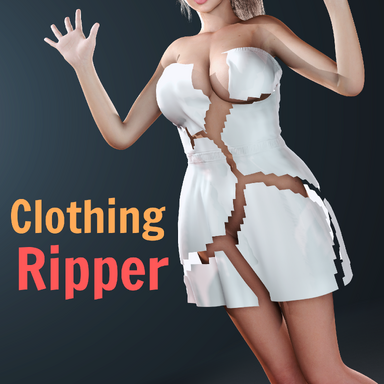
ClothingRipper | Tear any SIM clothing into pieces that rip and fall off in real time

Hey everyone. I’ve been working on this plugin that allows clothing meshes to rip open dynamically in real-time. I’m incredibly excited to share it today!
To show some extra love to the patrons who make my work possible, the plugin is currently in 2-week Early Access bundled together with my new
Beach Paradise: Bikini Burst scene. For everyone else, the standalone plugin will drop right here on the Hub completely for free on 2026-07-03!

ClothingRipper allows SIM-enabled clothing to be ripped into pieces that fall off the body in real time. Rip the whole garment, drop individual pieces, or draw your own cut/opening (like splitting a shirt down the front like a vest). Works on any sim clothing the user equips, with per-item or global settings, smooth gradual detaching, fading out of clothes after detaching, and full Timeline trigger support for animating your rips.

(These showcase GIFs are from my Beach Paradise: Bikini Burst scene)
Showcase GIF 1.gif
Showcase GIF 2.gif
Showcase GIF 3.gif

Drawing your own cuts:


Draw along the mesh vertices:


Explanation for each Button/Toggle/Slider in the PluginUI:
Left ColumnRight Column
  • Scan For Sim Clothing (button) — Find the wearable Sim clothing on this Person and list it. (Usually automatic; press if something's missing.)
  • Selected Clothing (chooser) — Pick which clothing item the settings/buttons below act on.
  • Number Of Pieces (slider) — How many pieces a random rip breaks the item into (2–16).
  • Random Seed (slider) — Changes the random piece pattern; same seed = same shapes.
  • Cut Raggedness (slider) — How jagged the random tear lines are (0 = clean, 1 = very ragged).
  • 1. Pre-Cut Into Pieces (button) — Pre-compute and prepare the cut without releasing it yet (garment still looks worn).
  • 2. RIP! (release all pieces) (button) — Tear the selected item apart now.
  • RIP ALL Items (button) — Rip every detected clothing item at once.
  • Click A Piece To Drop It (Space) (toggle) — When on, Space-click a piece to drop just that one; the rest stay on.
  • Restore Selected (button) — Put the selected item back together.
  • Restore All (button) — Put every item back together.

  • Draw Cut Mode (toggle) — Turn on to draw cuts by hand; shows a wireframe overlay on the garment.
  • Draw Tool (chooser) — Free (paint a line), Straight Line (2 screen clicks), Plane (axis slice), Edge Path (snap along mesh edges).
  • Plane / Line Axis (chooser) — For the Plane tool: which way the slice faces (X/Y/Z/View).
  • Hide Body While Drawing (toggle) — Temporarily hide the body so an arm can't block your view while drawing.
  • Open Cut (slit — no piece detaches) (toggle) — Make the cut an opening (e.g. a shirt opening down the front) instead of removing a piece.
  • Draw Brush / Band Radius (m) (slider) — Brush thickness for drawing / width of the cut band.
  • Apply Drawn Cuts (pre-cut) (button) — Turn what you've drawn into the actual cut.
  • Clear Drawing (button) — Erase everything you've drawn.
  • Switch To Random Cut (button) — Discard a saved drawn/open cut so the next rip uses the random sliders again.
  • Show Cut Lines Before Rip (toggle) — Open the seams as thin slits while still worn, so you can see where it'll tear.
  • Preview Cut (flash seams for 2s) (button) — Briefly flash only the cut lines to preview them.
  • Seam Width (triangle rings) (slider) — How wide the tear gap is (1 = thinnest).
  • Rip Burst Force (radial/outward) (slider) — Outward "pop" given to each piece on release (0 = just drop).
  • Rip Burst Duration (s) (slider) — How long that outward push lasts.
  • Fade Released Pieces After (s, 0=never) (slider) — Delay before a dropped piece starts fading away.
  • Fade Duration (s) (slider) — How long that fade-out takes.
  • Detach Duration (s, 0=instant) (slider) — Ramp a piece's pins to zero over time so it sags then falls, instead of letting go instantly.
  • Detach Curve (higher = sags sooner) (slider) — Shapes that ramp; higher starts the sag earlier for a more even fall.
  • Open Cut: Detach Whole Item On Rip (toggle) — With an open cut, also let RIP drop the whole garment (opening along the slit).
  • Change Weight/Friction On Rip (toggle) — On rip, shift the cloth's weight/friction to the targets below.
  • Rip Target Weight (slider) — Weight to apply on rip (e.g. heavier so it falls faster).
  • Rip Target Friction (slider) — Friction to apply on rip (lower = slides off more easily).
  • Weight/Friction Transition (s) (slider) — How long the weight/friction change takes.
  • Interactive Mode (pull pieces off) (toggle) — Use VaM's native detach so grabbing/pulling the cloth tears pre-cut pieces off where you pull.
  • Interactive Detach Threshold (slider) — How hard you must pull before a piece lets go in Interactive Mode.
  • Disable Smoothing On Rip (fixes stretchy edges) (toggle) — Turns off the cloth's edge smoothing so torn edges don't stretch/smear (leave on).
  • Save Computed Rip With Scene (toggle) — Store the computed cut in the scene so rips are instant on load.
  • Auto-Detect + Precompute New Clothing (toggle) — Automatically notice newly equipped clothing and pre-cache its rip (no manual Scan).
  • Use Global Settings (all items) (toggle) — Make the sliders apply to every item at once (and exposable as scene sliders) instead of per-item.
  • Debug: Piece Wireframe (toggle) — Show a colored wireframe of the pieces for troubleshooting.
  • Debug: Log Analysis Report (button) — Print rip diagnostics to the message log.


Links to the clothing items shown in the demonstrations can be found in the credits below / to the right!
React to this content...

Share this resource

More resources from Mxx

Back
Top Bottom