

PoseSaver Extended
Overview
This plugin combines McKlinton SnapshotManager, hazmhox VAMOverlays, and VAMStory into one unified tool, inspired by Posesaver by Kimowal. It consolidates most functionality from these plugins into a single, fast, and easy-to-use interface. I created this to streamline my workflow, as using these plugins separately was quite slow. This plugin speeds up the process significantly. Features include: pose saving with storytelling capabilities, viewport (camera) control, fully customizable canvas thumbnails, timeline pose import, and scene management. With so many features, a brief summary isn't enough—see below for complete details on all script capabilities.Acknowledgments: Thanks to all the great creators mentioned above, without whom this plugin would not exist.
 Core Pose Management
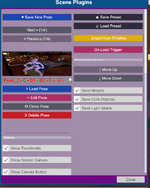
Save & Load Poses
What it does: Capture the complete state of your scene at any moment and restore it later with smooth animations.What you can do:
- Save poses for Person atoms — capture body positions, rotations, and all controller states
- Create pose libraries for different scenarios (standing, sitting, action poses, etc.)
- Build sequences of poses that tell a story or create animations
- Save poses with the scene so they're always available when you reload
- Export poses as preset files to share with others or use in different scenes
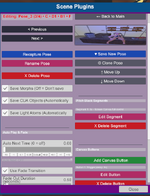
Pose Editing & Management
What it does: Modify existing poses without having to recreate them from scratch.What you can do:
- Recapture — Update a pose with current positions if you made small adjustments
- Rename — Give poses meaningful names like Sitting_Relaxed or Action_Jump
- Clone — Duplicate poses to create variations (e.g. Sitting_Relaxed → Sitting_Formal)
- Delete — Remove poses you no longer need
- Reorder — Move poses up/down in the list to organize your sequence
- Move Up/Down — Reorganize pose order for better storytelling flow
Thumbnail System
What it does: Automatically captures screenshots when you save poses, creating visual previews.What you can do:
- See at a glance what each pose looks like without loading it
- Quickly identify poses in a sequence by their visual appearance
- Use thumbnails in the main UI grid for visual navigation
- Display thumbnails on-screen as clickable buttons for instant access
 Auto-Play System
What it does: Automatically progresses through your pose sequence with customizable timing.What you can do:
- Set different auto-next times for each pose (e.g. 3 seconds for quick cuts, 10 seconds for dramatic pauses)
- Create hands-free presentations that play automatically
- Build cinematic sequences that flow naturally without manual intervention
- Override auto-play at any time by clicking a pose button
- Loop through poses for continuous playback
- Create automatic photo shoots that cycle through poses
- Build storytelling sequences that play out automatically
- Set up demo scenes that showcase different poses
- Create ambient scenes that slowly transition between states
 Fade Transitions
What it does: Creates professional cinematic transitions between poses with fade-to-black effects and narration.What you can do:
- Fade Out/In — Create smooth transitions where the screen fades to black, then fades back in
- Separate Controls — Set different durations for fade out and fade in independently
- Pitch Black Segments — Add multiple segments of complete black screen with narration text
- Styling — Customize narration text with different fonts, sizes, colors, and screen positions
- Storytelling — Use fade transitions to create chapter breaks, scene changes, or dramatic pauses
- Chapter Transitions — "Chapter 1: The Beginning" appears during a 3-second black screen
- Time Passes — "Three days later..." with a longer fade
- Scene Changes — Multiple narration segments during one transition ("Morning..." → "Afternoon..." → "Evening...")
- Dramatic Pauses — Extended black screen with text for emphasis
 Camera System
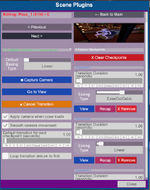
What it does: Save and restore camera positions, create camera sequences, and control focus distance.What you can do:
- Single Camera Position — Save one camera angle per pose for consistent framing
- Camera Sequences — Save multiple camera checkpoints that play in sequence
- Smooth Transitions — Animate camera movement between checkpoints with customizable duration
- Easing Functions — Choose easing types for smooth camera movements (Linear, EaseIn, EaseOut, EaseInOut, EaseInQuad, EaseInCubic, EaseInQuart, EaseInExpo, and more)
- Per-Checkpoint Easing — Set different easing types for each checkpoint, or use pose default
- Focus Control — Save and restore camera focus distance for depth-of-field effects
- Auto-Apply — Automatically move camera when pose loads
- Loop Sequences — Make camera sequences loop continuously
- Go to View — Instantly jump to any saved camera checkpoint
- Cinematic Shots — Wide establishing shot → Medium shot → Close-up
- Orbital Movements — Camera circles around character smoothly with ease-in transitions
- Zoom Sequences — Start wide, zoom in dramatically over multiple checkpoints with smooth easing
- Dynamic Angles — Switch between different camera perspectives during one pose
Camera Transition Timing (Important)
- With Fade Transitions: Camera transition timer starts after pitch black segments complete, but before fade-in begins. This is intentional — the camera begins moving during the black screen period, so when the scene fades in, the camera is already in motion or has reached its target position. This creates smoother, more professional transitions where the camera movement happens "behind the scenes" during the black screen.
- Without Fade Transitions: Camera transition starts immediately when the pose loads.
- Why this timing? By starting camera movement during the black screen (after pitch black segments), you get seamless transitions where the camera is already positioned correctly when the scene becomes visible. This prevents the jarring effect of seeing the camera move while the scene is visible, creating a more cinematic experience.
 Dialog System
What it does: Display speech/thought bubbles on Person atoms and on-screen subtitles, all with precise timing control.What you can do:
- Speech Bubbles — Show what characters are saying
- Thought Bubbles — Display internal thoughts or narration
- Subtitles — Show scene-wide narration or dialog at the bottom/top/center of the screen
- Timing Control — Set delay before dialog appears and how long it stays visible
- Multiple Dialogs — Add unlimited dialogs per person per pose
- On Enter/Exit — Show dialogs when pose loads or when transitioning away
- Test Functionality — Preview dialogs before saving to see how they look
- Per-Person — Each Person atom can have their own dialogs
- Conversations — Multiple characters speaking in sequence
- Internal Monologue — Thought bubbles reveal character's inner thoughts
- Narration — Use dialogs to provide context or story information
- Timed Reveals — Dialog appears after a delay to create dramatic timing
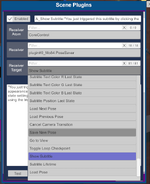
 Trigger System
What it does: Execute actions automatically based on events or time during pose playback using VaM's built-in trigger system.How it works: PoseSaver uses VaM's EventTrigger system to execute actions. Each trigger can be configured with various actions from VaM's trigger library.
PoseSaver Trigger Types
On Enter Triggers: Actions that fire automatically when a pose loads- Configured per-pose
- Fires immediately when pose is applied
- Perfect for initial setup actions
- Configured per-pose
- Fires when a new pose starts loading
- Useful for cleanup or transition effects
- Multiple timed triggers per pose
- Each trigger has its own delay time
- Timers start counting after fade-in completes (if fade is enabled)
- All active trigger timers are automatically destroyed when you load a new pose
- Configured globally (not per-pose)
- Fires automatically when plugin initializes
- Useful for scene setup or automatic pose loading
Available PoseSaver Trigger Actions
- Load Pose — Jump to any pose in your sequence (select pose by number)
- Load Next Pose — Automatically load the next pose in sequence
- Load Previous Pose — Automatically load the previous pose in sequence
- Save New Pose — Capture and save current pose as new pose
- Go to View — Jump to a specific camera checkpoint from current pose
- Toggle Loop Checkpoint — Enable/disable camera sequence looping for current pose
- Cancel Camera Transition — Stop current camera transition animation
- Branching Stories — Load different poses based on conditions using Load Pose action
- Timed Events — Sound effects, animations, or other actions at precise moments
- Camera Control — Automatically switch camera angles at specific times using Go to View
- Scene Flow — Automatic progression through complex sequences with timed triggers
 Screen Canvas
What it does: Displays thumbnail buttons overlaid on your main view for instant pose access.What you can do:
- On-Screen Buttons — Click thumbnails directly in the viewport without opening UI
- Layout Control — Arrange thumbnails horizontally or vertically
- Direction Control — Reverse the order (left/right, up/down)
- Positioning — Place canvas anywhere on screen with X/Y sliders
- Size Control — Adjust thumbnail size for better visibility
- Spacing — Control gap between thumbnails
- Opacity — Make canvas semi-transparent so it doesn't block the view
- Navigation — Previous/Next buttons when you have many poses
- Column System — Organize many poses into columns with navigation
- Quick pose switching without opening plugin UI
- Visual pose selection — see what you're clicking
- Customizable placement — put buttons where they don't interfere
- Professional presentation — clean overlay that doesn't clutter the scene
 Object Management
What it does: Save and restore positions, rotations, scales, and states of Custom Unity Assets (CUA) and Light atoms.What you can do:
- CUA Objects — Save positions, rotations, scales, and on/off states of props and objects
- Light Atoms — Save light positions, rotations, settings, and control states
- Multi-Object — Save unlimited objects per pose
- State Preservation — Objects remember if they were on or off
- Toggle Saving — Enable/disable saving CUA objects and lights per pose
- Recapture — Update object positions without recreating the pose
- Props — Chairs, tables, and other objects move with poses
- Lighting — Different lighting setups for different poses
- State Management — Objects turn on/off automatically with poses
- Complex Scenes — Multiple objects all positioned correctly per pose
 Preset System
What it does: Save and load complete pose sets as JSON files, including all features and settings.What you can do:
- Export Scenes — Save entire pose sequences with all dialogs, cameras, triggers, and settings
- Share Content — Send preset files to others for use in their scenes
- Backup Work — Keep copies of your pose sets as separate files
- Cross-Scene — Use the same pose set in different scenes
- Complete Preservation — All features saved: poses, dialogs, cameras, triggers, fade settings, canvas settings, font settings
- Import — Load preset files to add poses to current scene or replace existing ones
- Create a complete story sequence, save as preset
- Share preset file with community
- Load preset in new scene to reuse poses
- Backup your work before making changes
 Timeline Import
What it does: Import poses from Timeline plugin JSON exports, extracting animation clip poses including morphs.What you can do:
- Import from Timeline — Extract poses from Timeline plugin's JSON export files
- Complete Import — Imports bone positions/rotations AND morph values from timeline
- Morph Handling — Properly resets morphs not in JSON to 0
- Merge Mode — Update existing poses with matching names
- Add Mode — Create new poses with Timeline_{AnimationName} naming
- Atom Selection — Choose which Person atom to apply poses to
- Convert Timeline animations into PoseSaver poses with full morph support
- Reuse animation work in pose sequences
- Merge Timeline poses with manually created poses
- Build pose libraries from existing animations
- Import complete pose data including character morphs
Import Process
- Select Timeline JSON file and choose import mode (Add New or Merge)
- Select which Person atom to apply poses to
- Plugin extracts pose data from each animation clip's Pose tab
- For each clip, creates or updates a pose named Timeline_{AnimationName}
Multi-Atom Handling
- Single Atom Import: When you select one Person atom, only that atom's data is imported/updated
- Merge Mode with Multiple Atoms:If a pose already exists with multiple atoms:
- Scenario: you have a dancing scene with 2 Person atoms and 10 animations in Timeline
- Step 1: Import Timeline for Person 1 in Add New mode → PoseSaver creates 10 poses for Person 1
- Step 2: Import Timeline for Person 2 in Merge mode → PoseSaver does not create 10 new poses. Instead, it adds Person 2 data on top of the existing 10 poses
- Result: you end up with the same 10 poses, but now each pose has both Person 1 and Person 2 animation data combined
- Add Mode: Creates new poses with only the selected atom's data (use this for the first atom you import)
Smart Font System
What it does: Remembers and reuses your last used subtitle/pitch black/canvas button font settings so you don't have to reconfigure them for every pose.How it behaves:
- Per-Pose Overrides: If a pose has its own font settings saved, those are used.
- Last State Defaults: If a pose has no font settings, it automatically uses the last font family, style, size, color, and position you used anywhere in the plugin.
- Consistent Look: Makes it easy to keep subtitles and pitch black text visually consistent across many poses without manual copy/paste.
- Font Source & Limitation: PoseSaver reuses the font asset bundle from the vamOverlays plugin. Important: If you have vamOverlays already loaded in your scene and then load PoseSaver Extended, you will only see Arial font in PoseSaver's font list. This happens because VaM doesn't allow loading the same asset bundle twice in a scene. Changing the bundle name doesn't solve this issue. (HELP)

🕹 Canvas Button System
What it does: Displays screen-space buttons (like thumbnails) that stay at fixed spots on the screen, allowing users to progress through poses or fire custom triggers without opening any UI. You can now add multiple canvas buttons per pose, creating interactive sequences where buttons appear one after another.What you can do:
- Multiple Buttons Per Pose — Add unlimited canvas buttons per pose, similar to pitch black segments
- Sequential Display — Buttons appear one after another in sequence, creating interactive storytelling flows
- Next Pose Button — Use "next" type button that always loads the next pose in the sequence (only one allowed per pose, must be last)
- Trigger Buttons — Add unlimited "trigger" type buttons with full VaM trigger panel (EventTrigger) to fire any custom actions (load scene, start Timeline, play audio, etc.)
- Per-Button Enable/Disable — Turn individual buttons on/off per pose for flexible control
- Delay After Click — Each button can have a delay timer that starts after clicking the previous button, creating natural pacing
How Sequential Display Works
- First Button: Appears after the pose loads (with optional delay that starts after fade-in completes if fade is enabled)
- User Clicks: When user clicks the button, it hides and triggers its action (load next pose or custom trigger)
- Delay Timer: If the next button has a delay set, the timer starts counting after the click on the previous button
- Next Button Appears: After the delay completes, the next button appears
- Sequence Continues: Process repeats until all buttons are shown
- Next Button Restriction: Only one "Next" type button is allowed per pose, and it must always be the last button in the sequence
Position & Appearance
- Screen-Attached (not world-space): Buttons are anchored to the screen (Top-Right, Center-Right, Bottom-Right, etc.), same principle as the thumbnail canvas — they do not float in 3D space
- Per-Button Positioning: Each button can have its own position preset and X/Y offsets
- Size & Colors: Control button size, background color, opacity, and text color per button
- Text: Set custom label for each button (e.g. "Next", "Continue", "Start", "Skip", "Choose Path A", etc.)
Animations
- Fade-In — Optional fade-in animation for each button
- Pulse — Optional pulsing effect to draw attention (starts after fade-in if enabled)
- Text Animations — Per-button text animation types: Fade In, Scale In, Slide In, Glow, or None
Smart Last-State Styling (shared idea with Smart Font System)
- All canvas button style fields (font family, style, size, text color, background color, opacity, size, position preset, fade/pulse settings, text animation type, duration, intensity) behave like last state values
- Per-Button Overrides: If you set a value for a button, that button uses its own settings
- Last State Defaults: If you leave a field empty/zero on a button, it automatically reuses the last used values from any previous button
- This lets you define your canvas button look once, then only tweak it on specific buttons while the rest inherit the same style automatically
Timer Management
- Automatic Cleanup: All button timers are automatically stopped and destroyed when a new pose loads, preventing conflicts and ensuring clean transitions
- Delay Timing: Button delays start counting after fade-in completes (if fade is enabled), or immediately if no fade transition is used
Creative Applications
- Interactive Stories — "Click to continue" buttons that appear at key moments
- Branching Narratives — Multiple trigger buttons that lead to different paths
- Timed Interactions — Buttons appear after specific delays, creating natural pacing
- Multi-Step Actions — Sequence of buttons that guide users through complex interactions
- Presentation Control — Buttons that let viewers control the pace of a presentation
 Advanced Features
Morph Management
What it does: Intelligently handles character morphs with proper reset behavior.What you can do:
- Save morph values with poses
- Toggle morph saving on/off per pose
- Properly reset morphs not in saved pose to 0
- Import morphs from Timeline exports with proper reset behavior
Physics & Transitions
What it does: Poses are always loaded instantly using VaM's PresetManager system, with automatic physics freezing to prevent interference. Use Cases & Creative Applications
Storytelling
Create complete narrative sequences with poses, dialogs, camera movements, and fade transitions. Build chapters, scenes, and dramatic moments with automatic progression.Photo Shoots
Set up automatic pose sequences for hands-free photography. Use auto-play with camera sequences to capture multiple angles automatically.Animation
Import poses from Timeline, create smooth transitions, and build complex sequences. Use triggers to create branching animations.Scene Building
Save different scene states (standing, sitting, action) and switch between them instantly. Include props and lighting in each state.Presentations
Create automatic demos that cycle through poses. Use screen canvas for manual control during presentations.Content Creation
Build pose libraries, share presets with community, and create reusable content for multiple scenes. License Change
Important: This update includes a license change from CC-BY 4.0 to CC-BY-SA 4.0 (Creative Commons Attribution-ShareAlike 4.0 International).Reason: PoseSaver now uses the font asset bundle from the vamOverlays plugin for subtitle, pitch black, and canvas button text styling. To comply with the licensing requirements of the shared asset bundle, the plugin license has been updated to CC-BY-SA 4.0.
What this means: You are free to use, modify, and distribute PoseSaver Extended, but any derivative works must also be licensed under CC-BY-SA 4.0 (ShareAlike requirement).