






Contains executable files or external scripts. Ensure you trust the creator and apply your own security measures.
Join the VPM Discord Server!
Check out the VPM community on Discord – hang out with 38 other members and enjoy free voice and text chat.
A powerful, modern package management tool for Virt-A-Mate
 Disclaimer - Work in Progress
Please Note: VPM is currently in active development and should be considered beta software.
 Bugs may occur - While we test extensively, unexpected issues can happen, especially with unusual package configurations or edge cases
 Always keep backups - VPM moves and modifies files. Although it's designed to be non-destructive (originals are preserved in ArchivedPackages), I recommend keeping backups of important packages
 Features may change - The interface and functionality may evolve between versions
 Report issues - If you encounter bugs or unexpected behavior, please let me know in discord with details about what happened
 What is VPM?
VPM (VaM Package Manager) is a standalone Windows application designed to help you organize, browse, and manage your VaM package collection with ease. Whether you have hundreds or thousands of packages, VPM provides a fast, visual way to explore your content, manage dependencies, optimize packages, and keep your VaM installation clean and organized.
 Getting Started
First Launch Setup
1. Download and extract VPM to any folder
2. Run VPM.exe
3. On first launch, you'll be prompted to select your VaM root folder (the folder containing VaM.exe)
4. VPM will scan your AddonPackages folder and build a cache of all your packages
Understanding the Interface
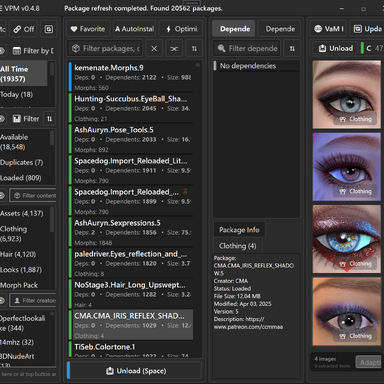
VPM's interface is divided into four main panels:
- Left Panel - Filters: Filter your packages by various criteria
- Center Panel - Package List: Your main package browser with search
- Right Panel - Dependencies: View dependencies and dependents for selected packages
- Far Right Panel - Image Preview: Visual preview of package contents
Basic TasksBrowsing Packages
The center panel displays all your packages in a scrollable list. Each package row shows:
- Package name and creator
- Content summary (scenes, looks, clothing, etc.)
- File size
- Status indicators:
 Favorite | A AutoInstall |
  Optimized |
  Old Version
Selecting Packages:
- Click to select a single package
- Ctrl+Click to add/remove from selection
- Shift+Click to select a range
- Drag to select multiple packages quickly
Searching and Filtering
Quick Search:
Use the search box above the package list to filter by name, description, or tags. The search is instant and updates as you type.
Filter Panel Options:
The left panel provides powerful filtering options:
 Date Filter - Filter by package date (Today, This Week, This Month, Custom Range)
 Status Filter - Filter by Loaded, Available, Missing, Duplicate, Old Version
- Content Types - Filter by content (Scenes, Looks, Clothing, Hair, Morphs, etc.)
 Creators - Filter by package creator
 License Type - Filter by license (CC BY, FC, PC, etc.)
 File Size - Filter by size (Tiny, Small, Medium, Large, Huge)
 Subfolders - Filter by subfolder location
- Damaged - Show only damaged/corrupted packages
Linked Filters Mode:
Click the
 button to toggle between:
- Off (default) - Single selection mode, hides incompatible filter options
- On - Multiple selection mode, all options visible with counts
Loading and Unloading PackagesVPM uses a non-destructive load/unload system. Packages are moved between your AddonPackages folder (loaded) and an AllPackages folder (unloaded).
Loading Packages
1. Select one or more packages with "Available" status
2. Click the
 Load button in the action bar
3. Packages are moved to AddonPackages and become active in VaM
Load +Deps: Use the
Load +Deps button to load packages along with all their dependencies automatically.Unloading Packages
1. Select one or more packages with "Loaded" status
2. Click the
 Unload button
3. Packages are moved to AllPackages and won't load in VaM
Status Colors:
- Green - Loaded (active in VaM)
- Blue - Available (can be loaded)
- Red - Missing (referenced but not found)
- Orange - Duplicate (multiple versions exist)
Managing DependenciesThe Dependencies panel (right side) shows what packages depend on your selection and what your selection depends on.
Dependencies Tab
Shows packages that your selected package(s) require to work properly. Missing dependencies are highlighted in red.
Dependents Tab
Shows packages that depend on your selected package(s). Useful for understanding the impact of removing a package.
Dependency Graph
Right-click a package and select
Show Dependency Graph to see a visual representation of the dependency tree. You can:- View dependencies, dependents, or both
- Adjust the depth level
- Choose different layout algorithms (Grid, Tree, Circular)
- Zoom and pan the graph
Downloading Missing Dependencies
When viewing dependencies, missing packages are shown in red. If they're available on VaM Hub:
1. Select the missing dependencies
2. Click
Download Missing3. VPM will fetch them from the Hub automatically
Optimizing PackagesVPM can significantly reduce package file sizes by optimizing textures and hair settings.
How to Optimize
1. Select one or more packages
2. Click the
Optimize button3. A detailed optimization window opens showing:
- Textures that can be compressed (PNG → JPG, resize large textures)
- Hair settings that can be optimized
- Estimated size savings
4. Review and select which optimizations to apply
5. Click Apply to create optimized versions
Important Notes:
- Original packages are preserved in ArchivedPackages folder
- Optimized packages replace the originals in AddonPackages
- The package description is updated to note the optimization
- Optimized packages show the indicator
What Gets Optimized
Textures:
- Convert lossless PNG to efficient JPG (configurable quality)
- Resize oversized textures (4K → 2K, etc.)
- Skip normal maps and other technical textures
Hair:
- Reduce hair strand count
- Optimize hair physics settings
- Adjust LOD settings
Favorites and AutoInstallFavorites
Mark packages you love for easy access:
1. Select packages
2. Click
Favorite (left-click to add, right-click to remove)3. Filter by "Favorites" in the Status filter to see only your favorites
Favorites are synced with var_browser native Favorites.txt file.
AutoInstall
Mark packages for automatic installation:
1. Select packages
2. Click A AutoInstall
3. These packages will be prioritized and marked in VaM
 VaM Hub Integration
VPM includes a built-in Hub browser for discovering and downloading new content.
Opening the Hub Browser
Access the Hub browser from the Dependencies panel when you have missing dependencies, or through the download features.
Features:
- Search the Hub catalog
- Filter by creator, tags, and categories
- View package details and previews
- Download packages and their dependencies
- Queue multiple downloads
- Check for updates to installed packages
 Content Modes
Use the mode dropdown in the top-left to switch between:
Packages ModeBrowse and manage .var packages (default mode)
Custom ModeBrowse presets, looks, poses, and other custom atom content stored in your Saves folder. Includes:
- Appearance presets
- Pose presets
- Plugin presets
- Animation presets
- And more...
Managing Old Versions and DuplicatesArchiving Old Versions
When you have multiple versions of the same package:
1. Old versions show the
indicator2. Select old version packages
3. Click
Archive to move them to ArchivedPackages4. Or use Menu → File Operations → Archive Old Versions to archive all at once
Fixing Duplicates
When the same package exists in multiple locations:
1. Duplicates show in orange with "Duplicate" status
2. Select duplicates and click
 Fix Duplicates
3. Choose which copy to keep
4. VPM removes the redundant copies
 Settings and Customization
Access settings through the ☰ Menu button:
Display Settings
- Theme - Choose Dark, Light, or System theme
- Hide Archived Packages - Toggle visibility of archived packages
Cache & Storage
- Open Cache Folder - Access VPM's cache directory
- Clear All Metadata Cache - Force a fresh scan of all packages
File Operations
- Select Root Folder - Change your VaM installation path
- Refresh Packages - Rescan for new/changed packages
- Archive Old Versions - Bulk archive outdated packages
 Keyboard Shortcuts
- Ctrl+F - Focus search box
- Ctrl+A - Select all visible packages
- Delete - Discard selected packages
- Enter - Load/Unload selected packages
- Escape - Clear selection
- Arrow Keys - Navigate package list
 Tips and Tricks
- Right-click packages for context menu options (Open in Explorer, Copy Name, Dependency Graph, Discard)
- Scroll on the Sort button to quickly cycle through sort options
- Drag filter panel dividers to resize sections
- Double-click a package to toggle its load state
- Use the image panel to quickly preview package contents before loading
- Filter by "Missing" to find broken dependencies across your collection
TroubleshootingPackages not showing up?
- Click the Refresh button
- Check that your VaM folder path is correct (Menu → Select Root Folder)
- Try clearing the metadata cache (Menu → Cache & Storage → Clear All Metadata Cache)
- Some packages don't include preview images
- Damaged .var files may not display images
- Try selecting a different package to refresh the image panel
- VPM caches metadata for fast loading - first scan may take longer
- Use filters to reduce the visible package count
- The image panel uses virtualization for smooth scrolling
 System Requirements
- Windows 10/11
- .NET 10.0 Runtime (included or auto-installed)
- Recommended: SSD for faster package scanning
DownloadLatest version can be found on github
GitHub - gicstin/VPM: VaM Package Manager
VaM Package Manager. Contribute to gicstin/VPM development by creating an account on GitHub.
 github.com
 Contributors Welcome!
VPM is a passion project and I'd love help from the community!
Ways to contribute:
- Bug Reports - Found something broken? Report it with steps to reproduce
- Feature Suggestions - Have ideas for improvements? I'm all ears
 Testing - Try the app with your collection and share feedback
 Code Contributions - VPM is built with C#/WPF. Pull requests are welcome!
 Documentation - Help improve guides and tutorials
- Translations - Help make VPM accessible to more users
VPM is free and open source. Enjoy!
Contains executable files or external scripts. Ensure you trust the creator and apply your own security measures.
