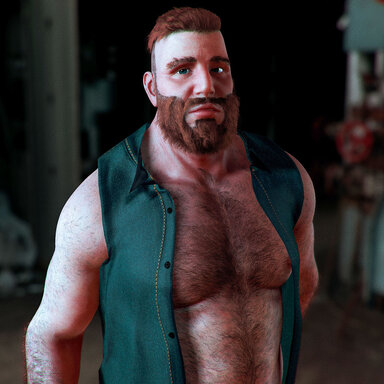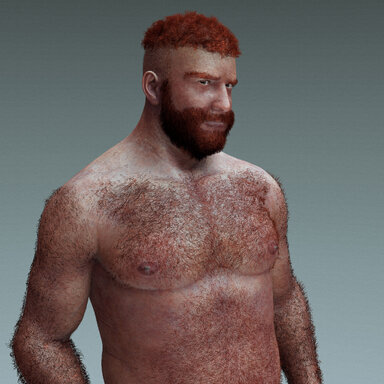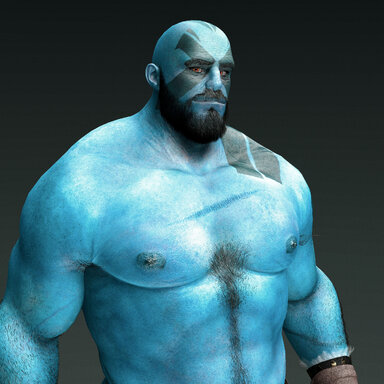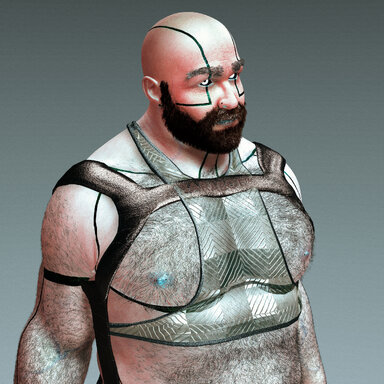


Shot Generator
Automation tool for Virt-A-Mate that executes a three-stage orbital capture sequence (Wide, Mid, and Close-up) around a specific Atom.It generates screenshots at user-defined angular increments with independent control over target bones, vertical offsets, camera elevation angles, and aspect ratios for each stage.
I created this to help with automating my releases and showing the detail of the model.
HOW TO USE
1. Configure Stages
- Set Target (It'll find anything on the object the plugin is on to use as a target)
- Set Distance (zoom in and out)
- Set Height (Up and Down)
- Set Elevation (Angle Above or Below)
- Set aspect ratio for Wide/Mid/Close shots.
- Uncheck stages you don't want.
2. Preview
- Click PREVIEW button to see camera position + cutout & rule of thirds grid.
- Adjust sliders while previewing for live updates.
- Adjust Target
- Adjust Distance (zoom in and out)
- Adjust Height (Up and Down)
- Adjust Elevation (Angle Above or Below)
- Adjust aspect ratio for Wide/Mid/Close shots.
- Click the same PREVIEW button again to exit OR
- press another PREVIEW button to setup that next one.
3. Capture
- Set angle increment
- (e.g., 45° = 8 shots, 30° = 12 shots) and
- Set Resolution.
- Click START CAPTURE
4. Results
- Screenshots saved to: Saves/screenshots/[AtomName]_[Session]/
Version 1.0
- Three-stage orbital capture (Wide, Mid, Close-up)
- Configurable angular increments (5° to 180°)
- Independent target bone selection for each stage
- Vertical offset adjustment per stage
- Camera Elevation control per stage (orbit up/down angle, ±45°)
- Shot Selection checkboxes to enable/disable individual stages
- Automatic session increment
- Aspect ratio support (16:10, 16:9, 5:4, 4:3, 1:1, 3:4, 4:5, 9:16, 10:16)
- Multiple resolution options (720p, 1080p, 2K, 4K, 8K)
- Output format options (PNG, JPG)
- Session management with reset option
- Preview mode with rule-of-thirds grid overlay (toggle on/off, efficient callback-based updates, grid tied to preview state)
- Manual rendering with culling mask optimization for clean shots