



![[RELEASE] UltraVRVideoRecorder: 5x Faster Multi-Threaded Recording for VaM](https://1424104733.rsc.cdn77.org/data/resource_icons/65/65436.jpg?1774118177)

Introduction to UltraVRVideoRecorder
UltraVRVideoRecorder is a high-quality video frame sequence recording plugin specifically designed for Virt-a-Mate (VaM). It supports both Flat and VR180 Stereo recording, producing output that can be synthesized into video files during post-production.https://www.patreon.com/posts/relea...paign=postshare_creator&utm_content=join_link
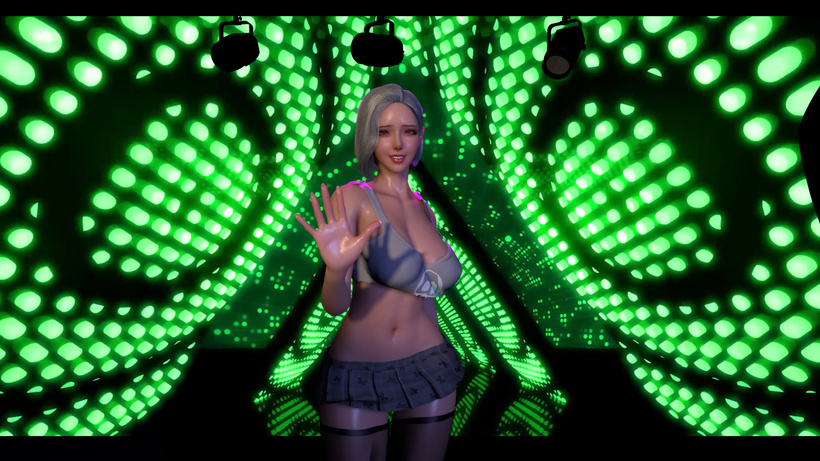
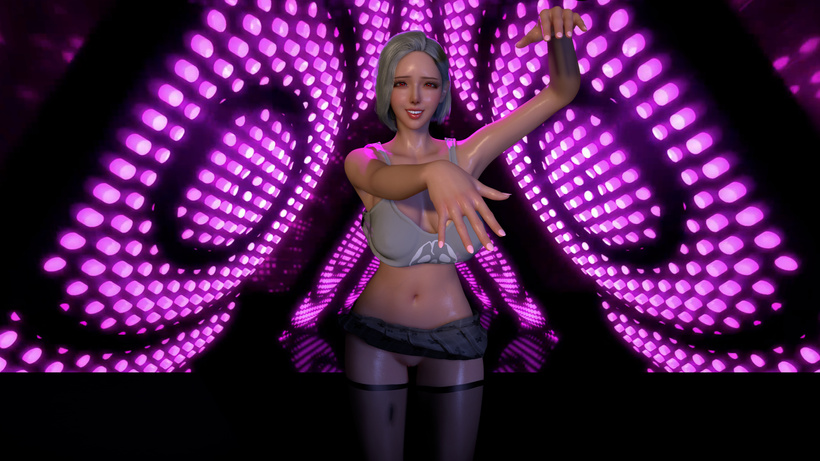
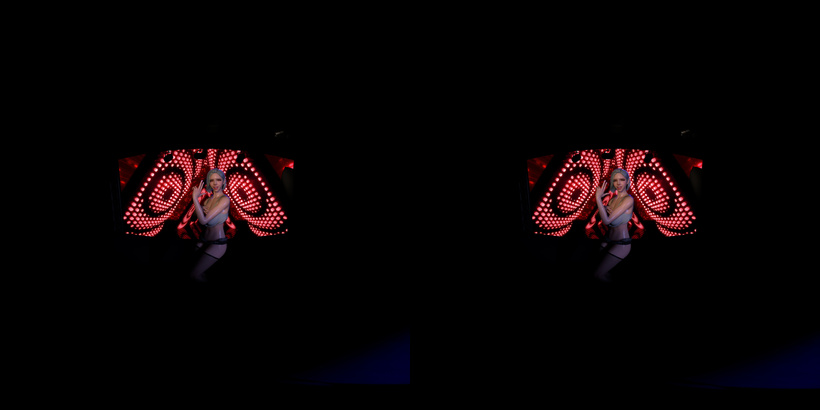
This plugin utilizes a multi-threaded acceleration module, achieving recording speeds 4–5 times faster than other VR video recording plugins!
How to Enable Multi-threaded Acceleration:
- Place turbojpeg.dll into the same directory as VaM.exe (e.g., D:\VaM 1.22.0.3\turbojpeg.dll).
- Place AsyncJpegEncoder.dll into the BepInEx\plugins directory (e.g., D:\VaM 1.22.0.3\BepInEx\plugins\AsyncJpegEncoder.dll).
Note: UltraSSSFull must be updated to version 3.0 or higher for optimal results.
 Render Modes
Switch between three modes via the Render Mode dropdown:ModeDescriptionFlatStandard flat perspective recording, ideal for desktop videos.VR180 StereoDual-eye stereoscopic rendering in VR180 format, perfect for VR headsets.VR180 MonoSingle-eye panoramic rendering with smaller file sizes.
 Core Parameters
Output Settings
- Image Format: JPEG (Lossy compression, small file size, high speed).
- JPEG Quality: 0–100 (Balance between compression and visual fidelity).
- Aspect Ratio: Multiple options available (16:9, 2:1, 1:1, etc.).
- Output Resolution: Scalable from 720p to 16K.
- Frame Rate: Supports 30 / 36 / 40 / 45 / 60 / 72 / 80 / 90 / 120 / 144 / 165 / 240 / 288 fps.
- Seconds To Record: Controls the total number of frames recorded per session.
VR Stereo Settings
- IPD (mm): Interpupillary distance (40–90mm), affecting stereoscopic depth perception.
- Cubemap Side: 1024 / 2048 / 4096 (Determines VR image clarity).
Flat Mode Exclusive
- Flat Horizontal FOV: Field of view angle (0.1°–179.9°).
- Flat Supersampling: 1–8x supersampling. Renders at a higher resolution before downsampling, significantly enhancing sharpness (Best used with multi-threaded acceleration).
 Performance Optimization
- Multi-Thread Accel: Enables an asynchronous pipeline that offloads image encoding to background threads, minimizing main-thread stutter and stabilizing recording framerates.
- Render Every nth Frame: Records one frame every $n$ frames to reduce system pressure, useful for high-fps slow-motion post-processing.
 Visual Enhancement
- Use Post-Processing Effects: Retains scene effects like Depth of Field, Bloom, and Tone Mapping.
- Use Command Buffer Effects: Retains Command Buffer effects (e.g., SSS skin scattering).
- VR & Flat MSAA: 8x Multi-Sample Anti-Aliasing to reduce jagged edges.
 Audio Recording
- Record Audio: Synchronously records scene audio as a WAV file with the same name as the frame sequence.
- Audio Sample Range: Limits sampling to prevent audio clipping/distortion.
- Mute All Sound: Mutes the scene during recording (Silent playback only; does not affect the output file).
- Preview Audio from Camera: Samples spatial audio based on the camera's position.
 Preview & Control
- Preview Size: Displays a real-time recording preview on screen (Adjustable from 1% to screen height limit).
- Resume Last Recording: Continues an interrupted recording, resuming the frame sequence from the last saved index.
- Start Playback Unfreezes Motion: Automatically unfreezes scene motion when playback begins.
 Timeline & Lighting Tools
Timeline Time Mode
- Game Time (Recommended): Animation progresses based on game frames. The time step per frame is fixed during recording, ensuring strict synchronization between animation and the frame sequence, regardless of rendering lag.
- Real Time: Animation follows the system clock. If rendering is slow, animations will "skip" frames. Not recommended for high-quality recording.
- Set Timeline Mode: Batch modifies all VamTimeline instances in the scene to the selected mode.
Light Quality Settings
- Render Mode: ForcePixel (Highest quality) / Auto / ForceVertex (Lowest quality).
- Shadow Resolution: Very High / High / Medium / Low.
- Apply Quality Settings: Batch updates all Light Atoms (including sub-scene lights).
Recommended: Set to ForcePixel and Very High before recording to ensure sharp shadows and prevent light downscaling.
 Output Path
Recorded frame sequences are saved to:Saves/UltraVRVideoRecorder/<FileName>/
- Frames: Named as FileName_000001.jpg.
- Audio: Saved as FileName.wav.
 Usage Tips
- High-Quality VR: Set Mode to VR180 Stereo, Cubemap Side to 4096, and enable Multi-Thread Accel.
- High-Quality Flat: Set Mode to Flat, enable Supersampling (2–4x), Multi-Thread Accel, and Post-Processing.
- Preparation: Always use the Set Light Quality and Set Timeline Time Mode buttons before recording to ensure visual consistency and animation sync.
Full Version: Online Verification Guide
(Required for initial activation or monthly renewal)To ensure full access to premium features and synchronization with our latest cloud rendering presets, Full version users must verify their identity via Discord. Please follow these detailed steps:
Step 1: Prerequisites (Subscription & Community)
Before starting the verification, ensure you have completed the following:- Patreon Subscription: Ensure you have an active subscription to my Patreon .
- Link Discord: Link your Discord account in your Patreon profile settings.
- Join the Server: Successfully join our Official Discord Server. The system will automatically verify your subscription status and grant the necessary roles/permissions.
Step 2: How to Get Your Discord ID?
This is the most critical step. You must retrieve your unique numerical ID, not your username:- Open Settings: Open Discord and click the "User Settings" (gear icon) at the bottom left.
- Advanced Menu: Scroll down the left sidebar, find and click on "Advanced".
- Enable Developer Mode: Locate the "Developer Mode" toggle and switch it ON.
- Copy Your ID: Return to the main Discord interface, right-click on your avatar or username, and select "Copy User ID"at the very bottom of the menu.
- Note: Your ID will be a long string of numbers (e.g., 123456789012345678).
Step 3: Plugin UI Configuration
- Locate the Plugin: Select your person atom in VaM → Go to the Plugins tab → Find Plugins → Click Open Custom UI.
- Input Identity Info:
- Prepare to Paste: Ensure your Discord ID is copied to your clipboard.
- One-Click Input: Click the "Paste Discord ID" button on the left side of the plugin UI.
- Verify Display: The Status Box at the bottom will display the detected ID. Confirm it is correct.
Step 4: Execute Online Verification
- Network Check:
 Important for Users in China: You MUST enable a VPN (Global Mode recommended), otherwise the plugin will be unable to connect to the verification server.
- Start Verification:
- Click the "Online Verification (Once per Month)" button in the UI.
- Wait for Results:
- The process typically takes 3–15 seconds. Watch the Status Box for updates.
- Success: Once Verification Successful is displayed, all Full version features will be unlocked immediately.
FAQ & Tips
- Why must I join the Discord server? The verification system checks if you are a current member of the specific Discord server. If you leave the server or your subscription expires, the verification will become invalid.
- Why enable Developer Mode? Without this mode, Discord hides the "Copy User ID" option to prevent accidental use by regular users.
- How often should I verify? Verification data has a monthly expiration. You usually only need to perform a manual online verification once a month.
- Full Multi-Thread Accel Support: Experience 4-5x faster recording speeds even in the Lite version.
- Resolution Limits:
- Flat Mode: Up to 1280*720.
- VR180 Stereo: Up to 4K resolution.
UltraVRVideoRecorder 工具介绍
UltraVRVideoRecorder 是专为 Virt-a-Mate (VaM) 设计的高质量视频帧序列录制插件。它支持平面录制与 VR180 立体录制,输出的序列帧可用于后期合成专业视频。本插件内置多线程加速模块,录制速度可达其他同类插件的 4–5 倍!
如何开启多线程加速:
- 将 turbojpeg.dll 放到 VaM.exe 同级目录(例如:D:\VaM 1.22.0.3\turbojpeg.dll)。
- 将 AsyncJpegEncoder.dll 放到 BepInEx\plugins 目录(例如:D:\VaM 1.22.0.3\BepInEx\plugins\AsyncJpegEncoder.dll)。
注意:UltraSSSFull 需更新至 3.0 或更高版本以获得最佳录制效果。
渲染模式 (Render Modes)
通过 渲染模式 (Render Mode) 下拉框切换以下三种模式:模式说明平面 (Flat)标准平面视角,适合制作桌面显示器观看的视频。VR180 立体 (Stereo)左右眼双目立体渲染,输出标准的 VR180 格式,适合 VR 头显。VR180 单眼 (Mono)单眼全景渲染,在保持沉浸感的同时减小文件体积。
核心参数 (Core Parameters)
输出设置
- 图像格式:JPEG(采用高性能压缩,文件小且速度极快)。
- JPEG 质量:0–100(平衡文件大小与画面清晰度)。
- 宽高比:提供多种比例可选(16:9、2:1、1:1 等)。
- 输出分辨率:支持从 720p 直至 16K 的超高清采样。
- 帧率 (FPS):支持从 30 到 288 fps 的多种工业及高刷标准。
- 录制时长:控制单次录制的总帧数。
VR 立体设置
- IPD (mm):瞳距设置(40–90mm),直接影响 VR 中的空间深度感。
- Cubemap 分辨率:1024 / 2048 / 4096(决定 VR 全景画面的细腻程度)。
平面模式专属
- 平面 FOV:水平视野角调节(0.1°–179.9°)。
- 平面超采样:1–8 倍超采样。系统会先以更高分辨率渲染再降采样,极大提升画质边缘锐度(配合多线程加速效果最佳)。
性能优化 (Performance)
- 多线程加速 (Multi-Thread Accel):启用异步流水线,将图像编码任务分配给后台线程,大幅减少主线程卡顿,确保录制时帧率极其稳定。
- 隔帧录制 (Render Every nth Frame):每隔 $n$ 帧采样一次,适合录制高倍数慢动作视频以减轻硬件压力。
画质增强 (Visuals)
- 使用后处理特效:录制时保留场景中的景深 (DoF)、泛光 (Bloom) 和色调映射。
- 使用 Command Buffer 特效:保留高级渲染特效(如 UltraSSS 皮肤散射)。
- 抗锯齿 (MSAA):提供 8x 多重采样抗锯齿,彻底消除边缘锯齿。
音频录制 (Audio)
- 同步录制:自动录制场景音频并输出为 WAV 文件,文件名与帧序列匹配。
- 音频采样范围:内置限幅逻辑,有效防止录制过程中出现音频爆音。
- 静音录制:支持录制时静默播放(不影响最终输出的音频文件)。
- 空间采样:音频采样点锁定在摄像机位置,还原真实的听觉方位。
预览与控制 (Control)
- 预览窗口:实时显示录制画面,预览大小可在 1% 到屏幕上限之间调节。
- 断点续录:支持继续上次未完成的录制,帧序列编号将自动衔接。
- 播放即解冻:开始录制/播放时自动恢复场景动作,无需手动解除暂停。
Timeline 与灯光辅助工具
Timeline 时间模式
- Game Time (推荐录制用):动画时间严格跟随游戏帧推进。录制时每帧步长固定,确保动画与序列帧完美同步,绝不跳帧。
- Real Time:跟随现实时钟。若渲染速度慢于帧率,动画会跳帧,不建议用于高质量录制。
- 一键设置:点击“设置 Timeline 模式”可批量修改场景内所有 Timeline 插件。
灯光质量设置
- 渲染模式:ForcePixel (最高质量) / Auto / ForceVertex。
- 阴影分辨率:Very High / High / Medium / Low。
- 一键优化:自动遍历场景所有灯光(含子场景),强制应用最高渲染级别,解决阴影模糊或降级问题。
输出路径
录制的资源将保存在:Saves/UltraVRVideoRecorder/<文件夹名>/
- 图片序列:命名格式为 文件名_000001.jpg。
- 音频文件:命名格式为 文件名.wav。
使用建议
- VR 顶级画质:模式选 VR180 立体,Cubemap 设为 4096,务必开启 多线程加速。
- 平面极致画质:模式选 平面,开启 超采样 (2–4x)、多线程加速 及 后处理效果。
- 录制前必做:建议先点击 设置灯光质量 和 设置 Timeline 模式 按钮进行初始化,确保画质与动画同步。
Lite 版本说明
- 多线程加速:Lite 版本完整支持高效的多线程加速模块,录制速度依然飞快。
- 渲染分辨率限制:
- 平面 (Flat) 模式:最高支持 1280 * 720 分辨率。
- VR180 立体 (Stereo) 模式:最高支持 4K 分辨率。
------------------------------------------------------------------------------------------------------------------
Full 版本:用户在线验证指南
(适用于首次激活或每月一次的过期验证)为了确保插件功能完整并同步最新的云端渲染预设,Full 版本用户需通过 Discord 身份进行在线验证。请按照以下详细步骤操作:
第一步:前置准备(订阅与社区)
在进行验证前,请确保您已完成以下操作:- 订阅 Patreon:确保您已成功订阅我的 Patreon (Full Tier)。
- 关联 Discord:在 Patreon 的设置中关联您的 Discord 账号。
- 加入频道:成功加入配套的 Discord 官方频道。系统会自动比对您的订阅身份并赋予相应的频道权限。
第二步:如何获取您的 Discord ID?
这是验证最关键的一步,请务必获取纯数字 ID:- 打开设置:点击 Discord 客户端左下角的*「用户设置」*(小齿轮图标)。
- 进入高级菜单:在左侧列表下拉,找到并点击*「高级」 (Advanced)*。
- 开启开发者模式:找到*「开发者模式」 (Developer Mode)* 开关并将其开启。
- 复制 ID:返回 Discord 主界面,在您的头像或名字上点击鼠标右键,选择菜单最下方的*「复制用户 ID」 (Copy User ID)*。
- 提示:得到的应是一串唯一的纯数字序列。
第三步:插件 UI 交互设置
- 定位插件:在 VaM 中选中对应角色 → 点击 Plugins 选项卡 → 找到插件→ 点击 Open Custom UI。
- 输入身份信息:
- 准备粘贴:确保您的剪贴板中已存有刚才复制的数字 ID。
- 一键录入:点击插件 UI 左侧的 「粘贴 Discord ID」 按钮。
- 确认状态:此时 UI 下方的状态框 (Status Box) 会实时显示读取到的 ID 编号。
第四步:执行在线验证
- 网络环境检查:
- 重要提示:中国大陆地区用户必须开启 VPN (建议全局模式),否则插件无法跨过网络屏障连接至验证服务器。
- 点击验证:
- 在 UI 界面点击 「在线验证 (每月一次)」 按钮。
- 等待反馈:
- 验证过程通常需要 3–15 秒,请观察状态框。
- 成功状态:若显示 Verification Successful,插件将解锁所有核心功能。
常见问题与提示
- 为什么要加入 Discord 频道? 验证系统会实时检测您是否在特定的 Discord 频道成员名单中。如果您退出了频道或订阅过期,验证将失效。
- 为什么要开启开发者模式? 只有在该模式下,右键菜单才会出现“复制用户 ID”的选项。
- 验证频率:通常每月仅需手动在线验证一次。

![[RELEASE] UltraSSS: The Ultimate Skin Rendering Solution for VaM](https://1424104733.rsc.cdn77.org/data/resource_icons/65/65296.jpg?1773677834)