This plug-in is part of the "Environment toolkit"
(Important) Description of Paid:
it mainly unlocks the editing function of the plug-in. You can distribute it at will without worrying that players can't use it.
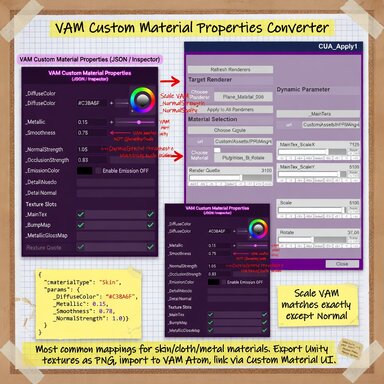
Use this toolset, you can import any of your custom unity materials through this plugin. And adjust almost all parameters of the material in real time. And the configuration is simple.
In the original, it was almost impossible. Now I have provided you with a complete set of tools. To achieve all this.In this way, you can directly apply various advanced material effects to VAM.
This really solves the pain point of importing VAM CUA custom materials.
The following is a parameter adjustment demo of complex water material(Please ignore the water effect,).
Core features:
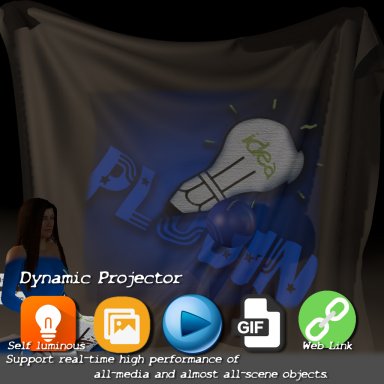
1. At the same time, it supports the projection to the surface of the atom and the replacement of the material of the atom itself.Meet your different needs
2. Generate most material properties of materials in real time. Real-time adjustment.
3. Support saving to the scene.
4. Support automatic conversion of standard materials, just like "unityassetvamifier".
How to use :
1. import "materialpropertiesexporter.unitypackage".
2. Export the material attribute mapping json through the tool. At the same time, export your corresponding material to CUA.
- Put the CUA and the corresponding mapping file (json) in the same folder under the Custom directory.
- For projection mode: add MaterialDecal.cslist on "Empty". For the general Mode: add "MeshMaterialApplier.cslist" to Atom where you need to apply your material.
- Load the CUA in plugin, select the material and adjust the parameters. have fun.
Please check the video for detailed usage.