• Hi Guest!

    We have posted a new VaM2 dev log on Patreon, starting a monthly cadence of written progress updates between Beta releases. Highlights include the new Gizmos System, Selection Carousel, and Modes System with Context-Specific Editing. Beta1.2 is 15 of 21 items complete.

    Read the full post on Patreon, or follow progress on the public Trello roadmap.
Missionary - Arin

Scenes Missionary - Arin

Download [<1 MB]

AfterImage

Well-known member
Joined
Dec 29, 2022
Messages
33
Reactions
270
AfterImage submitted a new resource:

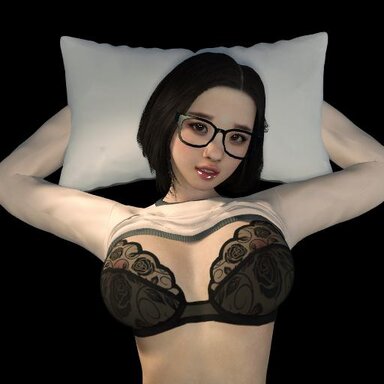
Missionary - Arin - VR Passthrough Scene

THIS SCENE IS DESIGNED FOR VR. NO MALE CHARACTER IS INCLUDED.

A camride option is included to simulate the VR experience.

View attachment 592183

Another in my series of missionary scenes, this one features Arin. As with my other scenes the animation is randomized and speeds up over time.

View attachment 592185

The scene runs roughly 5 minutes, and includes a finish that is automatically triggered. The clothing options cycle automatically in this one as well...

Read more about this resource...
 
This is a very well-executed erotic scene.
Some anime characters can actually move.

white0.gif

I'm leaving this information here for those who want to modify their clothing.
test.png

All you need to do is prepare four outfits of your choice, and if you want to change the viewpoint, you can adjust it to your liking using the "Embody" parameters.
 
Last edited:
This is a very well-executed erotic scene.
Some anime characters can actually move.

View attachment 592782

I'm leaving this information here for those who want to modify their clothing.
View attachment 592781
All you need to do is prepare four outfits of your choice, and if you want to change the viewpoint, you can adjust it to your liking using the "Embody" parameters.

Thank you @BANANANA. This is exactly how the clothing options are setup. I figured it would be too complicated to explain in the main writeup, so I appreciate you doing it for me.

There are two additional items that are adjusted with the animation: Tolborg's blush and the character's skin gloss. Both are also found in the _BRAIN item, plugin #2. You can delete the variables if the character looks weird.

It sounds like maybe I should make a few tutorials on how I put these together. I've been doing it roughly the same way for awhile, and it might give other creators some ideas.
 
Thank you for the additional explanation.
The presence of the "CLOTHES" button helped me understand how the clothes worked,
but I have absolutely no idea about the other mechanisms. lol
The idea of her clothes slowly disappearing and our movements becoming more intense is very exciting.
I'm looking forward to your next work. 😆
 
GUIDE : How to use alternate characters in Afterimage scenes

Thanks to @BANANANA for steering me towards putting this quick guide together that I can link to from future scenes.

Most all of the scenes I build use the same strategies for adjusting clothing presets and changing a character's appearance. It works great for the character the scene is designed for, but using alternate characters requires a bit of effort for the scene to work as designed.

Loading an alternate appearance preset works fine for the scene, but without changing the clothing presets your new character will use the original clothing presets from the scene.

Using a simple idle scene as an example:
00-1.png


If I load in an alternate preset, I get the character with the clothing items I saved into the appearance preset.

00-2.png


But if I then cycle through the clothing presets using the 'CLOTHES' button...

00-3.png


In this case I actually quite like this look, but as an example the glasses in the clothing preset are aligned to Arin, and may not work with GyuA

To change this, we're going to need to look at the '_BRAIN' item, which is normally hidden, so be sure to turn on the 'show hidden' checkbox. This items contains a number of plugins that adjust various things in the scene, such as controlling the min/max animation speeds, vocals, and for our purposes, the clothing presets.

00.png


In the current iteration of my template, the clothing options are controlled by plugin #3, which is labeled. The plugin is one of MacGruber's SequenceMachines.

01.png


The plugin has a number of 'states' that it cycles through, either using the "CLOTHES' button or automatically using a RandomTimer (also in the _BRAIN item).

I've highlighted the three states in this scene that have the clothing presets. The FADE states are used to fade out the screen in between options.

02.png


Selecting a state and clicking on the Actions OnEnter button will bring up the actions, which in this case are:
1. Load a new clothing preset
2. Adjust character's geometry (kept at 0 until naked)
3. Fade the screen in (from a previous action that faded out)

03.png


SO, if you adjust the first action (load clothing preset) to a different preset, it will load when that state is called, and you can adjust each state to cycle through the presets.

04.png


In Summary: To load in alternate characters
1. Load new appearance preset
2. Adjust the Clothing presets in the plugin in the _BRAIN item

3. Recalibrate Naturalis, either with the 'RESET' button or within the VAM UI


I hope this proves helpful to people when I release future scenes. If there are other functions people have questions about, I'm happy to write up additional guides, just let me know!
 
Back
Top Bottom